> ## Documentation Index
> Fetch the complete documentation index at: https://docs.captrid.com/llms.txt
> Use this file to discover all available pages before exploring further.
# Airtable Sync
> Sync your roster — including photos — straight from an Airtable base. Connect once, map your fields, and keep your Master List up to date in real time.
If you keep your people in **Airtable**, you can sync them directly into a Master List. New records, edits, and even profile photos flow into CaptrID automatically — in seconds, thanks to live webhooks.
Airtable sync requires a **Pro** or **Business** plan. Pro plans support 1 sync provider; Business plans support multiple connections.
Airtable connections live alongside Microsoft Entra ID under **Directory Integrations** — both are managed from the same place. See [Directory Sync](/admin-guide/directory-sync) for the Entra equivalent.
## How it differs from Entra
| | Airtable | Microsoft Entra ID |
| ------------------ | ----------------------------------------------------------- | ------------------------------------------------------ |
| **Authentication** | OAuth — you authorise CaptrID against your Airtable account | App registration (Tenant ID, Client ID, Client Secret) |
| **Source** | A base + table (optionally scoped by a view or formula) | Your tenant, optionally scoped to a security group |
| **Photos** | Yes — from an Attachment field | Yes — from the user's directory photo |
| **Live updates** | Yes — webhooks deliver changes in seconds | Scheduled / manual sync |
## Step 1: Connect your Airtable account
1. Go to **Directory Integrations** in the sidebar
2. Click **Add Connection**
3. Choose **Airtable** as the provider
4. You'll be redirected to Airtable to authorise access. CaptrID requests these scopes:
| Scope | Why it's needed |
| ------------------- | ----------------------------------------------- |
| `data.records:read` | Read the records you sync |
| `schema.bases:read` | List your bases, tables, and fields for mapping |
| `webhook:manage` | Create the webhook that powers live updates |
| `user.email:read` | Identify the connecting account |
5. Approve the request and you'll return to CaptrID with the connection listed as **Connected**
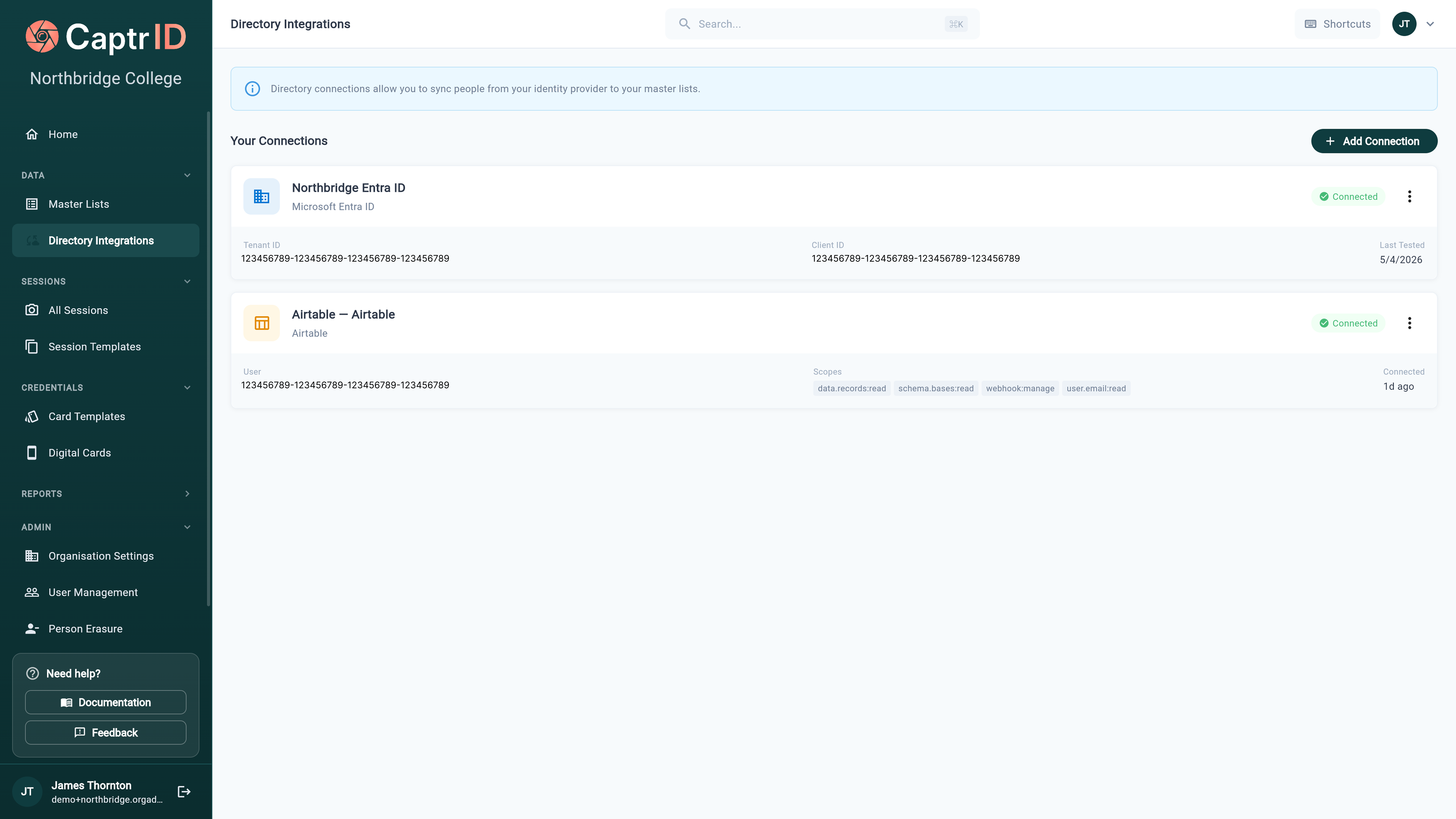 An Airtable connection is **shared across your organisation** and acts on behalf of the user who authorised it. Anyone with permission to manage Master Lists can use the connection to configure a sync — they don't each need their own Airtable login.
## Step 2: Configure sync on a Master List
You can connect a sync when creating a new Master List or on an existing one:
* **During list creation** — choose **Airtable** as your source and pick your connection
* **On an existing list** — open the list, go to the **Sync** tab, and click **Configure Sync**
The wizard has three steps: **Connection → Base & Table → Mapping**.
## Step 3: Pick a base and table
An Airtable connection is **shared across your organisation** and acts on behalf of the user who authorised it. Anyone with permission to manage Master Lists can use the connection to configure a sync — they don't each need their own Airtable login.
## Step 2: Configure sync on a Master List
You can connect a sync when creating a new Master List or on an existing one:
* **During list creation** — choose **Airtable** as your source and pick your connection
* **On an existing list** — open the list, go to the **Sync** tab, and click **Configure Sync**
The wizard has three steps: **Connection → Base & Table → Mapping**.
## Step 3: Pick a base and table
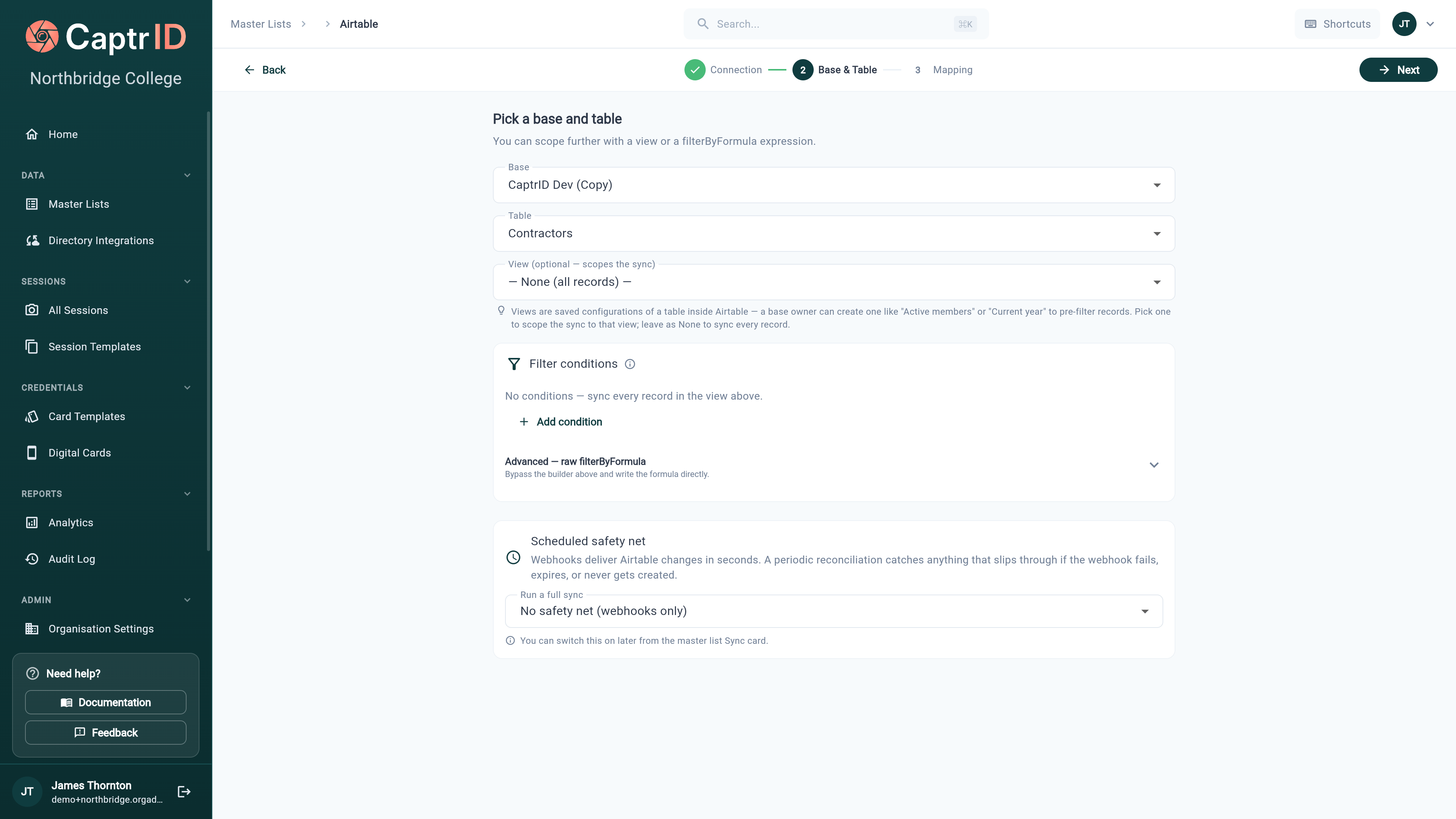 1. Select the **Base** you want to sync from
2. Select the **Table** within that base
3. *(Optional)* Choose a **View** to scope the sync. Views are saved configurations inside Airtable — a base owner can create one like "Active members" or "Current year" to pre-filter records. Leave it as **None** to sync every record.
### Filter conditions
Narrow down which records sync without touching Airtable:
* **Add condition** — build filters in CaptrID (e.g. *Status is Active*)
* **Advanced — raw `filterByFormula`** — bypass the builder and write an Airtable formula directly
Leave filters empty to sync every record in the view.
### Scheduled safety net
Webhooks deliver Airtable changes in seconds, but a periodic full sync catches anything that slips through if a webhook fails, expires, or never gets created.
| Option | Behaviour |
| --------------------------------- | -------------------------------------- |
| **No safety net (webhooks only)** | Rely entirely on live updates |
| **Scheduled reconciliation** | Run a periodic full sync as a backstop |
You can change the safety-net schedule later from the **Sync** card on the Master List — you don't have to decide now.
## Step 4: Map your fields
1. Select the **Base** you want to sync from
2. Select the **Table** within that base
3. *(Optional)* Choose a **View** to scope the sync. Views are saved configurations inside Airtable — a base owner can create one like "Active members" or "Current year" to pre-filter records. Leave it as **None** to sync every record.
### Filter conditions
Narrow down which records sync without touching Airtable:
* **Add condition** — build filters in CaptrID (e.g. *Status is Active*)
* **Advanced — raw `filterByFormula`** — bypass the builder and write an Airtable formula directly
Leave filters empty to sync every record in the view.
### Scheduled safety net
Webhooks deliver Airtable changes in seconds, but a periodic full sync catches anything that slips through if a webhook fails, expires, or never gets created.
| Option | Behaviour |
| --------------------------------- | -------------------------------------- |
| **No safety net (webhooks only)** | Rely entirely on live updates |
| **Scheduled reconciliation** | Run a periodic full sync as a backstop |
You can change the safety-net schedule later from the **Sync** card on the Master List — you don't have to decide now.
## Step 4: Map your fields
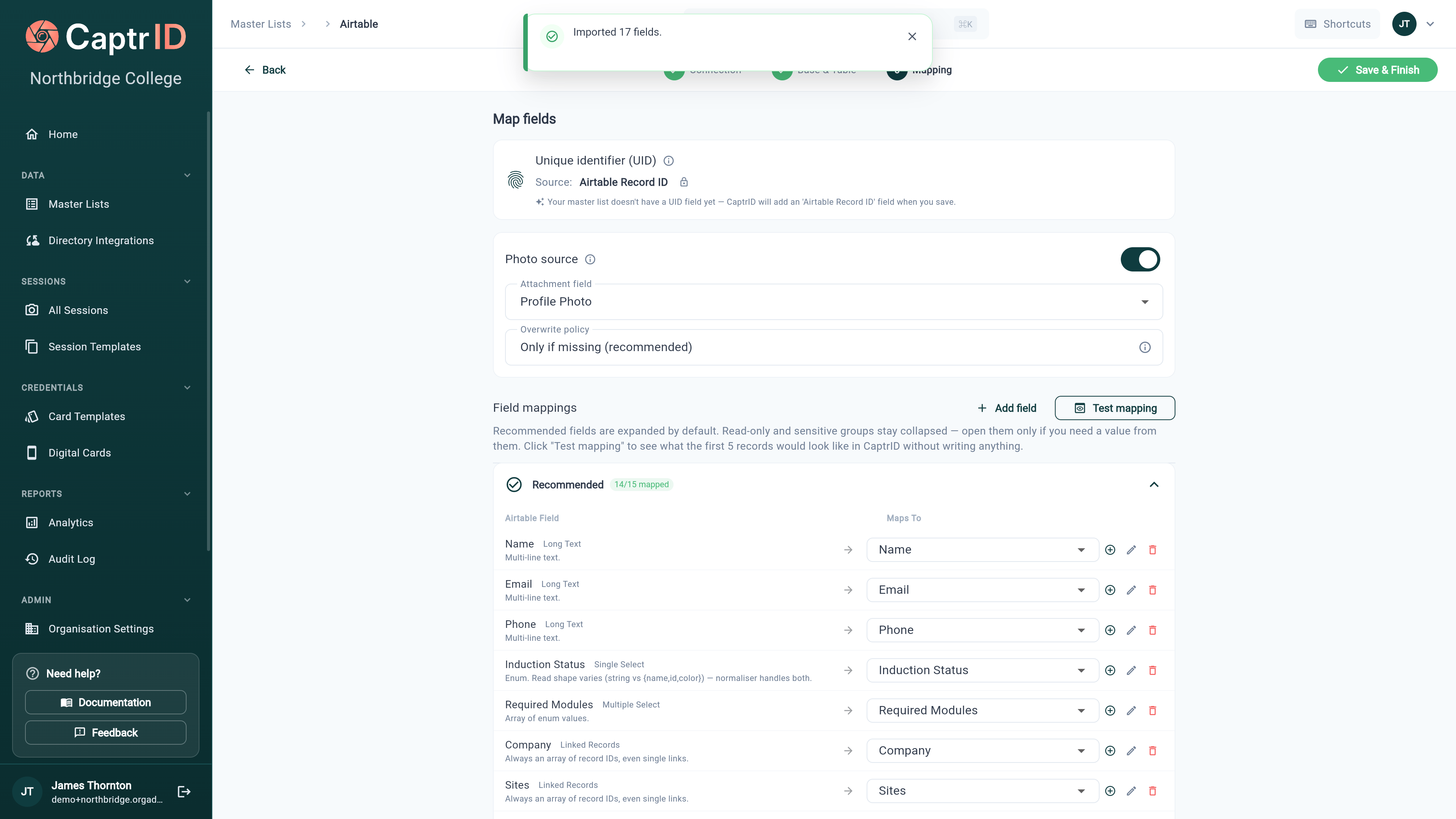 ### Unique identifier (UID)
Airtable's own **Record ID** is the most stable identifier, so CaptrID uses it by default. If your Master List doesn't have a UID field yet, CaptrID **adds an "Airtable Record ID" field automatically** when you save.
The Record ID is permanent and unique per record, which makes it the safest UID. If you map a different field as the UID and that value later changes in Airtable, the person will appear as a new record in CaptrID.
### Photo source
Toggle **Photo source** on to pull headshots from an Airtable **Attachment** field:
1. Choose the **Attachment Field** that holds the photo (e.g. "Profile Photo")
2. Choose an **Overwrite policy**:
| Policy | Behaviour |
| ----------------------------------- | -------------------------------------------------------------------------------------------- |
| **Only if missing** *(recommended)* | Imports a photo only when the person has none — never overwrites a photo captured in CaptrID |
| **Always** | Replaces the CaptrID photo with the Airtable attachment on every sync |
### Field mappings
CaptrID reads your table's schema and suggests mappings automatically. Fields are grouped, with **Recommended** fields expanded and read-only or sensitive groups collapsed.
* **Auto-mapped** fields show a green tick (e.g. *Name → Name*, *Email → Email*)
* **Add field** — create a new Master List field on the fly for an unmapped Airtable field
* **Test mapping** — preview what the first five records will look like in CaptrID *without writing anything*
Airtable field types are handled sensibly: **Single Select** and **Multiple Select** values are normalised, and **Linked Records** are always arrays of record IDs (even for a single link).
Click **Save & Finish** to store the configuration.
## Step 5: Run the first sync
After saving:
1. Go to the **Sync** tab on your Master List
2. Click **Sync Now** to run the first backfill
3. Review the results — people created, updated, photos imported, and any errors
## The Sync card
### Unique identifier (UID)
Airtable's own **Record ID** is the most stable identifier, so CaptrID uses it by default. If your Master List doesn't have a UID field yet, CaptrID **adds an "Airtable Record ID" field automatically** when you save.
The Record ID is permanent and unique per record, which makes it the safest UID. If you map a different field as the UID and that value later changes in Airtable, the person will appear as a new record in CaptrID.
### Photo source
Toggle **Photo source** on to pull headshots from an Airtable **Attachment** field:
1. Choose the **Attachment Field** that holds the photo (e.g. "Profile Photo")
2. Choose an **Overwrite policy**:
| Policy | Behaviour |
| ----------------------------------- | -------------------------------------------------------------------------------------------- |
| **Only if missing** *(recommended)* | Imports a photo only when the person has none — never overwrites a photo captured in CaptrID |
| **Always** | Replaces the CaptrID photo with the Airtable attachment on every sync |
### Field mappings
CaptrID reads your table's schema and suggests mappings automatically. Fields are grouped, with **Recommended** fields expanded and read-only or sensitive groups collapsed.
* **Auto-mapped** fields show a green tick (e.g. *Name → Name*, *Email → Email*)
* **Add field** — create a new Master List field on the fly for an unmapped Airtable field
* **Test mapping** — preview what the first five records will look like in CaptrID *without writing anything*
Airtable field types are handled sensibly: **Single Select** and **Multiple Select** values are normalised, and **Linked Records** are always arrays of record IDs (even for a single link).
Click **Save & Finish** to store the configuration.
## Step 5: Run the first sync
After saving:
1. Go to the **Sync** tab on your Master List
2. Click **Sync Now** to run the first backfill
3. Review the results — people created, updated, photos imported, and any errors
## The Sync card
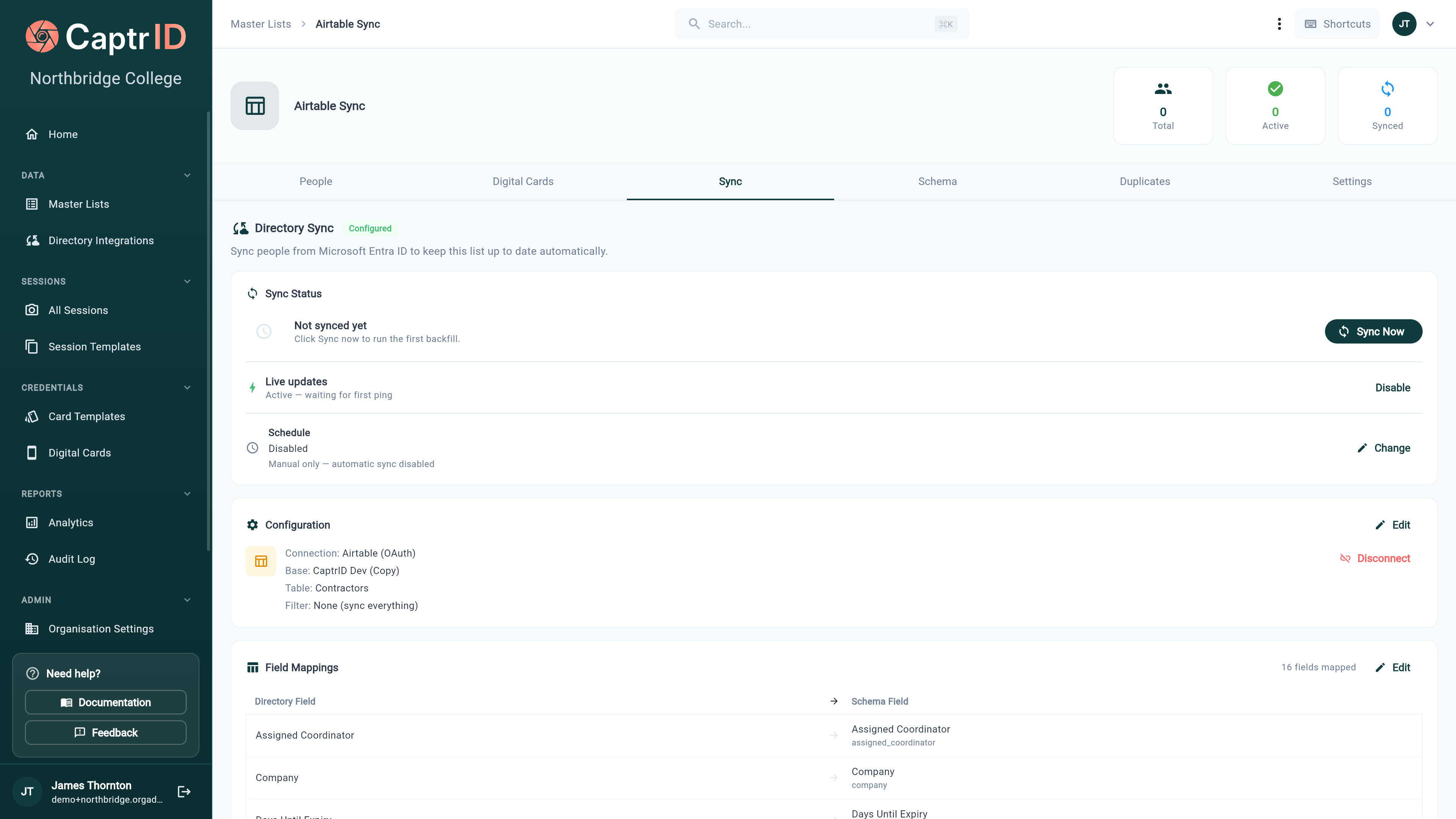 Once configured, the **Sync** tab gives you everything in one place:
| Section | What it shows |
| ------------------ | ------------------------------------------------------------------------------------------------------------------------------- |
| **Sync Status** | Last sync result and a **Sync Now** button for a manual full sync |
| **Live updates** | Webhook status. **Active** means changes flow in automatically — you can **Disable** it if you only want scheduled/manual syncs |
| **Schedule** | The reconciliation safety net. **Change** to adjust the interval |
| **Configuration** | Connection, base, table, and filter — with **Edit** and **Disconnect** |
| **Field Mappings** | A summary of mapped fields, with **Edit** to reopen the mapping step |
## Live updates (real-time sync)
When live updates are active, CaptrID registers a webhook with Airtable using a **notify-and-poll** pattern: Airtable pings CaptrID when something changes, and CaptrID then fetches the changed records. Edits — including replaced photos — appear in your Master List within seconds.
Airtable allows a limited number of webhooks per base. If you hit the limit, disable live updates on a connection you no longer need, or rely on the scheduled safety net instead.
## Editing synced people
People synced from Airtable have their **mapped fields locked** in the Master List, so a manual edit isn't overwritten on the next sync. You can still:
* Edit fields that aren't mapped to Airtable
* Use synced people in sessions (edits happen on the session copy, not the master)
* Push approved photos back from sessions via [Save to Master List](/admin-guide/saving-changes-to-master-list)
## Disconnecting
To stop syncing a Master List from Airtable:
1. Open the Master List → **Sync** tab
2. Click **Disconnect** in the Configuration section
3. Confirm
**What happens:**
* The webhook is removed and sync stops
* All existing people remain in the Master List
* Previously locked fields become editable
* You can reconnect and re-enable syncing later
Disconnecting from CaptrID cleans up the webhook for you. If you instead revoke CaptrID's access from inside Airtable, the orphaned webhook can linger on Airtable's side for up to 7 days — always disconnect from CaptrID first.
## Troubleshooting
| Issue | Cause | Solution |
| -------------------------------- | ------------------------------------------------ | ------------------------------------------------------------------------- |
| Sync runs but 0 records created | A view or filter is excluding everything | Check the selected view and filter conditions; try **None (all records)** |
| Photos not importing | Photo source off, or wrong attachment field | Enable **Photo source** and confirm the Attachment Field holds an image |
| Live updates not arriving | Webhook expired or hit Airtable's per-base limit | Disable and re-enable live updates, or rely on the scheduled safety net |
| Duplicate people after re-config | UID field changed between syncs | Keep **Airtable Record ID** as the UID for the most stable matching |
| "Connection failed" | OAuth authorisation expired or revoked | Reconnect the Airtable connection from **Directory Integrations** |
## What's next?
Sync from Microsoft Entra ID instead — same Directory Integrations screen.
Push approved photos and field edits from a session back to your Master List.
Once configured, the **Sync** tab gives you everything in one place:
| Section | What it shows |
| ------------------ | ------------------------------------------------------------------------------------------------------------------------------- |
| **Sync Status** | Last sync result and a **Sync Now** button for a manual full sync |
| **Live updates** | Webhook status. **Active** means changes flow in automatically — you can **Disable** it if you only want scheduled/manual syncs |
| **Schedule** | The reconciliation safety net. **Change** to adjust the interval |
| **Configuration** | Connection, base, table, and filter — with **Edit** and **Disconnect** |
| **Field Mappings** | A summary of mapped fields, with **Edit** to reopen the mapping step |
## Live updates (real-time sync)
When live updates are active, CaptrID registers a webhook with Airtable using a **notify-and-poll** pattern: Airtable pings CaptrID when something changes, and CaptrID then fetches the changed records. Edits — including replaced photos — appear in your Master List within seconds.
Airtable allows a limited number of webhooks per base. If you hit the limit, disable live updates on a connection you no longer need, or rely on the scheduled safety net instead.
## Editing synced people
People synced from Airtable have their **mapped fields locked** in the Master List, so a manual edit isn't overwritten on the next sync. You can still:
* Edit fields that aren't mapped to Airtable
* Use synced people in sessions (edits happen on the session copy, not the master)
* Push approved photos back from sessions via [Save to Master List](/admin-guide/saving-changes-to-master-list)
## Disconnecting
To stop syncing a Master List from Airtable:
1. Open the Master List → **Sync** tab
2. Click **Disconnect** in the Configuration section
3. Confirm
**What happens:**
* The webhook is removed and sync stops
* All existing people remain in the Master List
* Previously locked fields become editable
* You can reconnect and re-enable syncing later
Disconnecting from CaptrID cleans up the webhook for you. If you instead revoke CaptrID's access from inside Airtable, the orphaned webhook can linger on Airtable's side for up to 7 days — always disconnect from CaptrID first.
## Troubleshooting
| Issue | Cause | Solution |
| -------------------------------- | ------------------------------------------------ | ------------------------------------------------------------------------- |
| Sync runs but 0 records created | A view or filter is excluding everything | Check the selected view and filter conditions; try **None (all records)** |
| Photos not importing | Photo source off, or wrong attachment field | Enable **Photo source** and confirm the Attachment Field holds an image |
| Live updates not arriving | Webhook expired or hit Airtable's per-base limit | Disable and re-enable live updates, or rely on the scheduled safety net |
| Duplicate people after re-config | UID field changed between syncs | Keep **Airtable Record ID** as the UID for the most stable matching |
| "Connection failed" | OAuth authorisation expired or revoked | Reconnect the Airtable connection from **Directory Integrations** |
## What's next?
Sync from Microsoft Entra ID instead — same Directory Integrations screen.
Push approved photos and field edits from a session back to your Master List.