> ## Documentation Index
> Fetch the complete documentation index at: https://docs.captrid.com/llms.txt
> Use this file to discover all available pages before exploring further.
# Bulk Photo Upload
> Import hundreds of photos at once from your computer, OneDrive, or Google Drive — automatically matched to your roster.
Bulk photo upload lets you import an entire photo library and automatically match images to people in your roster by filename. Instead of uploading photos one at a time, you select a batch — from local files, a ZIP archive, Microsoft OneDrive, or Google Drive — and CaptrID handles the matching.
## How it works
```
Choose a source → Select photos → Review matches → Upload
```
1. **Choose your source** — local files, a ZIP archive, OneDrive, or Google Drive
2. **Pick a match strategy** — match filenames to UID (default), name, or any roster field
3. **Select photos** — browse and select the images you want to import
4. **Review matches** — CaptrID shows you which photos matched, which need attention, and which didn't match anyone
5. **Upload** — confirmed matches are uploaded and appear in the session's approval queue
Photos uploaded this way go through the same approval workflow as any other submission. You'll see them in your session's **Submissions** tab alongside on-site captures and self-uploads.
## Where to find it
There are two entry points for bulk upload:
| Entry point | Where | What it does |
| ---------------------------------------------------------- | ------------------------------ | --------------------------------------------------------------------------------------------------------- |
| **Session Detail** → Overview tab → **Bulk Upload Photos** | Inside an active photo session | Uploads photos into the session as pending submissions |
| **Master List Detail** → People tab → **Import Photos** | Inside a master list | Creates a temporary session, uploads, auto-approves, and syncs photos back to the master list in one step |
The **Import Photos** button on the master list is the fastest way to get photos attached to your roster. It handles the full pipeline — session creation, upload, approval, and sync — in a single flow.
## Setting up a bulk upload
### Step 1: Choose a source
Select where your photos are coming from:
* **Local Files** — select multiple images from your computer, or upload a ZIP archive
* **OneDrive** — sign in with your Microsoft account and browse folders
* **Google Drive** — use the Google Picker to select files
OneDrive and Google Drive import require a **Pro plan or higher**. On the Starter plan, you'll see an upgrade prompt. Local file upload is available on all plans.
### Step 2: Choose a match strategy
Tell CaptrID how to match filenames to people:
| Strategy | How it works | Example |
| ----------------- | --------------------------------------------- | --------------------------------------------- |
| **UID** (default) | Filename matches the person's UID value | `STU001.jpg` matches UID `STU001` |
| **Name** | Filename matches a name field | `Jane Smith.jpg` matches "Jane Smith" |
| **Custom field** | Filename matches any session field you choose | `EMP-4821.jpg` matches employee ID `EMP-4821` |
Filenames are compared **without the file extension**. So `STU001.jpg`, `STU001.png`, and `STU001.jpeg` all match the same way.
### Step 3: Select photos
How you select photos depends on your source:
**Local files:**
* Click **Select Files** to pick individual images, or **Upload ZIP** to upload an archive
* Supported formats: JPEG, PNG
* ZIP archives are extracted automatically — nested folders are flattened
**OneDrive:**
* A sign-in popup opens — sign in with any Microsoft account
* Browse your folders using the grid view with thumbnails
* Select individual files or entire folders
**Google Drive:**
* The Google Picker opens — search or browse your Drive
* Select the files you want to import
 ### Step 4: Review matches
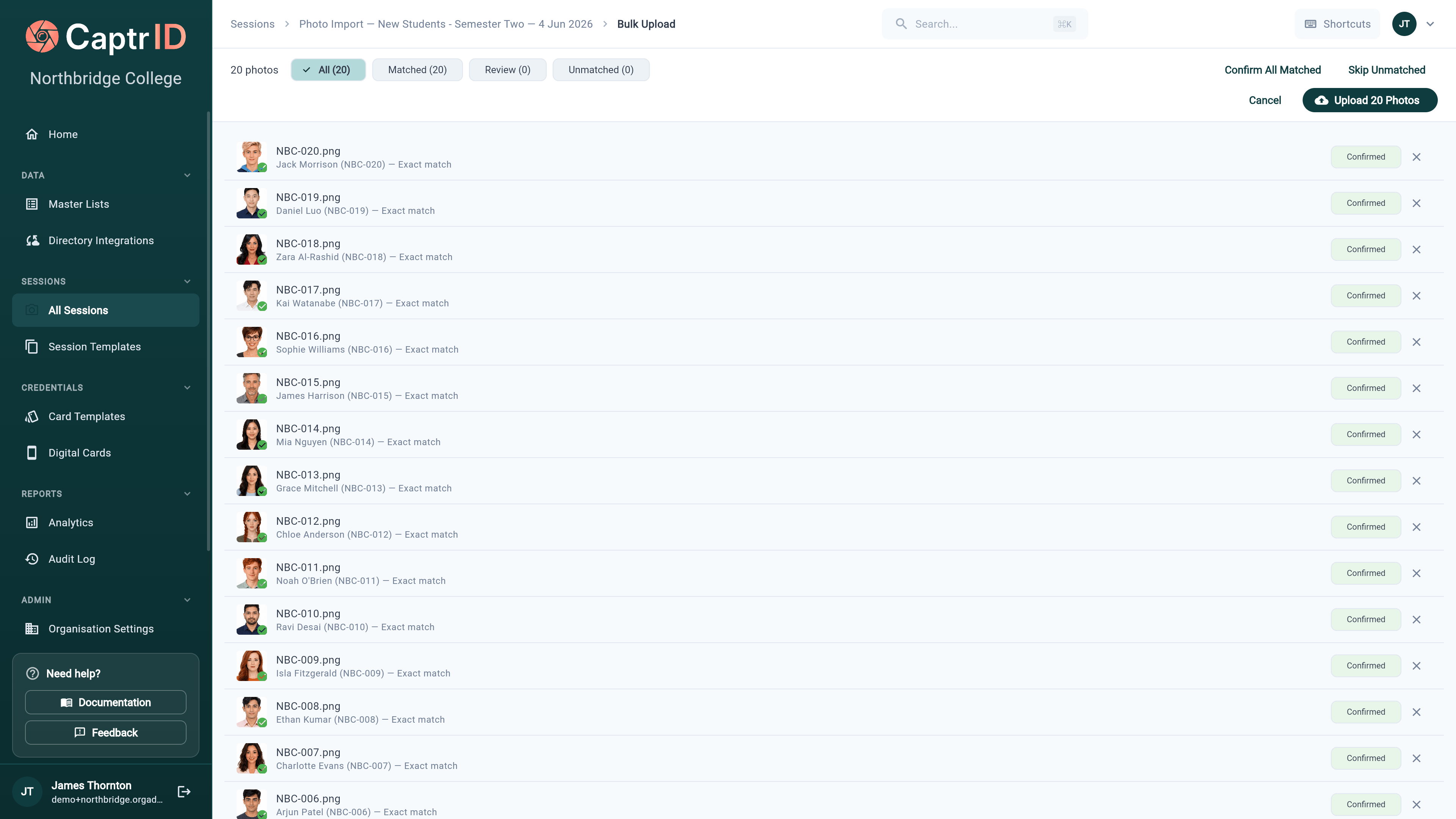
After selecting photos, CaptrID analyses filenames and shows results across three tabs:
| Tab | Meaning | Action needed |
| ------------------------ | --------------------------------------------------------- | ------------------------------------------------------------ |
| **Matched** (green) | Filename exactly matches a roster member | Ready to upload — no action needed |
| **Needs Review** (amber) | Filename is a close but not exact match (>70% similarity) | Confirm or reassign the suggested match |
| **Unmatched** (red) | No match found for this filename | Manually assign to a person using the search dialog, or skip |
### Step 4: Review matches
After selecting photos, CaptrID analyses filenames and shows results across three tabs:
| Tab | Meaning | Action needed |
| ------------------------ | --------------------------------------------------------- | ------------------------------------------------------------ |
| **Matched** (green) | Filename exactly matches a roster member | Ready to upload — no action needed |
| **Needs Review** (amber) | Filename is a close but not exact match (>70% similarity) | Confirm or reassign the suggested match |
| **Unmatched** (red) | No match found for this filename | Manually assign to a person using the search dialog, or skip |
 To manually assign an unmatched photo:
1. Click **Assign** next to the unmatched photo
2. Search for the person by name, UID, or any field
3. Select the correct person
4. The photo moves to the Matched tab
### Step 5: Upload
Once you're happy with the matches:
1. Optionally enable **Auto-approve** — this approves all uploaded photos immediately (useful when importing from a trusted source like a professional photographer)
2. Click **Upload**
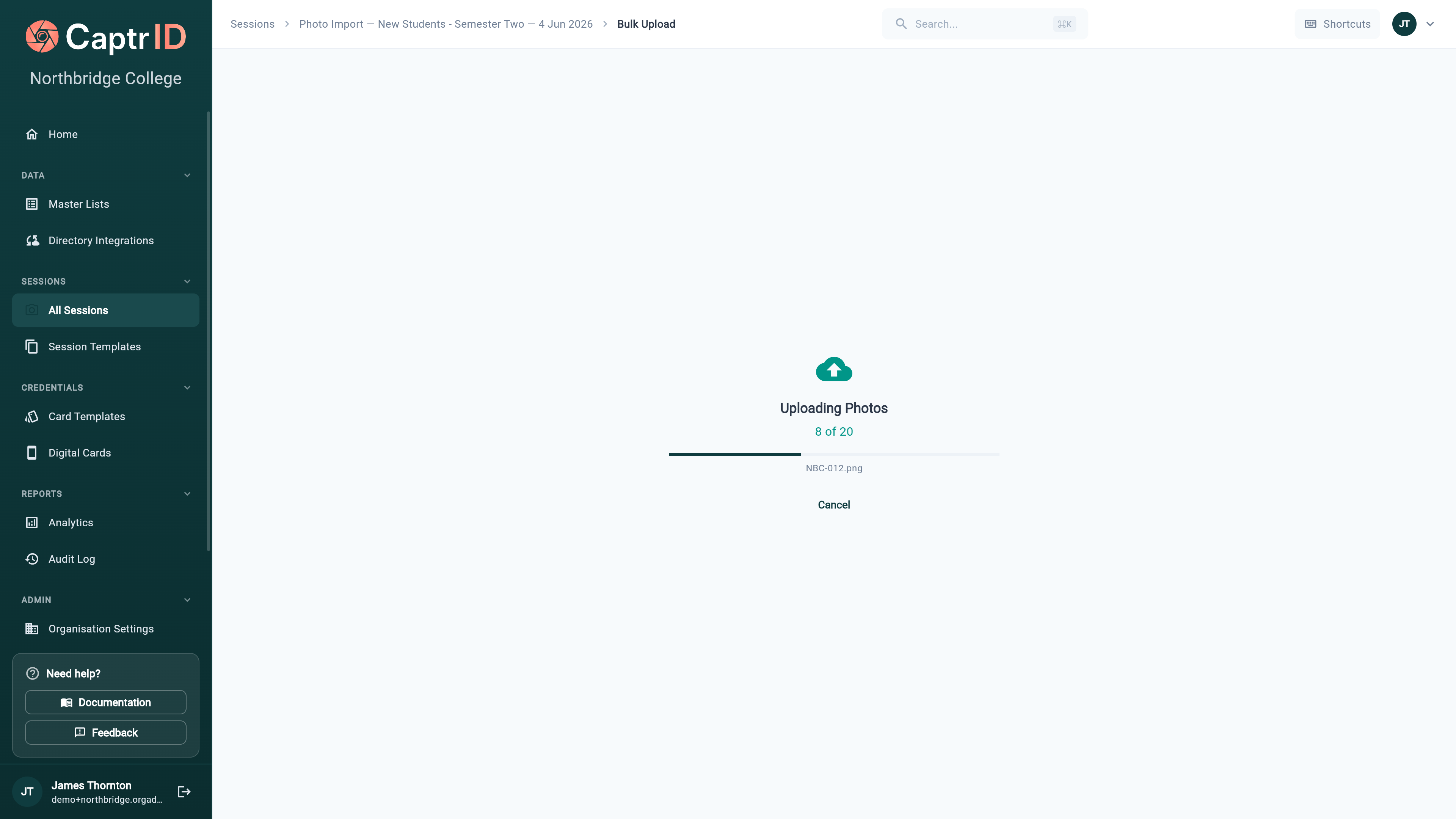
3. A progress bar shows per-file upload status
4. When complete, you'll see a summary of successful uploads, skipped files, and any errors
To manually assign an unmatched photo:
1. Click **Assign** next to the unmatched photo
2. Search for the person by name, UID, or any field
3. Select the correct person
4. The photo moves to the Matched tab
### Step 5: Upload
Once you're happy with the matches:
1. Optionally enable **Auto-approve** — this approves all uploaded photos immediately (useful when importing from a trusted source like a professional photographer)
2. Click **Upload**
3. A progress bar shows per-file upload status
4. When complete, you'll see a summary of successful uploads, skipped files, and any errors
 ## Using a CSV manifest
If your ZIP archive contains a `manifest.csv` file, CaptrID uses it to map filenames to roster members instead of relying on filename matching. This is useful when filenames don't match any roster field (e.g. camera-generated names like `IMG_4821.jpg`).
The CSV should have at least two columns:
| Column | Purpose |
| ------------------------------------------ | ------------------------------------------------------- |
| `filename` | The image filename inside the ZIP (e.g. `IMG_4821.jpg`) |
| The match field (e.g. `uid`, `student_id`) | The value to match against in your roster |
**Example manifest.csv:**
```csv theme={null}
filename,uid
IMG_4821.jpg,STU001
IMG_4822.jpg,STU002
IMG_4823.jpg,STU003
```
A CSV manifest overrides the filename matching strategy. If a manifest is present, CaptrID uses it regardless of which match strategy you selected.
## Importing photos to a master list
The **Import Photos** button on the master list detail screen runs the entire pipeline in one step:
1. Creates a temporary photo session linked to the master list
2. Walks you through the bulk upload flow (source, matching, review)
3. Uploads matched photos as submissions
4. Auto-approves all submissions
5. Generates and applies a ChangeSet to sync photos back to the master list
This is the fastest way to attach photos to your roster — particularly useful for:
* **Photographer deliveries** — import a folder of images after a photo day
* **Annual photo refresh** — replace outdated photos in bulk
* **Migration from another system** — bring your existing photo library into CaptrID
The temporary session and ChangeSet are created automatically. You don't need to manage them — but they're visible in your session list and audit logs for traceability.
## Plan limits
| Feature | Starter | Pro | Business | Enterprise |
| --------------------- | ------- | --- | -------- | ---------- |
| Local bulk upload | Yes | Yes | Yes | Yes |
| CSV manifest matching | Yes | Yes | Yes | Yes |
| OneDrive import | -- | Yes | Yes | Yes |
| Google Drive import | -- | Yes | Yes | Yes |
## Tips
* **Use consistent filenames** — the simplest approach is naming files with the person's UID (e.g. `STU001.jpg`). If your photographer can do this, matching is automatic.
* **Use a manifest for camera files** — if filenames are camera-generated (`IMG_xxxx.jpg`), include a `manifest.csv` in your ZIP to map them.
* **Review before uploading** — take a moment to check the Needs Review tab. Fuzzy matches are often correct, but it's worth confirming.
* **Enable auto-approve for trusted sources** — if the photos come from a professional photographer, auto-approve saves time. You can always reject individual photos later.
* **Import to master list for one-click setup** — the "Import Photos" flow on the master list handles everything. Use it when you just want to get photos attached to people quickly.
* **Check your plan** — OneDrive and Google Drive import require Pro or higher. Local file upload works on all plans.
## Using a CSV manifest
If your ZIP archive contains a `manifest.csv` file, CaptrID uses it to map filenames to roster members instead of relying on filename matching. This is useful when filenames don't match any roster field (e.g. camera-generated names like `IMG_4821.jpg`).
The CSV should have at least two columns:
| Column | Purpose |
| ------------------------------------------ | ------------------------------------------------------- |
| `filename` | The image filename inside the ZIP (e.g. `IMG_4821.jpg`) |
| The match field (e.g. `uid`, `student_id`) | The value to match against in your roster |
**Example manifest.csv:**
```csv theme={null}
filename,uid
IMG_4821.jpg,STU001
IMG_4822.jpg,STU002
IMG_4823.jpg,STU003
```
A CSV manifest overrides the filename matching strategy. If a manifest is present, CaptrID uses it regardless of which match strategy you selected.
## Importing photos to a master list
The **Import Photos** button on the master list detail screen runs the entire pipeline in one step:
1. Creates a temporary photo session linked to the master list
2. Walks you through the bulk upload flow (source, matching, review)
3. Uploads matched photos as submissions
4. Auto-approves all submissions
5. Generates and applies a ChangeSet to sync photos back to the master list
This is the fastest way to attach photos to your roster — particularly useful for:
* **Photographer deliveries** — import a folder of images after a photo day
* **Annual photo refresh** — replace outdated photos in bulk
* **Migration from another system** — bring your existing photo library into CaptrID
The temporary session and ChangeSet are created automatically. You don't need to manage them — but they're visible in your session list and audit logs for traceability.
## Plan limits
| Feature | Starter | Pro | Business | Enterprise |
| --------------------- | ------- | --- | -------- | ---------- |
| Local bulk upload | Yes | Yes | Yes | Yes |
| CSV manifest matching | Yes | Yes | Yes | Yes |
| OneDrive import | -- | Yes | Yes | Yes |
| Google Drive import | -- | Yes | Yes | Yes |
## Tips
* **Use consistent filenames** — the simplest approach is naming files with the person's UID (e.g. `STU001.jpg`). If your photographer can do this, matching is automatic.
* **Use a manifest for camera files** — if filenames are camera-generated (`IMG_xxxx.jpg`), include a `manifest.csv` in your ZIP to map them.
* **Review before uploading** — take a moment to check the Needs Review tab. Fuzzy matches are often correct, but it's worth confirming.
* **Enable auto-approve for trusted sources** — if the photos come from a professional photographer, auto-approve saves time. You can always reject individual photos later.
* **Import to master list for one-click setup** — the "Import Photos" flow on the master list handles everything. Use it when you just want to get photos attached to people quickly.
* **Check your plan** — OneDrive and Google Drive import require Pro or higher. Local file upload works on all plans.