> ## Documentation Index
> Fetch the complete documentation index at: https://docs.captrid.com/llms.txt
> Use this file to discover all available pages before exploring further.
# Creating a Session
> Step-by-step guide to creating a photo or data capture session using the Session Wizard.
A **Session** is a time-bound capture event — like "Photo Day 2026" or "New Starter Headshots". The Session Wizard walks you through setup in a few steps.
## Starting the wizard
1. From the sidebar, click **All Sessions**
2. Click **Create Session**
You can also create a session from a **template** if your organisation has saved session configurations.
## Wizard steps
### 1. Type
Choose your session type:
| Type | Use case |
| --------- | ------------------------------------------------------------------------- |
| **Photo** | Capture portrait photos (the most common choice) |
| **Data** | Collect or update field data without photos (e.g. verify contact details) |
If you have saved templates, you can select one here to pre-fill the remaining steps.
### 2. Basics
* **Session name** — Give it a clear, descriptive name (e.g. "Staff Photo Day — March 2026")
* **Description** (optional) — Add notes about the session's purpose
### 3. Capture mode
Choose how the roster will be populated:
| Mode | Description | Best for |
| --------------------- | ---------------------------------------------------------------------------- | ------------------------------------------------------------- |
| **Roster only** | Pre-loaded roster — capturers can only photograph people already in the list | Controlled environments where you know exactly who to capture |
| **Hybrid** | Pre-loaded roster plus capturers can add new people on the spot | Photo days where walk-ins may occur |
| **Manual entry only** | Empty roster — everyone is added during capture | Ad-hoc events, visitor badges |
**Roster source** (for Roster only and Hybrid modes):
* **From Master List** — Snapshot people from an existing Master List (recommended)
* **From CSV** — Upload a spreadsheet to populate the roster
When you create a session from a Master List, CaptrID takes a **snapshot** — a point-in-time copy. Changes in the session don't affect your Master List until you explicitly sync them back using a ChangeSet.
### 4. Fields
Define the fields for your session. If you selected a Master List or CSV as your roster source, fields are pre-populated from that source.
You can:
* Add, remove, or reorder fields
* Set one field as the **UID** (unique identifier) — this is required
* Configure field types (text, number, email, dropdown, date)
### 5. Capturer settings
Control what capturers see and can do:
* **Visible fields** — Which fields appear to capturers on the mobile app
* **Editable fields** — Which fields capturers can modify (others are read-only)
* **Required fields** — Which fields must be completed before submission
* **UID display** — Whether capturers can see or edit the UID field
### 6. Export settings
Configure how filenames are generated when you export photos:
* **Filename template** — Use field placeholders like `{uid}`, `{first_name}`, `{last_name}`
* **Export fields** — Choose which fields appear in CSV exports
### 7. Staff
Assign capturers to this session. Only assigned capturers can see the session in their mobile app.
* Search for existing users by name or email
* Assign one or more capturers
* You can also assign staff later from the session's **Staff** tab
Capturers must already be invited to your organisation before you can assign them to a session. If they haven't been invited yet, go to **User Management** first.
### 8. Review and create
Review your session configuration and click **Create Session**. The session is immediately active and assigned capturers can begin capturing.
## After creation
Once your session is created, you can manage it from the session detail screen:
| Tab | What you can do |
| --------------- | ------------------------------------------------------------------------------------------------------ |
| **Overview** | View stats and status, choose capture methods, and access session configuration and management actions |
| **Submissions** | Review and approve/reject photos |
| **Roster** | View and manage the people list |
| **Staff** | Add or remove assigned capturers |
| **Card Design** | Link card templates for printing (photo sessions only) |
| **Export** | Download photos and data |
### Capture methods
The **Overview** tab lists the ways photos and data can get into the session. Enable whichever suit the event — you can mix several:
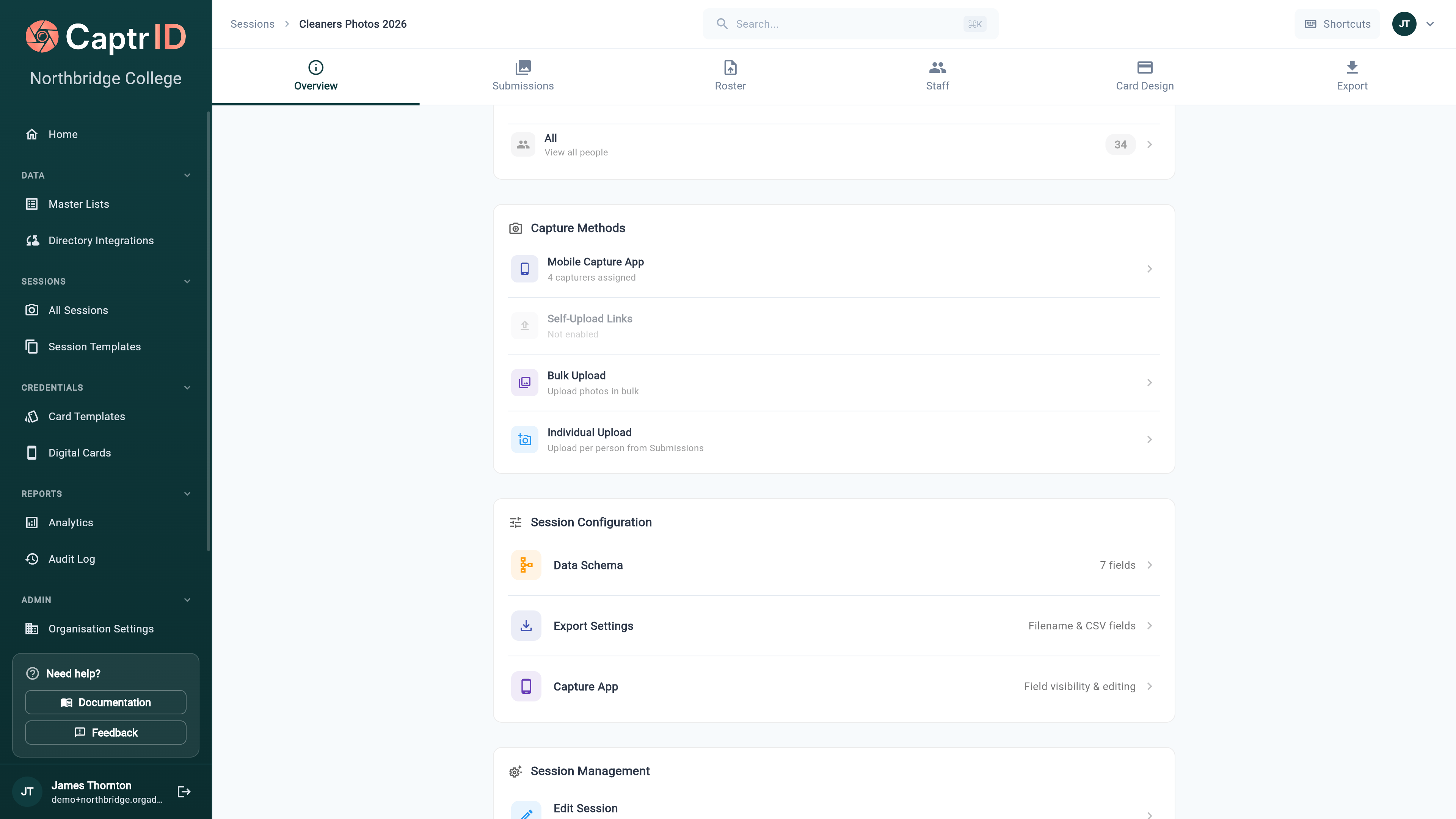 | Method | How it works |
| ---------------------- | --------------------------------------------------------------------------------------------------------------------------------- |
| **Mobile Capture App** | Assigned capturers photograph people on the [mobile app](/capturer-guide/capturing-photos). Shows how many capturers are assigned |
| **Self-Upload Links** | Send each person a link to [upload their own photo](/admin-guide/self-service-photo-upload) (off by default) |
| **Bulk Upload** | [Upload many photos at once](/admin-guide/bulk-photo-upload) and match them to people |
| **Individual Upload** | Upload a photo per person directly from the Submissions tab |
The Overview also groups **Session Configuration** (data schema, export settings, capture-app field visibility) and **Session Management** (edit, close, duplicate, save as template, archive, delete).
| Method | How it works |
| ---------------------- | --------------------------------------------------------------------------------------------------------------------------------- |
| **Mobile Capture App** | Assigned capturers photograph people on the [mobile app](/capturer-guide/capturing-photos). Shows how many capturers are assigned |
| **Self-Upload Links** | Send each person a link to [upload their own photo](/admin-guide/self-service-photo-upload) (off by default) |
| **Bulk Upload** | [Upload many photos at once](/admin-guide/bulk-photo-upload) and match them to people |
| **Individual Upload** | Upload a photo per person directly from the Submissions tab |
The Overview also groups **Session Configuration** (data schema, export settings, capture-app field visibility) and **Session Management** (edit, close, duplicate, save as template, archive, delete).