> ## Documentation Index
> Fetch the complete documentation index at: https://docs.captrid.com/llms.txt
> Use this file to discover all available pages before exploring further.
# The Dashboard
> Your home screen — see what needs attention, take quick actions, and monitor session activity at a glance.
The Dashboard is the first screen you see after signing in. It gives you an overview of your organisation's activity and highlights anything that needs your attention.
## Welcome banner
The top of the dashboard shows a personalised greeting with four key stats:
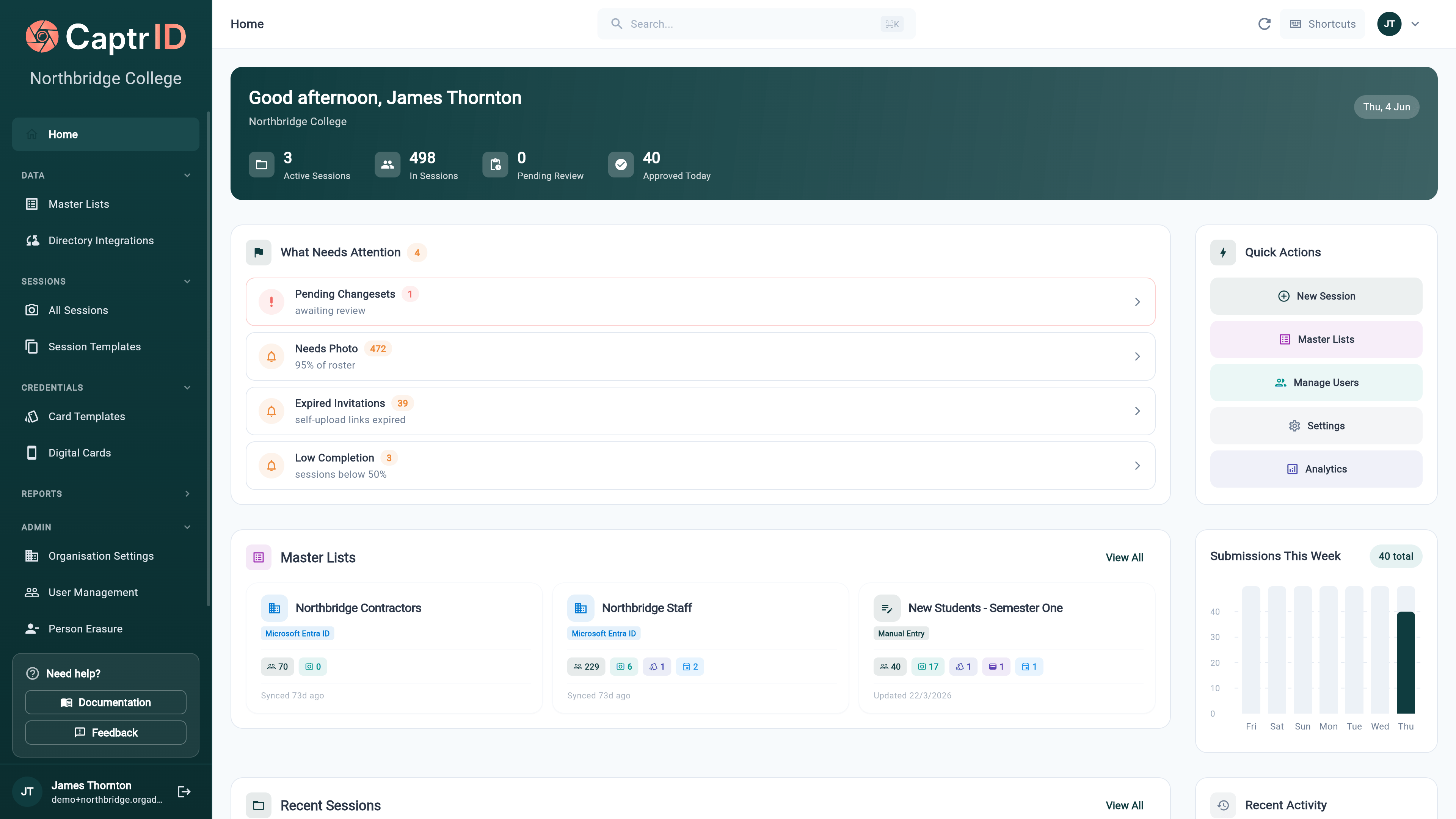 | Stat | What it shows |
| ------------------- | --------------------------------------------- |
| **Active Sessions** | Number of sessions currently open for capture |
| **In Sessions** | Total people across all active sessions |
| **Pending Review** | Photos waiting for your approval |
| **Approved Today** | Photos approved so far today |
## Priority inbox
If there are items that need your attention, the Priority Inbox appears below the welcome banner. Each item links directly to the relevant screen so you can take action immediately.
| Stat | What it shows |
| ------------------- | --------------------------------------------- |
| **Active Sessions** | Number of sessions currently open for capture |
| **In Sessions** | Total people across all active sessions |
| **Pending Review** | Photos waiting for your approval |
| **Approved Today** | Photos approved so far today |
## Priority inbox
If there are items that need your attention, the Priority Inbox appears below the welcome banner. Each item links directly to the relevant screen so you can take action immediately.
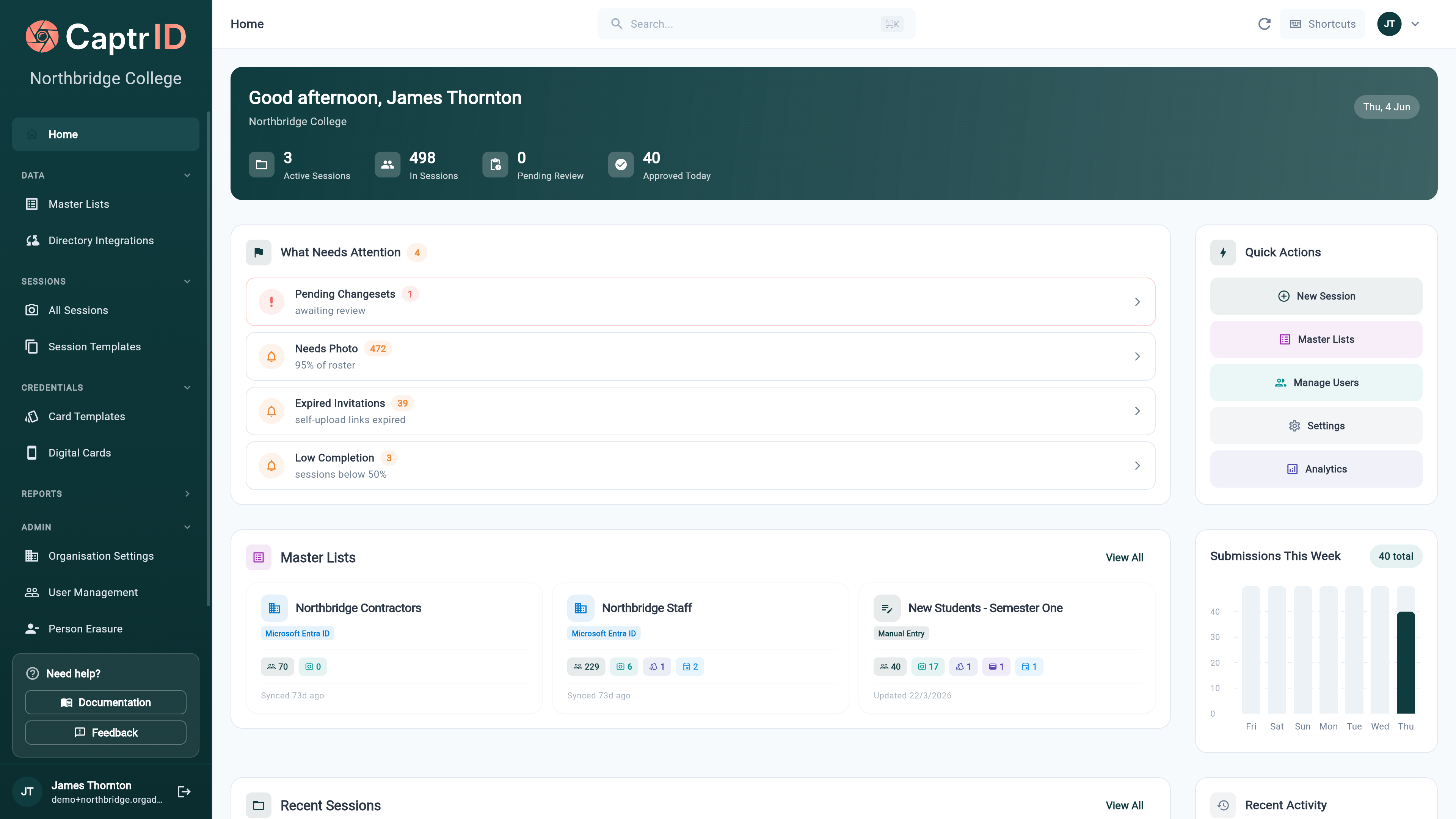 Common priority items include:
| Item | What it means |
| ------------------- | ----------------------------------------------------- |
| **Pending reviews** | Photos waiting for approval in a session |
| **Needs photo** | People in a session who haven't been photographed yet |
| **Low completion** | Sessions with less than 50% of people captured |
| **Sync issues** | Directory sync errors that need investigation |
When everything is up to date, the inbox shows an "All caught up!" message.
## Quick actions
A set of shortcut buttons for common tasks:
* **New Session** — jump straight to the Session Wizard
* **Master Lists** — open your roster management
* **Manage Users** — invite or manage team members (Organisation Admins only)
* **Settings** — open Organisation Settings (Organisation Admins only)
* **Analytics** — view detailed metrics and reports
Quick actions are filtered by your role and permissions. You'll only see actions you have access to.
## Active sessions
Your current sessions are displayed as cards, showing the session name, status, and key metrics. Click any session card to open it.
If you have more sessions than fit on the dashboard, click **View All** to see the full list.
## Sidebar widgets (wide screens)
On wider screens, the right column shows additional context:
### Submissions chart
A weekly bar chart showing photo submission volume. Tap any bar to see the exact count and date.
### Data health
If you have directory-synced Master Lists, the data health widget shows the sync status of each connection — whether it's healthy, has warnings, or has errors. Click to go to your directory connections.
### Activity timeline
The five most recent events across your organisation — photo approvals, rejections, session creation, roster imports, and user invitations. Each entry links to the relevant session or screen.
## What's next?
Dive deeper into session performance, staff activity, and submission trends.
New to CaptrID? Set up your first session in under 10 minutes.
Common priority items include:
| Item | What it means |
| ------------------- | ----------------------------------------------------- |
| **Pending reviews** | Photos waiting for approval in a session |
| **Needs photo** | People in a session who haven't been photographed yet |
| **Low completion** | Sessions with less than 50% of people captured |
| **Sync issues** | Directory sync errors that need investigation |
When everything is up to date, the inbox shows an "All caught up!" message.
## Quick actions
A set of shortcut buttons for common tasks:
* **New Session** — jump straight to the Session Wizard
* **Master Lists** — open your roster management
* **Manage Users** — invite or manage team members (Organisation Admins only)
* **Settings** — open Organisation Settings (Organisation Admins only)
* **Analytics** — view detailed metrics and reports
Quick actions are filtered by your role and permissions. You'll only see actions you have access to.
## Active sessions
Your current sessions are displayed as cards, showing the session name, status, and key metrics. Click any session card to open it.
If you have more sessions than fit on the dashboard, click **View All** to see the full list.
## Sidebar widgets (wide screens)
On wider screens, the right column shows additional context:
### Submissions chart
A weekly bar chart showing photo submission volume. Tap any bar to see the exact count and date.
### Data health
If you have directory-synced Master Lists, the data health widget shows the sync status of each connection — whether it's healthy, has warnings, or has errors. Click to go to your directory connections.
### Activity timeline
The five most recent events across your organisation — photo approvals, rejections, session creation, roster imports, and user invitations. Each entry links to the relevant session or screen.
## What's next?
Dive deeper into session performance, staff activity, and submission trends.
New to CaptrID? Set up your first session in under 10 minutes.