> ## Documentation Index
> Fetch the complete documentation index at: https://docs.captrid.com/llms.txt
> Use this file to discover all available pages before exploring further.
# Digital ID Cards
> Issue digital ID cards via Google Wallet and Apple Wallet — design a pass template, generate passes for your people, and distribute them by email.
Digital Cards let you issue identity credentials directly to people's phones via **Google Wallet** and **Apple Wallet**. No app to install, no account to create — recipients simply tap a link to add their ID to their wallet.
Digital Cards require a **Pro** or **Business** plan. Pro plans include 1 wallet pass template; Business plans include unlimited templates.
## How it works
1. **Design** a wallet pass template with your branding
2. **Link** the template to a Master List
3. **Generate** passes for your people
4. **Distribute** passes via email
5. **Manage** the lifecycle — suspend, revoke, reinstate, regenerate, or expire passes as needed
## Creating a template
1. Go to **Digital Cards** in the sidebar
2. Click **New Template**
3. Fill in the basics:
| Field | Description |
| ---------------- | ------------------------------------------------------------------------------ |
| **Name** | A name for your reference (e.g. "Staff ID 2026") |
| **Description** | Optional summary |
| **Pass Type** | **Member Card** (standard credential) or **Photo ID** (compact, photo-focused) |
| **Barcode Type** | QR (recommended), PDF417, Aztec, or Code128 |
4. Configure the design (see below)
5. Click **Save**
 ## Configuring the design
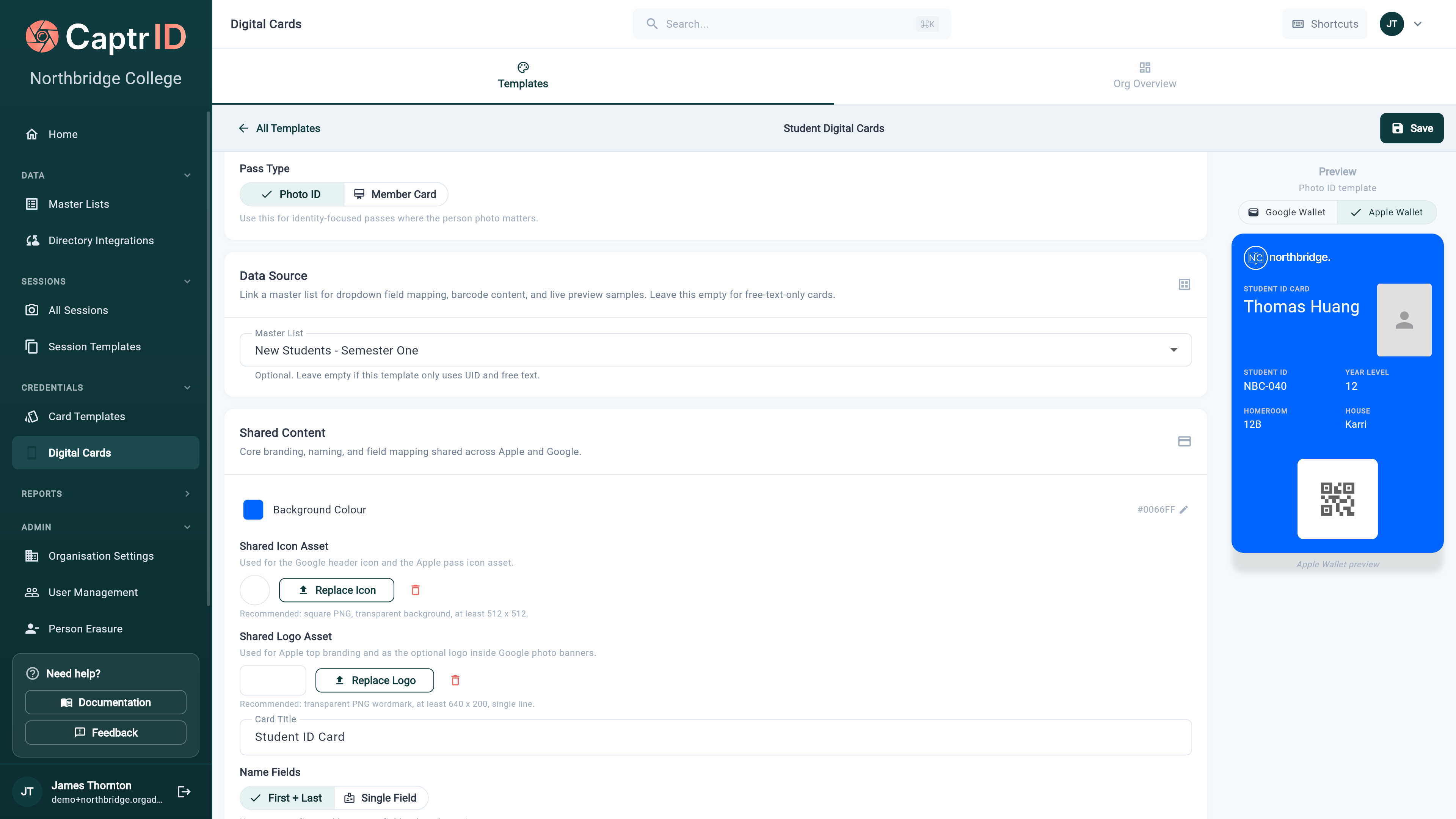
The template editor shows a **live preview** of how your pass will look in Google Wallet as you make changes.
### Branding
| Setting | What it controls |
| --------------------- | ---------------------------------------------- |
| **Background Colour** | The card's base colour |
| **Foreground Colour** | Text colour on the card |
| **Label Colour** | Secondary text colour |
| **Card Title** | Display title (e.g. "Staff ID", "Member Card") |
### Logo and images
You can upload three optional images:
| Image | Purpose | Recommended size |
| ---------------- | -------------------------------------- | ---------------- |
| **Icon** | Small circular icon in the card header | 200×200 px PNG |
| **Logo** | Branding in the hero section | Transparent PNG |
| **Member Strip** | Full-width banner artwork | Wide PNG/JPG |
## Configuring the design
The template editor shows a **live preview** of how your pass will look in Google Wallet as you make changes.
### Branding
| Setting | What it controls |
| --------------------- | ---------------------------------------------- |
| **Background Colour** | The card's base colour |
| **Foreground Colour** | Text colour on the card |
| **Label Colour** | Secondary text colour |
| **Card Title** | Display title (e.g. "Staff ID", "Member Card") |
### Logo and images
You can upload three optional images:
| Image | Purpose | Recommended size |
| ---------------- | -------------------------------------- | ---------------- |
| **Icon** | Small circular icon in the card header | 200×200 px PNG |
| **Logo** | Branding in the hero section | Transparent PNG |
| **Member Strip** | Full-width banner artwork | Wide PNG/JPG |
 ### Hero section layout
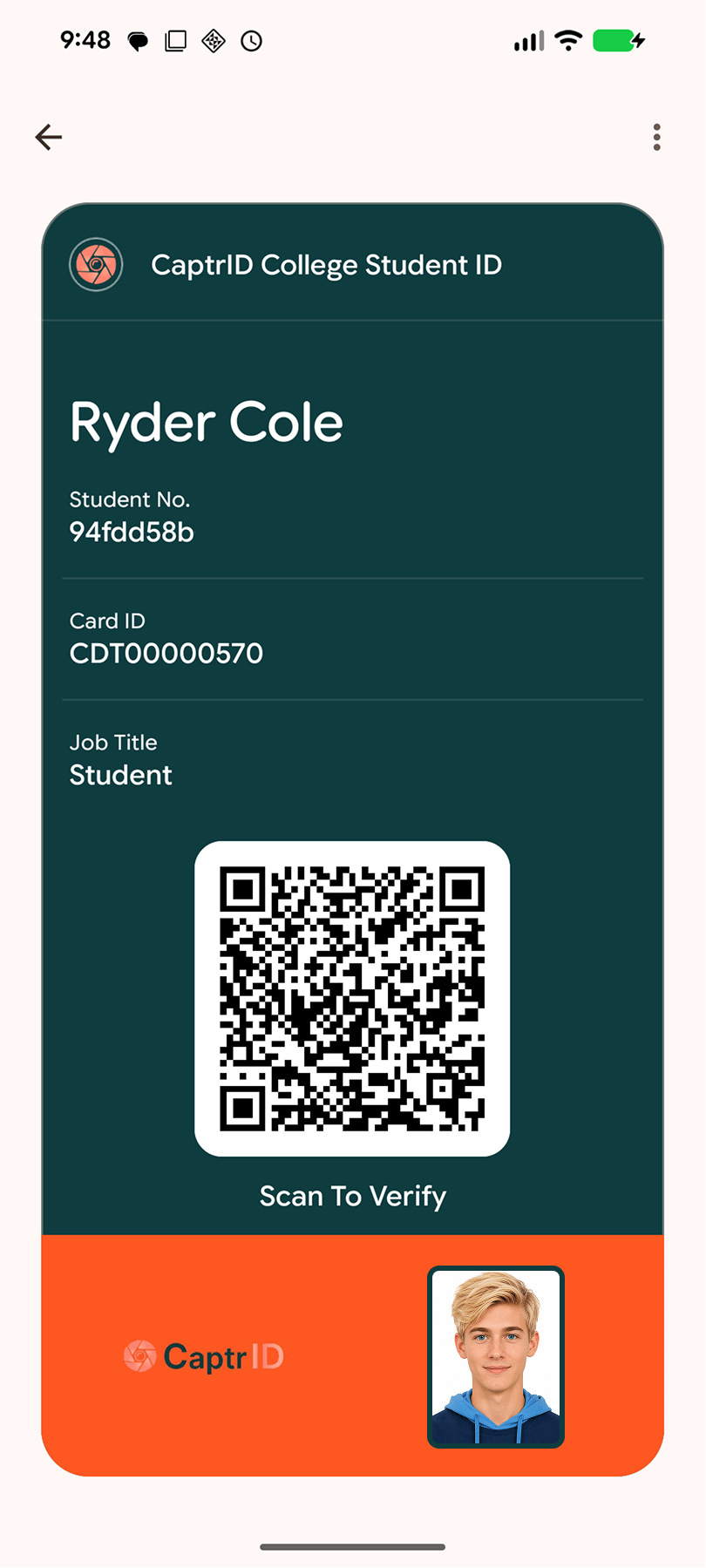
The hero section is the main visual area of the card. Choose a layout:
* **Photo Centred** — person's photo prominently displayed
* **Photo Left / Photo Right** — two-column layout with photo and logo
* **Member Strip** — full-width branded artwork
* **Colour Only** — gradient background with logo overlay
### Display fields
Add up to **four extra fields** that appear on the card face. Each field has:
| Property | Options |
| ---------- | ------------------------------------------------------------------------------------------------------------ |
| **Label** | Display name (e.g. "Employee ID", "Department") |
| **Source** | **UID** (person's unique identifier), **Field** (from master list), or **Fixed Value** (same for all passes) |
### Barcode
* **Verification mode** — QR code contains a signed verification URL (recommended)
* **Custom field mode** — QR code displays a specific master list field value
### Validity
| Mode | Behaviour |
| -------------- | ------------------------------------ |
| **None** | Passes never expire |
| **Rolling** | Expires N days after generation |
| **Fixed date** | All passes expire on a specific date |
## Linking to a Master List
Link your template to a Master List to enable field-based previews and email distribution.
1. In the template editor, select a **Master List** from the dropdown
2. The preview updates with real sample data from your list
3. Field dropdowns populate with your Master List's schema
**Why link?**
* Live preview shows real names, UIDs, and field data
* Enables email distribution (system looks up email addresses from your list)
* Prevents "field not found" errors during generation
## Generating passes
Once your template is ready, generate passes for your people:
1. Open your Master List and go to the **Digital Cards** tab
2. Select a template from the dropdown
3. Select the people you want to generate passes for (or use **Select All**)
4. Click **Generate Wallet Passes**
5. Review the confirmation dialog — it shows the template name, person count, and any field warnings
6. Click **Generate**
### Hero section layout
The hero section is the main visual area of the card. Choose a layout:
* **Photo Centred** — person's photo prominently displayed
* **Photo Left / Photo Right** — two-column layout with photo and logo
* **Member Strip** — full-width branded artwork
* **Colour Only** — gradient background with logo overlay
### Display fields
Add up to **four extra fields** that appear on the card face. Each field has:
| Property | Options |
| ---------- | ------------------------------------------------------------------------------------------------------------ |
| **Label** | Display name (e.g. "Employee ID", "Department") |
| **Source** | **UID** (person's unique identifier), **Field** (from master list), or **Fixed Value** (same for all passes) |
### Barcode
* **Verification mode** — QR code contains a signed verification URL (recommended)
* **Custom field mode** — QR code displays a specific master list field value
### Validity
| Mode | Behaviour |
| -------------- | ------------------------------------ |
| **None** | Passes never expire |
| **Rolling** | Expires N days after generation |
| **Fixed date** | All passes expire on a specific date |
## Linking to a Master List
Link your template to a Master List to enable field-based previews and email distribution.
1. In the template editor, select a **Master List** from the dropdown
2. The preview updates with real sample data from your list
3. Field dropdowns populate with your Master List's schema
**Why link?**
* Live preview shows real names, UIDs, and field data
* Enables email distribution (system looks up email addresses from your list)
* Prevents "field not found" errors during generation
## Generating passes
Once your template is ready, generate passes for your people:
1. Open your Master List and go to the **Digital Cards** tab
2. Select a template from the dropdown
3. Select the people you want to generate passes for (or use **Select All**)
4. Click **Generate Wallet Passes**
5. Review the confirmation dialog — it shows the template name, person count, and any field warnings
6. Click **Generate**
 Passes are queued and generated in the background. You can continue working while they process. The status updates automatically:
* **Pending** → generation in progress
* **Generated** → ready to distribute
You can also generate passes from a session's **Digital Cards** tab — useful when you want to issue passes based on session data rather than master list data.
## Distributing passes
After generation, distribute passes to recipients via email:
1. Select people, then choose an action from the toolbar:
* **Send Unsent** — emails only the people who haven't received their pass yet (the safe default — it won't re-email anyone)
* **Resend (incl. sent)** — re-emails everyone selected, including people who were already sent a pass
2. Confirm the count of recipients
3. Each person receives an email with an **"Add to Google Wallet"** or **"Add to Apple Wallet"** button
When you send, CaptrID **prefills the email field** from your template's configured email field, so you can see and confirm exactly which address each pass will go to before sending.
### Email configuration
On your template, configure delivery settings:
| Setting | Purpose |
| ------------------- | -------------------------------------------------------------- |
| **Email Field Key** | Which master list field contains the recipient's email address |
| **Email Subject** | Custom subject line (optional) |
| **Email Message** | Custom message included in the email body (optional) |
### Delivery tracking
Each pass tracks its delivery status:
| Status | Meaning |
| ----------- | --------------------------------------- |
| **Sent** | Email accepted by the mail server |
| **Failed** | Email delivery failed (check the error) |
| **Skipped** | No email address found for this person |
## Working in bulk
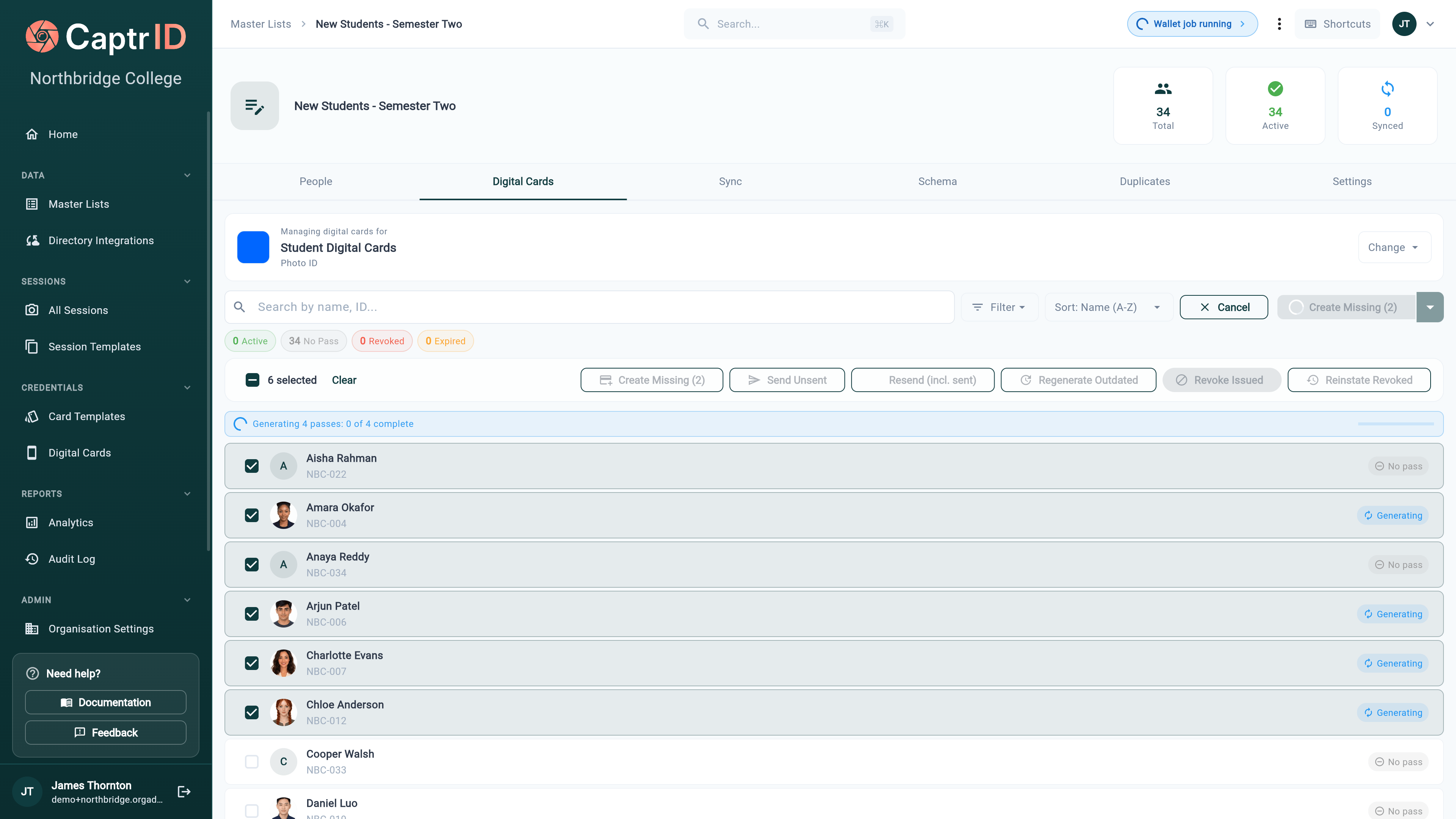
On a Master List's **Digital Cards** tab, click **Select** to choose multiple people at once. The toolbar then exposes every lifecycle action so you can act on a whole group in one go:
Passes are queued and generated in the background. You can continue working while they process. The status updates automatically:
* **Pending** → generation in progress
* **Generated** → ready to distribute
You can also generate passes from a session's **Digital Cards** tab — useful when you want to issue passes based on session data rather than master list data.
## Distributing passes
After generation, distribute passes to recipients via email:
1. Select people, then choose an action from the toolbar:
* **Send Unsent** — emails only the people who haven't received their pass yet (the safe default — it won't re-email anyone)
* **Resend (incl. sent)** — re-emails everyone selected, including people who were already sent a pass
2. Confirm the count of recipients
3. Each person receives an email with an **"Add to Google Wallet"** or **"Add to Apple Wallet"** button
When you send, CaptrID **prefills the email field** from your template's configured email field, so you can see and confirm exactly which address each pass will go to before sending.
### Email configuration
On your template, configure delivery settings:
| Setting | Purpose |
| ------------------- | -------------------------------------------------------------- |
| **Email Field Key** | Which master list field contains the recipient's email address |
| **Email Subject** | Custom subject line (optional) |
| **Email Message** | Custom message included in the email body (optional) |
### Delivery tracking
Each pass tracks its delivery status:
| Status | Meaning |
| ----------- | --------------------------------------- |
| **Sent** | Email accepted by the mail server |
| **Failed** | Email delivery failed (check the error) |
| **Skipped** | No email address found for this person |
## Working in bulk
On a Master List's **Digital Cards** tab, click **Select** to choose multiple people at once. The toolbar then exposes every lifecycle action so you can act on a whole group in one go:
 | Action | What it does |
| ----------------------- | ----------------------------------------------------------- |
| **Create Missing** | Generates passes for selected people who don't have one yet |
| **Send Unsent** | Emails passes to people who haven't been sent one |
| **Resend (incl. sent)** | Re-emails everyone selected, even if already sent |
| **Regenerate Outdated** | Rebuilds passes whose person data has changed |
| **Revoke Issued** | Revokes the active passes in the selection |
| **Reinstate Revoked** | Brings revoked passes back |
Bulk generation runs as a background **wallet job** — a progress pill ("Wallet job running") appears in the top bar and the affected rows show a **Generating** status until they finish.
Large bulk jobs are processed while you watch — keep the tab open until the job reports complete. If you close the browser mid-job, reopen the Digital Cards tab and re-run the action to finish any stragglers.
## Pass statuses
| Status | Meaning | Available actions |
| ------------- | ------------------------------------ | ----------------------- |
| **No Pass** | Never generated | Create / Generate |
| **Generated** | Ready to send | Send, Suspend, Revoke |
| **Active** | Pass in use (delivered) | Resend, Suspend, Revoke |
| **Suspended** | Temporarily on hold | Unsuspend, Revoke |
| **Outdated** | Person data changed since generation | Regenerate, Revoke |
| **Revoked** | Pass permanently cancelled | Reinstate |
| **Expired** | Validity period ended | Regenerate |
Each row also shows which wallets the pass was added to (Apple / Google icons) and an **Email sent** badge once it's been distributed.
| Action | What it does |
| ----------------------- | ----------------------------------------------------------- |
| **Create Missing** | Generates passes for selected people who don't have one yet |
| **Send Unsent** | Emails passes to people who haven't been sent one |
| **Resend (incl. sent)** | Re-emails everyone selected, even if already sent |
| **Regenerate Outdated** | Rebuilds passes whose person data has changed |
| **Revoke Issued** | Revokes the active passes in the selection |
| **Reinstate Revoked** | Brings revoked passes back |
Bulk generation runs as a background **wallet job** — a progress pill ("Wallet job running") appears in the top bar and the affected rows show a **Generating** status until they finish.
Large bulk jobs are processed while you watch — keep the tab open until the job reports complete. If you close the browser mid-job, reopen the Digital Cards tab and re-run the action to finish any stragglers.
## Pass statuses
| Status | Meaning | Available actions |
| ------------- | ------------------------------------ | ----------------------- |
| **No Pass** | Never generated | Create / Generate |
| **Generated** | Ready to send | Send, Suspend, Revoke |
| **Active** | Pass in use (delivered) | Resend, Suspend, Revoke |
| **Suspended** | Temporarily on hold | Unsuspend, Revoke |
| **Outdated** | Person data changed since generation | Regenerate, Revoke |
| **Revoked** | Pass permanently cancelled | Reinstate |
| **Expired** | Validity period ended | Regenerate |
Each row also shows which wallets the pass was added to (Apple / Google icons) and an **Email sent** badge once it's been distributed.
 ## Suspending passes
A **suspend** puts a pass on hold without cancelling it — useful for a temporary situation like overdue fees or a lost-then-found card.
1. Open the person's pass actions and choose **Suspend** (or select several and suspend in bulk)
2. Optionally enter a **reason** (e.g. "Fees overdue")
3. Confirm
## Suspending passes
A **suspend** puts a pass on hold without cancelling it — useful for a temporary situation like overdue fees or a lost-then-found card.
1. Open the person's pass actions and choose **Suspend** (or select several and suspend in bulk)
2. Optionally enter a **reason** (e.g. "Fees overdue")
3. Confirm
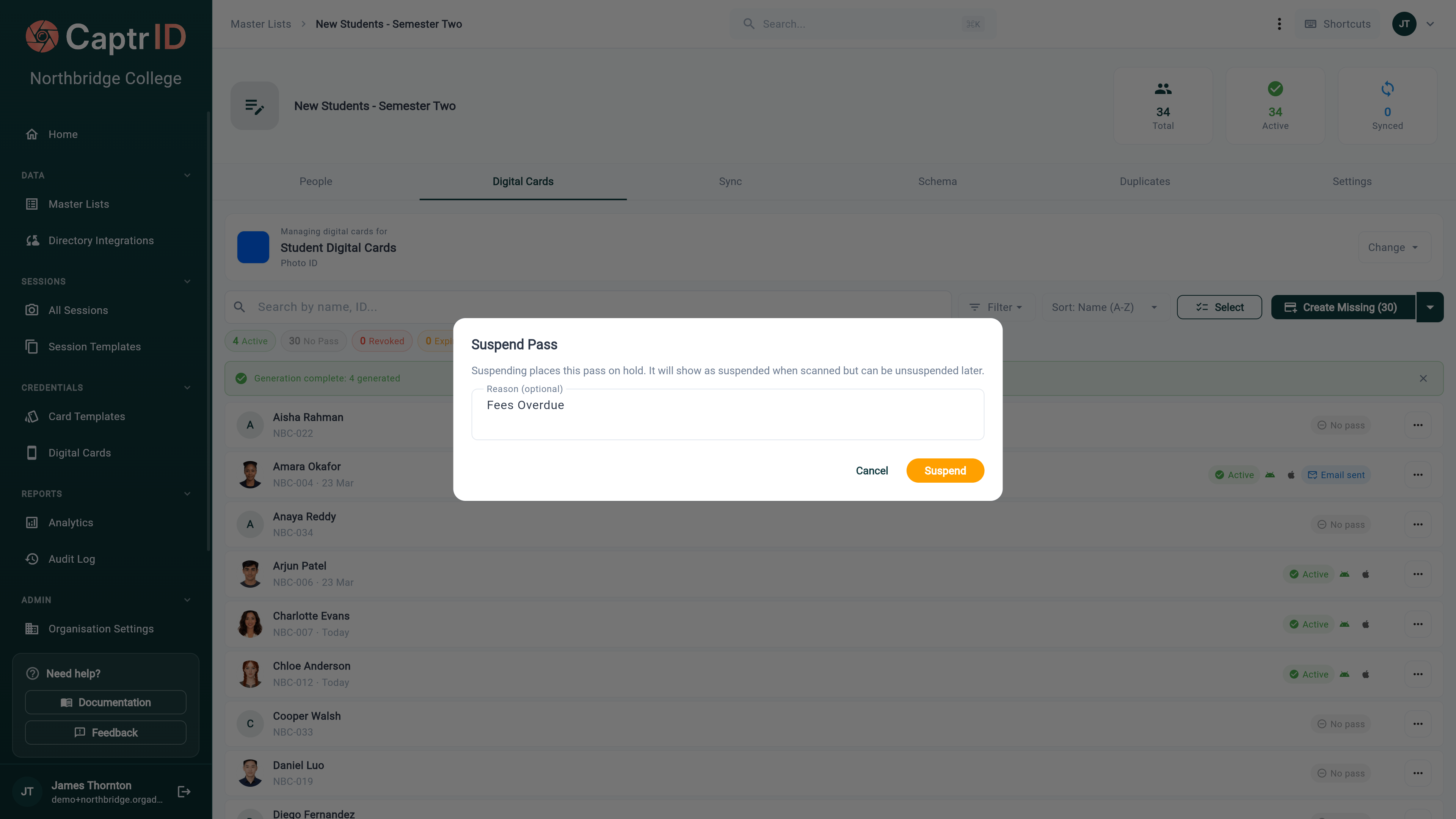 A suspended pass **shows as suspended when its QR code is scanned**, but stays in the recipient's wallet and can be **unsuspended** at any time to restore it. Use suspend when the hold is temporary; use revoke when it's permanent.
## Revoking passes
When someone leaves your organisation or no longer needs their credential:
1. Select their pass (or multiple passes)
2. Click **Revoke**
3. Confirm the action
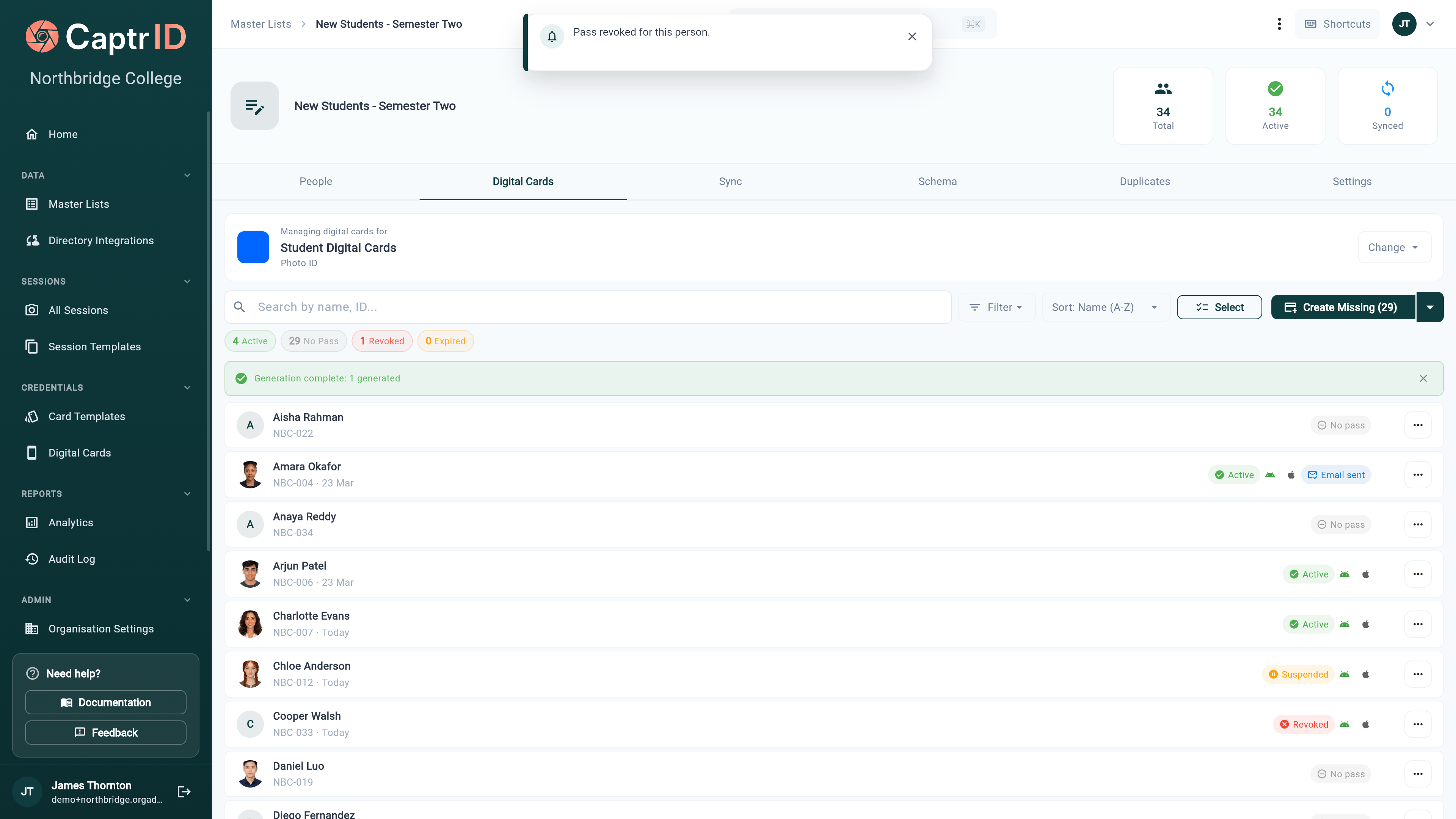
Revoked passes are cancelled in the recipient's wallet and show as **revoked** on the verification page. You can **reinstate** a revoked pass if the decision is reversed.
### Passes are revoked automatically when data is removed
To prevent a live credential outliving its record, CaptrID revokes and voids passes for you when the underlying person is removed:
| Event | What happens to passes |
| -------------------------------------------------------- | -------------------------------------------------------------------------------------- |
| A person is [erased](/admin-guide/person-erasure) (GDPR) | Their passes are **revoked and voided first**, then hard-deleted |
| A Master List is deleted | Passes for everyone on that list are **revoked and voided** before the list is removed |
This means a deleted person can never present a working wallet pass — the QR code resolves to a revoked credential.
If you re-link a person to a new serial (for example, after re-issuing a card), CaptrID **resets the delivery state** so the pass can be sent fresh — it won't be incorrectly treated as "already delivered".
## Updating outdated passes
When a person's data changes (name, department, photo), their pass becomes **outdated** — the card still shows the old information.
**To update individual passes:**
1. Select the outdated passes
2. Click **Regenerate**
**To update all passes after a template change:**
1. Save your template changes
2. An amber banner appears: *"N active passes use this template. Design changes won't appear until passes are regenerated."*
3. Click **Regenerate All**
Regeneration creates a new pass. Recipients who previously added the pass to their wallet will need to add the new one.
## QR verification
Each pass includes a QR code that links to a verification page. When scanned, the page displays:
* Person's name and UID
* Organisation name
* Pass status (active, suspended, revoked, expired)
* Photo (if included)
This allows anyone with a phone camera to verify a credential — no special hardware or app required.
## Plans and limits
| Plan | Templates | Passes per template |
| -------------- | ------------- | ------------------- |
| **Starter** | Not available | — |
| **Pro** | 1 | Unlimited |
| **Business** | Unlimited | Unlimited |
| **Enterprise** | Unlimited | Unlimited |
If you've reached your template limit, you'll see an upgrade prompt when trying to create a new template.
## Tips
* **Start with a small group** — Generate and distribute passes for 5-10 people first to verify the design and email flow
* **Use verification mode** — The signed QR code is more secure than displaying a raw field value
* **Set up email delivery** — Link your template to a master list with email addresses before generating passes
* **Revoke promptly** — When someone leaves your organisation, revoke their pass to prevent misuse
* **Watch for outdated passes** — After bulk data updates or template changes, regenerate active passes to keep them current
A suspended pass **shows as suspended when its QR code is scanned**, but stays in the recipient's wallet and can be **unsuspended** at any time to restore it. Use suspend when the hold is temporary; use revoke when it's permanent.
## Revoking passes
When someone leaves your organisation or no longer needs their credential:
1. Select their pass (or multiple passes)
2. Click **Revoke**
3. Confirm the action
Revoked passes are cancelled in the recipient's wallet and show as **revoked** on the verification page. You can **reinstate** a revoked pass if the decision is reversed.
### Passes are revoked automatically when data is removed
To prevent a live credential outliving its record, CaptrID revokes and voids passes for you when the underlying person is removed:
| Event | What happens to passes |
| -------------------------------------------------------- | -------------------------------------------------------------------------------------- |
| A person is [erased](/admin-guide/person-erasure) (GDPR) | Their passes are **revoked and voided first**, then hard-deleted |
| A Master List is deleted | Passes for everyone on that list are **revoked and voided** before the list is removed |
This means a deleted person can never present a working wallet pass — the QR code resolves to a revoked credential.
If you re-link a person to a new serial (for example, after re-issuing a card), CaptrID **resets the delivery state** so the pass can be sent fresh — it won't be incorrectly treated as "already delivered".
## Updating outdated passes
When a person's data changes (name, department, photo), their pass becomes **outdated** — the card still shows the old information.
**To update individual passes:**
1. Select the outdated passes
2. Click **Regenerate**
**To update all passes after a template change:**
1. Save your template changes
2. An amber banner appears: *"N active passes use this template. Design changes won't appear until passes are regenerated."*
3. Click **Regenerate All**
Regeneration creates a new pass. Recipients who previously added the pass to their wallet will need to add the new one.
## QR verification
Each pass includes a QR code that links to a verification page. When scanned, the page displays:
* Person's name and UID
* Organisation name
* Pass status (active, suspended, revoked, expired)
* Photo (if included)
This allows anyone with a phone camera to verify a credential — no special hardware or app required.
## Plans and limits
| Plan | Templates | Passes per template |
| -------------- | ------------- | ------------------- |
| **Starter** | Not available | — |
| **Pro** | 1 | Unlimited |
| **Business** | Unlimited | Unlimited |
| **Enterprise** | Unlimited | Unlimited |
If you've reached your template limit, you'll see an upgrade prompt when trying to create a new template.
## Tips
* **Start with a small group** — Generate and distribute passes for 5-10 people first to verify the design and email flow
* **Use verification mode** — The signed QR code is more secure than displaying a raw field value
* **Set up email delivery** — Link your template to a master list with email addresses before generating passes
* **Revoke promptly** — When someone leaves your organisation, revoke their pass to prevent misuse
* **Watch for outdated passes** — After bulk data updates or template changes, regenerate active passes to keep them current