> ## Documentation Index
> Fetch the complete documentation index at: https://docs.captrid.com/llms.txt
> Use this file to discover all available pages before exploring further.
# Directory Sync (Microsoft Entra ID)
> Sync your roster automatically from Microsoft Entra ID — keep your Master List up to date without manual imports.
If your organisation uses **Microsoft Entra ID** (formerly Azure Active Directory), you can sync your people directly into a Master List. Changes in your directory — new starters, leavers, department changes, and **profile photos** — flow into CaptrID when you run a sync or on a schedule.
Directory sync requires a **Pro** or **Business** plan. Pro plans support 1 sync provider; Business plans support multiple.
Entra connections live under **Directory Integrations** alongside Airtable. If you keep your roster in Airtable instead, see [Airtable Sync](/admin-guide/airtable-sync).
## Before you start
You'll need:
| Requirement | Detail |
| ----------------------------- | ------------------------------------------------------------------------------ |
| **Microsoft Entra ID tenant** | Your organisation's Entra tenant |
| **App registration** | An application registered in Entra with API permissions (see below) |
| **Credentials** | Tenant ID, Client ID, and Client Secret from the app registration |
| **API permissions** | `User.Read.All` and `GroupMember.Read.All` (Application type, admin-consented) |
Ask your IT administrator to create the app registration and grant the required permissions. They'll need to provide you with the Tenant ID, Client ID, and Client Secret.
## Step 1: Add a directory connection
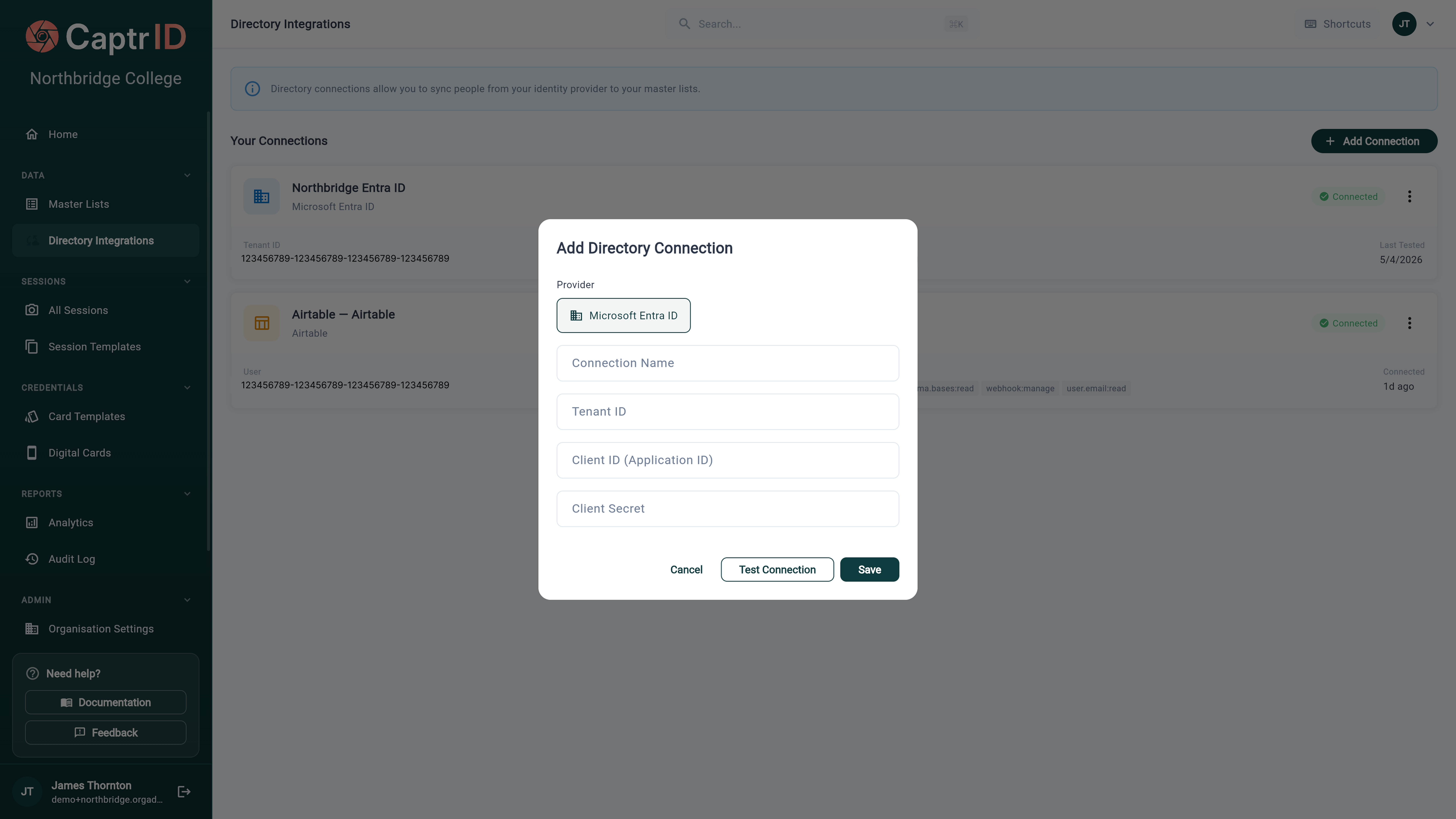
1. Go to **Directory Integrations** in the sidebar (under **Data**)
2. Click **Add Connection** and choose **Microsoft Entra ID** as the provider
3. Enter:
* **Connection Name** — a label for your reference (e.g. "School Entra")
* **Tenant ID** — from your Entra app registration
* **Client ID** — from your Entra app registration
* **Client Secret** — from your Entra app registration
4. Click **Test Connection** to verify the credentials
* Success shows the number of users and groups found in your directory
* If it fails, check your credentials and API permissions
5. Click **Save**
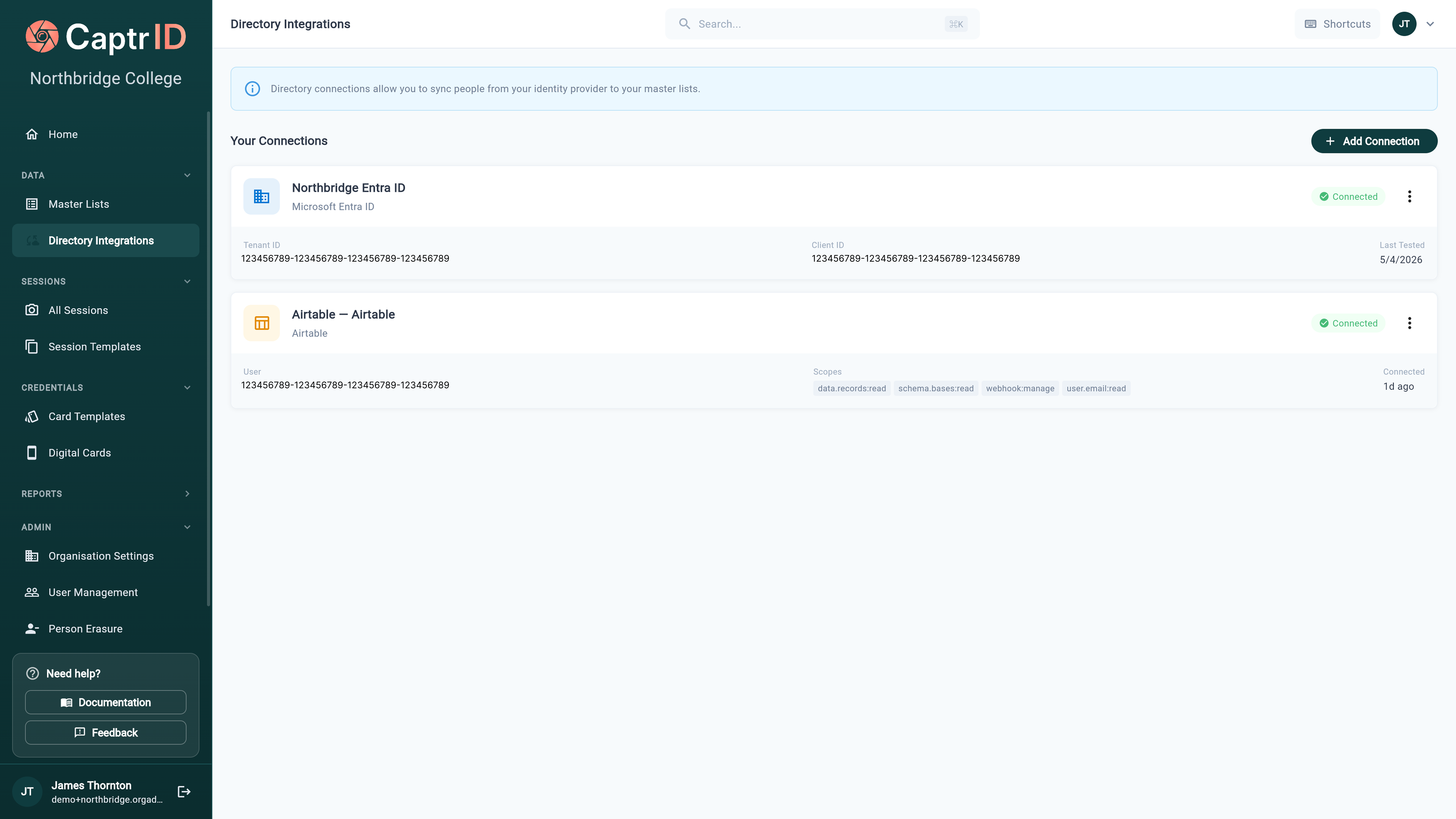
 Your credentials are stored securely and encrypted. You can test, edit, or remove connections at any time. Entra and Airtable connections appear together in the **Your Connections** list.
 ## Step 2: Configure sync on a Master List
You can configure directory sync when creating a new Master List or on an existing one:
### During list creation
1. Click **Create Master List**
2. Choose **Directory (Microsoft Entra ID)** as your source
3. Select your connection from the dropdown
4. Continue through the wizard (group selection, field mapping)
### On an existing list
1. Open your Master List
2. Go to the **Sync** tab
3. Click **Configure Sync**
4. Follow the wizard steps below
## Step 3: Set the scope
Choose which people to sync from your tenant:
* **All users** — sync everyone in your Entra tenant
* **Specific group** — sync only members of one security group (e.g. "Teaching Staff", "Year 7 Students")
When you choose **Specific group**, search for the group — CaptrID shows the member count next to each so you can verify you've picked the right one.
## Step 2: Configure sync on a Master List
You can configure directory sync when creating a new Master List or on an existing one:
### During list creation
1. Click **Create Master List**
2. Choose **Directory (Microsoft Entra ID)** as your source
3. Select your connection from the dropdown
4. Continue through the wizard (group selection, field mapping)
### On an existing list
1. Open your Master List
2. Go to the **Sync** tab
3. Click **Configure Sync**
4. Follow the wizard steps below
## Step 3: Set the scope
Choose which people to sync from your tenant:
* **All users** — sync everyone in your Entra tenant
* **Specific group** — sync only members of one security group (e.g. "Teaching Staff", "Year 7 Students")
When you choose **Specific group**, search for the group — CaptrID shows the member count next to each so you can verify you've picked the right one.
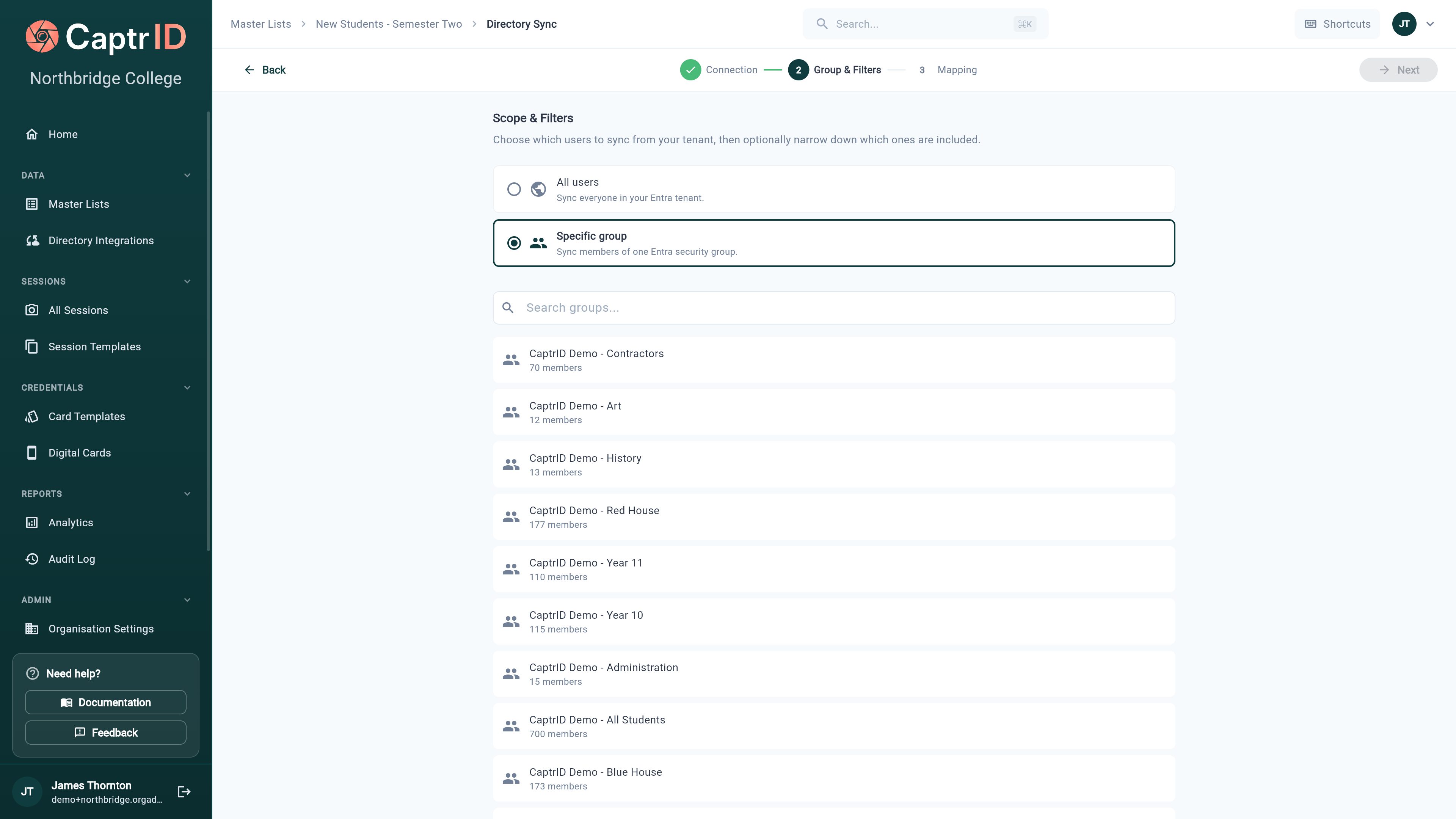 Scoping to a group is recommended for most organisations. It keeps your Master List focused and syncs faster than pulling the entire directory.
## Step 4: Map fields
This is where you tell CaptrID which directory fields should populate which Master List fields.
| Directory field | → | Master List field |
| --------------- | - | ---------------------- |
| `employeeId` | → | **employee\_id** (UID) |
| `givenName` | → | **first\_name** |
| `surname` | → | **last\_name** |
| `mail` | → | **email** |
| `jobTitle` | → | **job\_title** |
| `department` | → | **department** |
**The wizard helps you:**
* Suggests mappings for fields with matching names — accept them individually or **Apply all**
* Groups source fields by category (**Identity**, **Contact**, **Organisation**, **Account**, **On-Premises**, **Extension Attributes**, **Custom**) with an **Unmapped only** filter to focus
* Shows sample data from your directory so you can verify each mapping
* Lets you create new Master List fields on the fly, or bulk **Import all fields** into your schema
* Requires you to select a **UID field** — the directory field that uniquely identifies each person (a stable HR/SIS identifier like `employeeId` is the best choice)
Scoping to a group is recommended for most organisations. It keeps your Master List focused and syncs faster than pulling the entire directory.
## Step 4: Map fields
This is where you tell CaptrID which directory fields should populate which Master List fields.
| Directory field | → | Master List field |
| --------------- | - | ---------------------- |
| `employeeId` | → | **employee\_id** (UID) |
| `givenName` | → | **first\_name** |
| `surname` | → | **last\_name** |
| `mail` | → | **email** |
| `jobTitle` | → | **job\_title** |
| `department` | → | **department** |
**The wizard helps you:**
* Suggests mappings for fields with matching names — accept them individually or **Apply all**
* Groups source fields by category (**Identity**, **Contact**, **Organisation**, **Account**, **On-Premises**, **Extension Attributes**, **Custom**) with an **Unmapped only** filter to focus
* Shows sample data from your directory so you can verify each mapping
* Lets you create new Master List fields on the fly, or bulk **Import all fields** into your schema
* Requires you to select a **UID field** — the directory field that uniquely identifies each person (a stable HR/SIS identifier like `employeeId` is the best choice)
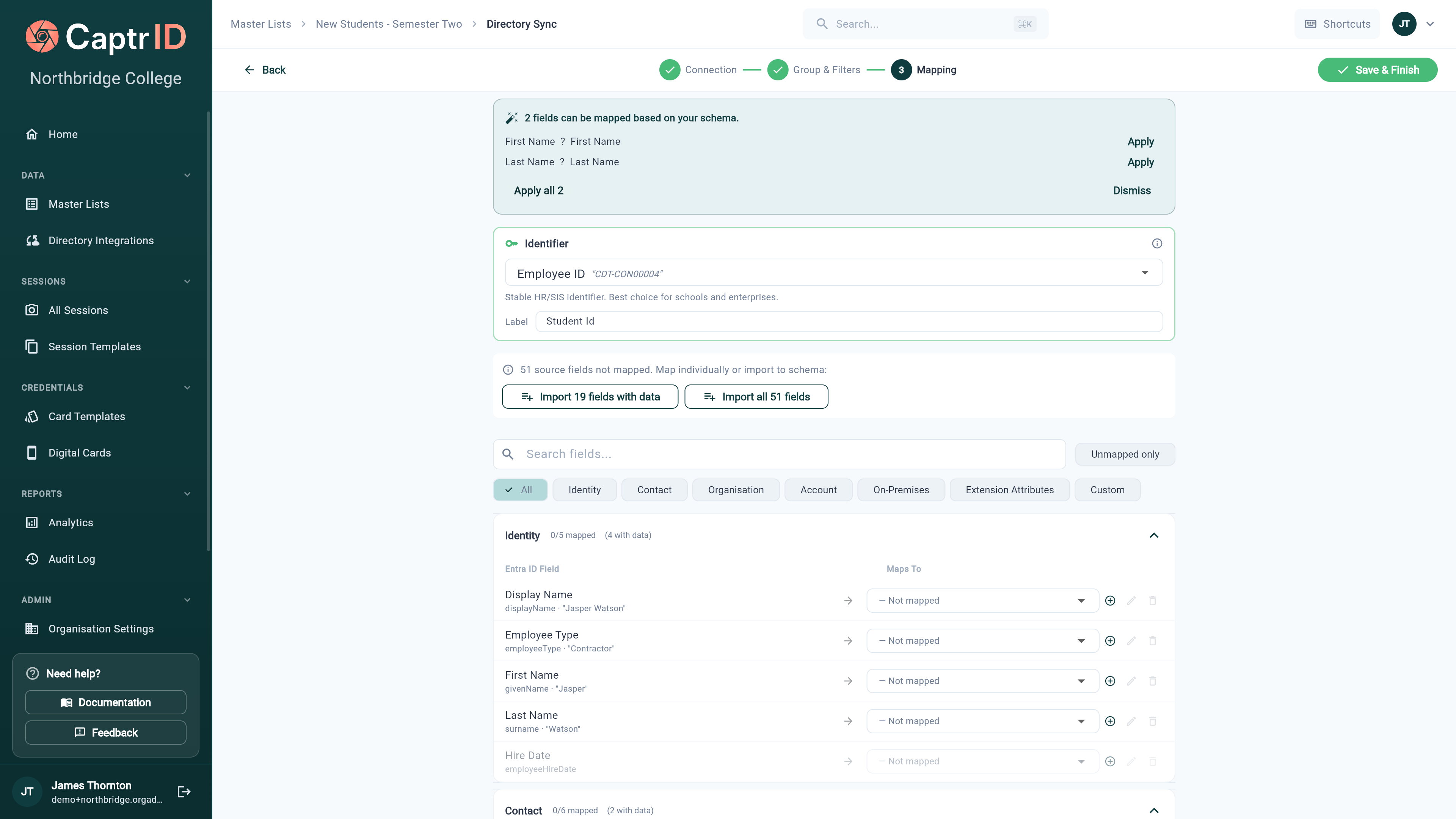 Choose your UID field carefully — it should be a stable, unique identifier like `employeeId` or `mail`. This field is used to match people on every subsequent sync. If someone's UID changes in the directory, they'll appear as a new person in CaptrID.
## Step 5: Run the first sync
After saving your configuration:
1. Go to the **Sync** tab on your Master List
2. Click **Sync Now** to run the first backfill
3. Wait for the sync to complete (typically under a minute for most organisations)
4. Review the results: people created, updated, photos imported, and any errors
## Keeping the list up to date
After the first sync, you can keep your Master List current in two ways:
### Manual sync
Click **Sync Now** on the **Sync** tab whenever you want to pull the latest from Entra. Each run re-fetches the scoped users and reconciles all records — creating new people, updating changed data, and deactivating anyone who's left the group or directory.
### Scheduled sync
Turn on a schedule so CaptrID syncs automatically on an interval — no need to remember to click **Sync Now**. Set or change the interval from the **Schedule** section of the **Sync** card.
A schedule is the best way to keep large rosters accurate. Set it to match how often your directory changes — daily is plenty for most organisations.
## Sync results
After each sync, the **Sync** tab shows:
Choose your UID field carefully — it should be a stable, unique identifier like `employeeId` or `mail`. This field is used to match people on every subsequent sync. If someone's UID changes in the directory, they'll appear as a new person in CaptrID.
## Step 5: Run the first sync
After saving your configuration:
1. Go to the **Sync** tab on your Master List
2. Click **Sync Now** to run the first backfill
3. Wait for the sync to complete (typically under a minute for most organisations)
4. Review the results: people created, updated, photos imported, and any errors
## Keeping the list up to date
After the first sync, you can keep your Master List current in two ways:
### Manual sync
Click **Sync Now** on the **Sync** tab whenever you want to pull the latest from Entra. Each run re-fetches the scoped users and reconciles all records — creating new people, updating changed data, and deactivating anyone who's left the group or directory.
### Scheduled sync
Turn on a schedule so CaptrID syncs automatically on an interval — no need to remember to click **Sync Now**. Set or change the interval from the **Schedule** section of the **Sync** card.
A schedule is the best way to keep large rosters accurate. Set it to match how often your directory changes — daily is plenty for most organisations.
## Sync results
After each sync, the **Sync** tab shows:
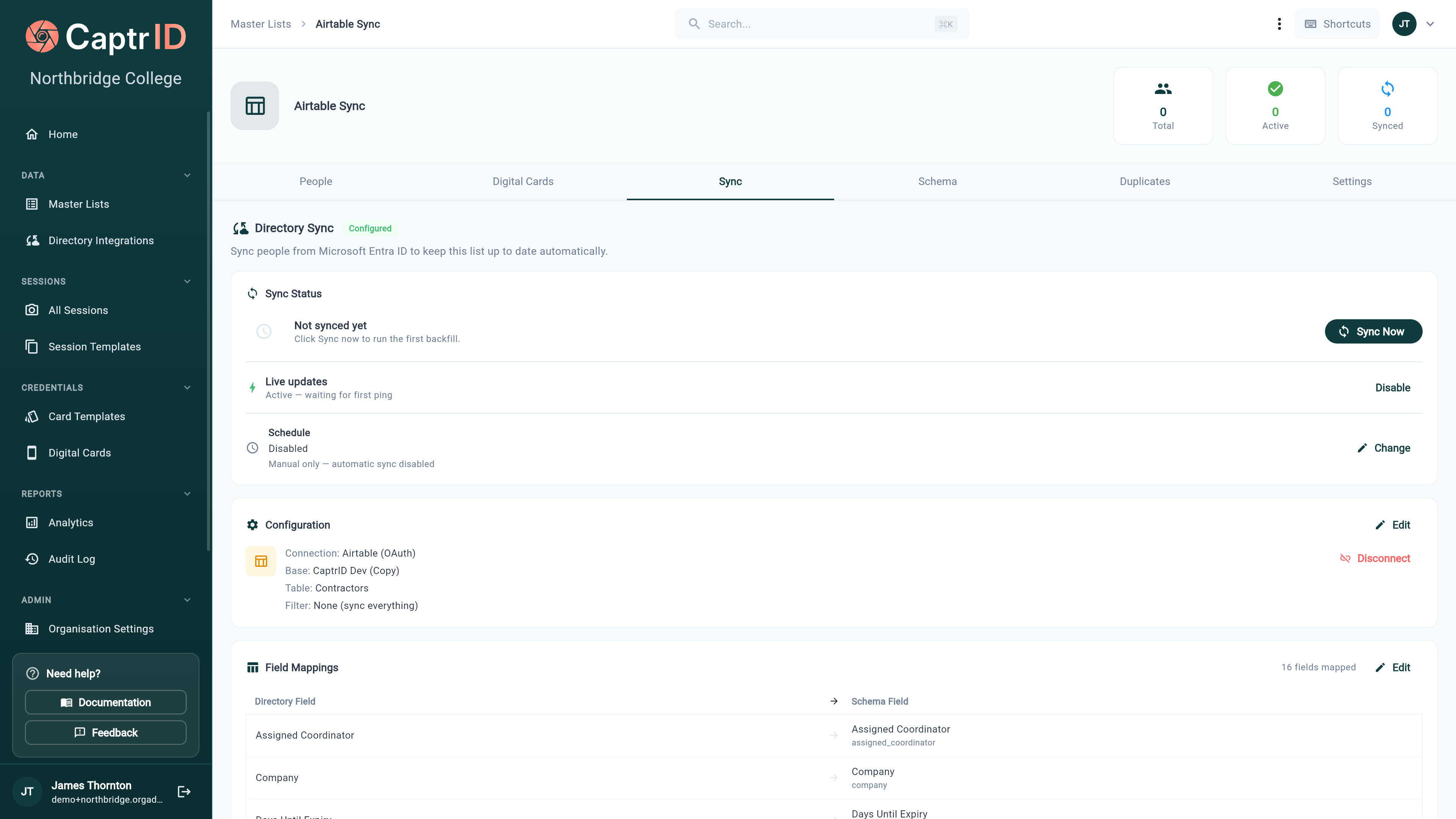 * **Sync Status** — last sync result and a **Sync Now** button
* **Schedule** — the automatic-sync interval, with **Change** to adjust it
* **Configuration** — connection, scope, and filter, with **Edit** and **Disconnect**
* **Field Mappings** — a summary of mapped fields, with **Edit** to reopen mapping
### What happens to existing data
| Scenario | What CaptrID does |
| ------------------------------------ | --------------------------------------------------- |
| New person in directory | Creates a new person in your Master List |
| Person's data changed | Updates the mapped fields |
| Person removed from group/directory | Deactivates them in your Master List (on full sync) |
| Person already exists (matching UID) | Updates their data, doesn't create a duplicate |
Directory sync never deletes people permanently — it **deactivates** them. You can still see deactivated people by switching the status filter to "Inactive", and reactivate them if needed.
### Fields that aren't synced
* **Unmapped fields** — directory fields you didn't map are ignored
* **Local-only fields** — fields you added manually to the Master List schema (not mapped to any directory field) are preserved and never overwritten by sync
### Photos
Directory sync **pulls each person's profile photo from Entra** when one is set, so headshots populate automatically alongside their data. A photo captured or approved in CaptrID is preserved — sync won't overwrite it. People without an Entra photo can still receive one through [sessions](/admin-guide/creating-a-session) or [self-upload](/admin-guide/self-service-photo-upload).
## Editing synced people
People synced from a directory have their **directory-managed fields locked** in the Master List. This prevents manual edits from being overwritten on the next sync.
You can still:
* Edit fields that aren't mapped to the directory
* View all field data
* Use synced people in sessions (where edits are made on the session copy, not the master)
* Push approved photos back from sessions via [Save to Master List](/admin-guide/saving-changes-to-master-list)
## Disconnecting
To stop syncing a Master List from the directory:
1. Open the Master List → **Sync** tab
2. Click **Disconnect**
3. Confirm the action
**What happens:**
* Sync stops — no further updates from the directory
* All existing people remain in the Master List
* Previously locked fields become editable
* You can reconnect and re-enable syncing later
## Troubleshooting
| Issue | Cause | Solution |
| ------------------------------- | ----------------------------------------------------------- | ---------------------------------------------------------------------------------------------------------------- |
| "Connection failed" on test | Invalid credentials or missing permissions | Verify Tenant ID, Client ID, and Client Secret. Check API permissions are admin-consented. |
| Sync creates duplicates | UID field mismatch between syncs | Ensure the UID mapping hasn't changed. Use a stable field like `employeeId`. |
| People not appearing after sync | Wrong group selected, or people not in the scoped group | Check the group membership in Entra, then run **Sync Now**. |
| Photos not importing | The person has no profile photo set in Entra | Confirm the photo exists on the Entra user; people without one can receive a photo via a session or self-upload. |
| "0 users found" in group | Group has no members, or permissions don't cover that group | Verify group membership in Entra and that the app has `GroupMember.Read.All` permission. |
* **Sync Status** — last sync result and a **Sync Now** button
* **Schedule** — the automatic-sync interval, with **Change** to adjust it
* **Configuration** — connection, scope, and filter, with **Edit** and **Disconnect**
* **Field Mappings** — a summary of mapped fields, with **Edit** to reopen mapping
### What happens to existing data
| Scenario | What CaptrID does |
| ------------------------------------ | --------------------------------------------------- |
| New person in directory | Creates a new person in your Master List |
| Person's data changed | Updates the mapped fields |
| Person removed from group/directory | Deactivates them in your Master List (on full sync) |
| Person already exists (matching UID) | Updates their data, doesn't create a duplicate |
Directory sync never deletes people permanently — it **deactivates** them. You can still see deactivated people by switching the status filter to "Inactive", and reactivate them if needed.
### Fields that aren't synced
* **Unmapped fields** — directory fields you didn't map are ignored
* **Local-only fields** — fields you added manually to the Master List schema (not mapped to any directory field) are preserved and never overwritten by sync
### Photos
Directory sync **pulls each person's profile photo from Entra** when one is set, so headshots populate automatically alongside their data. A photo captured or approved in CaptrID is preserved — sync won't overwrite it. People without an Entra photo can still receive one through [sessions](/admin-guide/creating-a-session) or [self-upload](/admin-guide/self-service-photo-upload).
## Editing synced people
People synced from a directory have their **directory-managed fields locked** in the Master List. This prevents manual edits from being overwritten on the next sync.
You can still:
* Edit fields that aren't mapped to the directory
* View all field data
* Use synced people in sessions (where edits are made on the session copy, not the master)
* Push approved photos back from sessions via [Save to Master List](/admin-guide/saving-changes-to-master-list)
## Disconnecting
To stop syncing a Master List from the directory:
1. Open the Master List → **Sync** tab
2. Click **Disconnect**
3. Confirm the action
**What happens:**
* Sync stops — no further updates from the directory
* All existing people remain in the Master List
* Previously locked fields become editable
* You can reconnect and re-enable syncing later
## Troubleshooting
| Issue | Cause | Solution |
| ------------------------------- | ----------------------------------------------------------- | ---------------------------------------------------------------------------------------------------------------- |
| "Connection failed" on test | Invalid credentials or missing permissions | Verify Tenant ID, Client ID, and Client Secret. Check API permissions are admin-consented. |
| Sync creates duplicates | UID field mismatch between syncs | Ensure the UID mapping hasn't changed. Use a stable field like `employeeId`. |
| People not appearing after sync | Wrong group selected, or people not in the scoped group | Check the group membership in Entra, then run **Sync Now**. |
| Photos not importing | The person has no profile photo set in Entra | Confirm the photo exists on the Entra user; people without one can receive a photo via a session or self-upload. |
| "0 users found" in group | Group has no members, or permissions don't cover that group | Verify group membership in Entra and that the app has `GroupMember.Read.All` permission. |