> ## Documentation Index
> Fetch the complete documentation index at: https://docs.captrid.com/llms.txt
> Use this file to discover all available pages before exploring further.
# Managing Master Lists
> Create and manage your organisation's central roster of people — the foundation for sessions, exports, and ID cards.
A **Master List** is your organisation's central roster of people. It's the source of truth that persists across sessions — create it once, keep it updated, and reuse it for photo days, data collection, card printing, and digital wallet passes.
## The Master List detail screen
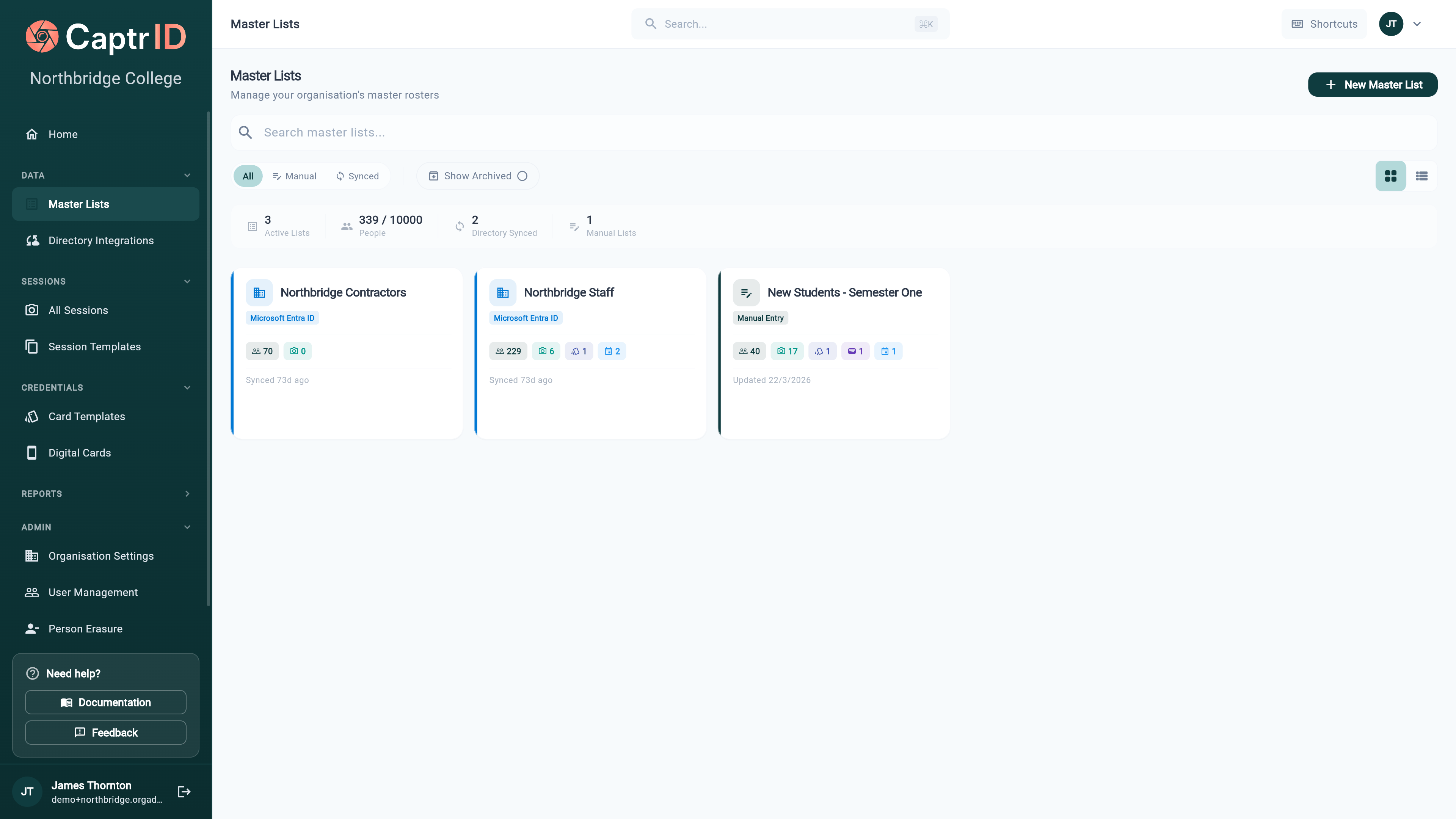
Opening a Master List gives you six tabs:
| Tab | What it's for |
| ----------------- | ------------------------------------------------------------------------------------------------------------------------------- |
| **People** | View, search, add, edit, and deactivate the people on the list |
| **Digital Cards** | Generate and manage [wallet passes](/admin-guide/digital-cards) for this list |
| **Sync** | Configure [Entra](/admin-guide/directory-sync) or [Airtable](/admin-guide/airtable-sync) sync (only when a source is connected) |
| **Schema** | Define the fields stored for each person |
| **Duplicates** | Review records flagged as potential duplicates |
| **Settings** | List details, sync/changeset defaults, duplicate detection, data & privacy, and the danger zone |
The header shows live counts — **Total**, **Active**, and **Synced** people.
## Creating a Master List
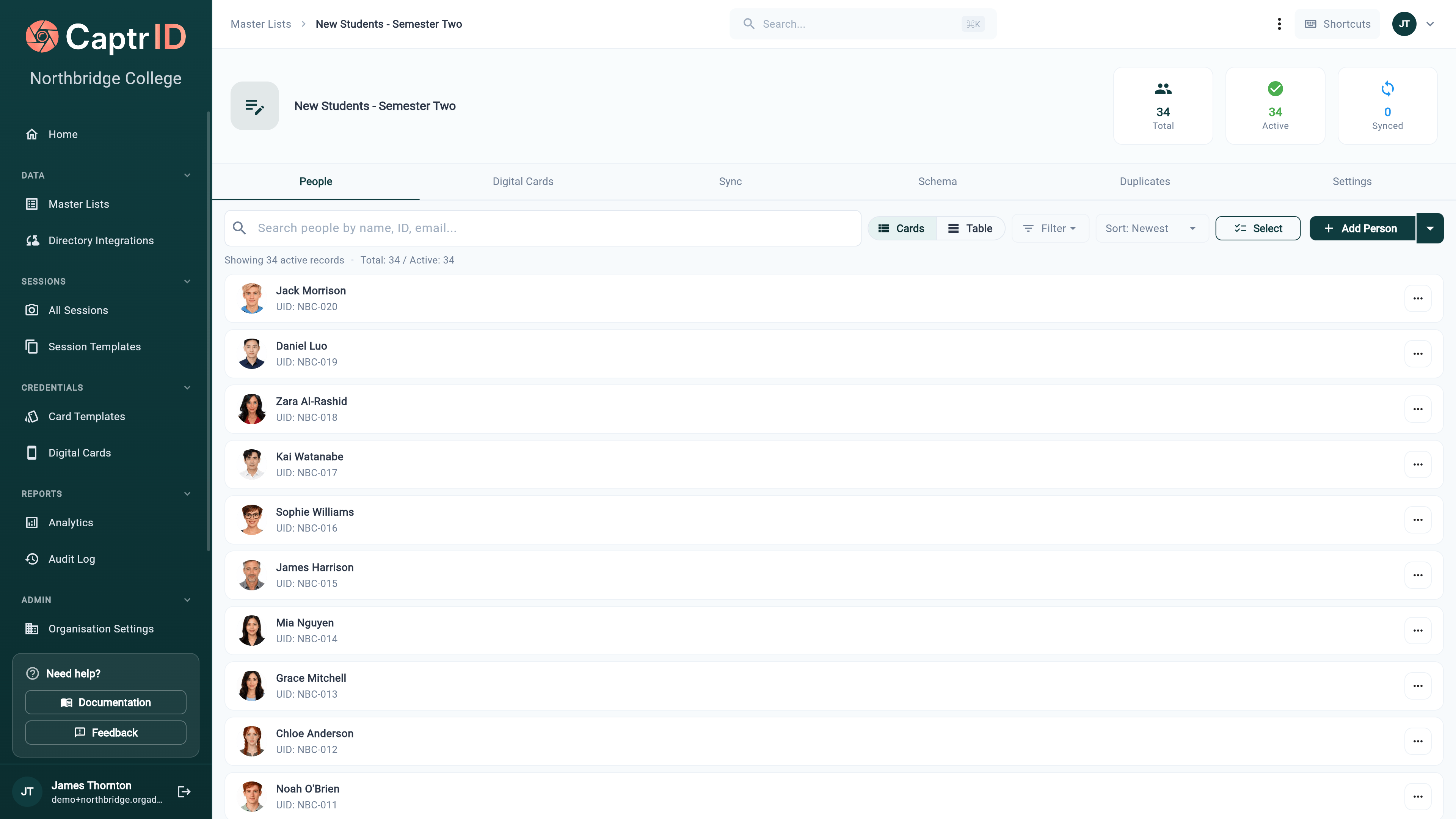 1. Go to **Master Lists** in the sidebar
2. Click **Create Master List**
3. Choose how to populate your list:
| Source | Best for |
| ----------------------------- | -------------------------------------------- |
| **CSV Import** | You have an existing spreadsheet of people |
| **Directory Sync (Entra ID)** | Your organisation uses Microsoft Entra ID |
| **Airtable** | Your roster lives in an Airtable base |
| **Manual Entry** | Starting from scratch or adding a few people |
4. Follow the wizard to configure your source and define your fields
5. Give your list a name (e.g. "Students 2026", "Staff", "Contractors")
6. Click **Create**
You can have multiple Master Lists for different groups — for example, one for students and another for staff. Each list has its own field schema and can be linked to different sessions.
## Defining your schema
Every Master List has a **schema** — the set of fields that define what data you store for each person. You configure this when creating the list, and can add or edit fields later.
### Field types
| Type | Use for | Example |
| ------------ | ---------------------------------- | ----------------------------------------------- |
| **Text** | Names, IDs, departments | "Emma Wilson", "Engineering" |
| **Number** | Numeric values | Year level, age |
| **Email** | Email addresses (validated format) | [emma@school.edu.au](mailto:emma@school.edu.au) |
| **Dropdown** | Fixed set of options | House: "Blue", "Red", "Green" |
| **Date** | Date values | Date of birth, start date |
### Adding and editing fields
1. Go to **Master Lists** in the sidebar
2. Click **Create Master List**
3. Choose how to populate your list:
| Source | Best for |
| ----------------------------- | -------------------------------------------- |
| **CSV Import** | You have an existing spreadsheet of people |
| **Directory Sync (Entra ID)** | Your organisation uses Microsoft Entra ID |
| **Airtable** | Your roster lives in an Airtable base |
| **Manual Entry** | Starting from scratch or adding a few people |
4. Follow the wizard to configure your source and define your fields
5. Give your list a name (e.g. "Students 2026", "Staff", "Contractors")
6. Click **Create**
You can have multiple Master Lists for different groups — for example, one for students and another for staff. Each list has its own field schema and can be linked to different sessions.
## Defining your schema
Every Master List has a **schema** — the set of fields that define what data you store for each person. You configure this when creating the list, and can add or edit fields later.
### Field types
| Type | Use for | Example |
| ------------ | ---------------------------------- | ----------------------------------------------- |
| **Text** | Names, IDs, departments | "Emma Wilson", "Engineering" |
| **Number** | Numeric values | Year level, age |
| **Email** | Email addresses (validated format) | [emma@school.edu.au](mailto:emma@school.edu.au) |
| **Dropdown** | Fixed set of options | House: "Blue", "Red", "Green" |
| **Date** | Date values | Date of birth, start date |
### Adding and editing fields
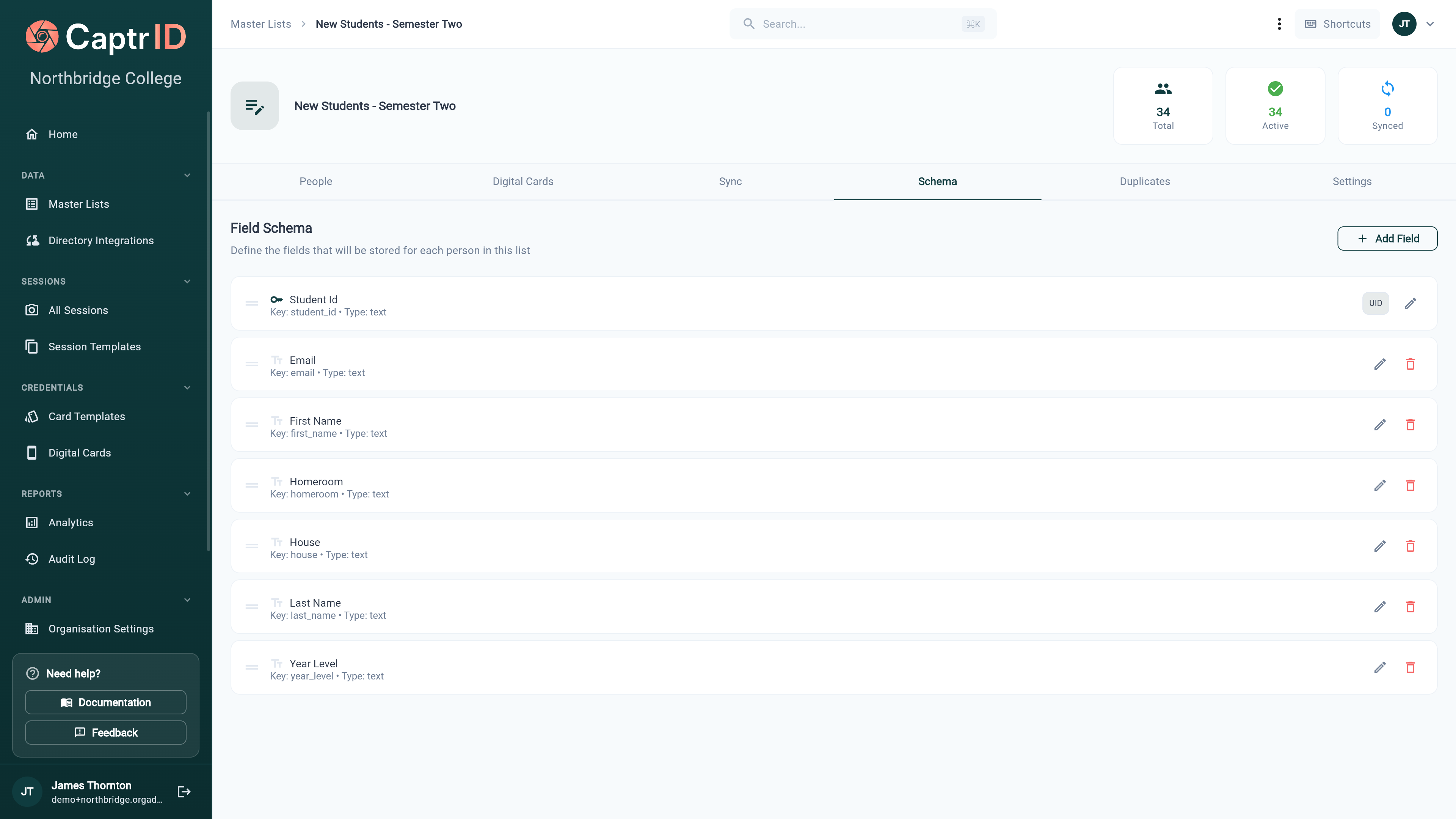 From the **Schema** tab on your Master List:
1. Click **Add Field** to create a new field
2. Enter the field key (internal name), display label, and type
3. Set whether the field is required
4. For dropdown fields, define the available options
5. Click **Save**
You can edit a field's label, type, required status, and options at any time. Field keys cannot be changed after creation — this protects data integrity.
## The UID field
Every Master List must have exactly one **UID field** — a unique identifier for each person. This is the field that links people across sessions, imports, and sync operations.
**Good UIDs:** Employee number, student ID, email address, staff code
**Poor UIDs:** Full name (duplicates), phone number (changes frequently)
The UID field is set when you create a Master List and **cannot be changed** once people exist in the list. Choose carefully — it's the foundation of how CaptrID tracks and matches people.
## Adding people
### Manually
1. Open your Master List
2. Click **Add Person**
3. Fill in the required fields (including the UID)
4. Click **Save**
From the **Schema** tab on your Master List:
1. Click **Add Field** to create a new field
2. Enter the field key (internal name), display label, and type
3. Set whether the field is required
4. For dropdown fields, define the available options
5. Click **Save**
You can edit a field's label, type, required status, and options at any time. Field keys cannot be changed after creation — this protects data integrity.
## The UID field
Every Master List must have exactly one **UID field** — a unique identifier for each person. This is the field that links people across sessions, imports, and sync operations.
**Good UIDs:** Employee number, student ID, email address, staff code
**Poor UIDs:** Full name (duplicates), phone number (changes frequently)
The UID field is set when you create a Master List and **cannot be changed** once people exist in the list. Choose carefully — it's the foundation of how CaptrID tracks and matches people.
## Adding people
### Manually
1. Open your Master List
2. Click **Add Person**
3. Fill in the required fields (including the UID)
4. Click **Save**
 ### From CSV
The fastest way to populate a list. See [Importing a CSV Roster](/admin-guide/importing-csv) for detailed instructions.
Key points:
* Existing UIDs are **updated** (not duplicated) on re-import
* New UIDs create new people
* Validation errors are flagged and skipped
### From directory sync or Airtable
You can sync people automatically from an external source and keep the list current — including photos. See [Directory Sync](/admin-guide/directory-sync) for Microsoft Entra ID, or [Airtable Sync](/admin-guide/airtable-sync) for an Airtable base.
## Editing people
1. Open your Master List and go to the **People** tab
2. Click on a person's row to view their details
3. Edit any field values
4. Click **Save**
People synced from a directory (e.g. Entra ID) have their directory-managed fields locked. You can still edit fields that aren't mapped to the directory, and approved photos can still flow back from sessions.
## Deactivating and reactivating people
Rather than deleting people permanently, CaptrID uses **soft deletion** — deactivating a person hides them from default views while preserving their data.
**To deactivate:**
1. Select the person (or multiple people using checkboxes)
2. Click **Deactivate**
3. The person is hidden from the active list but their data is preserved
**To reactivate:**
1. Use the status filter to show **Inactive** people
2. Select the person
3. Click **Reactivate**
Deactivated people don't count towards your plan's people limit.
## Searching and filtering
The **People** tab includes:
* **Search** — Find people by name, UID, or any field value
* **Status filter** — Show Active, Inactive, or All people
* **Sort** — Click any column header to sort by that field
* **Pagination** — Navigate through large lists (50 people per page)
## List settings
The **Settings** tab gathers everything about how the list behaves. Each section has its own **Edit** control.
### From CSV
The fastest way to populate a list. See [Importing a CSV Roster](/admin-guide/importing-csv) for detailed instructions.
Key points:
* Existing UIDs are **updated** (not duplicated) on re-import
* New UIDs create new people
* Validation errors are flagged and skipped
### From directory sync or Airtable
You can sync people automatically from an external source and keep the list current — including photos. See [Directory Sync](/admin-guide/directory-sync) for Microsoft Entra ID, or [Airtable Sync](/admin-guide/airtable-sync) for an Airtable base.
## Editing people
1. Open your Master List and go to the **People** tab
2. Click on a person's row to view their details
3. Edit any field values
4. Click **Save**
People synced from a directory (e.g. Entra ID) have their directory-managed fields locked. You can still edit fields that aren't mapped to the directory, and approved photos can still flow back from sessions.
## Deactivating and reactivating people
Rather than deleting people permanently, CaptrID uses **soft deletion** — deactivating a person hides them from default views while preserving their data.
**To deactivate:**
1. Select the person (or multiple people using checkboxes)
2. Click **Deactivate**
3. The person is hidden from the active list but their data is preserved
**To reactivate:**
1. Use the status filter to show **Inactive** people
2. Select the person
3. Click **Reactivate**
Deactivated people don't count towards your plan's people limit.
## Searching and filtering
The **People** tab includes:
* **Search** — Find people by name, UID, or any field value
* **Status filter** — Show Active, Inactive, or All people
* **Sort** — Click any column header to sort by that field
* **Pagination** — Navigate through large lists (50 people per page)
## List settings
The **Settings** tab gathers everything about how the list behaves. Each section has its own **Edit** control.
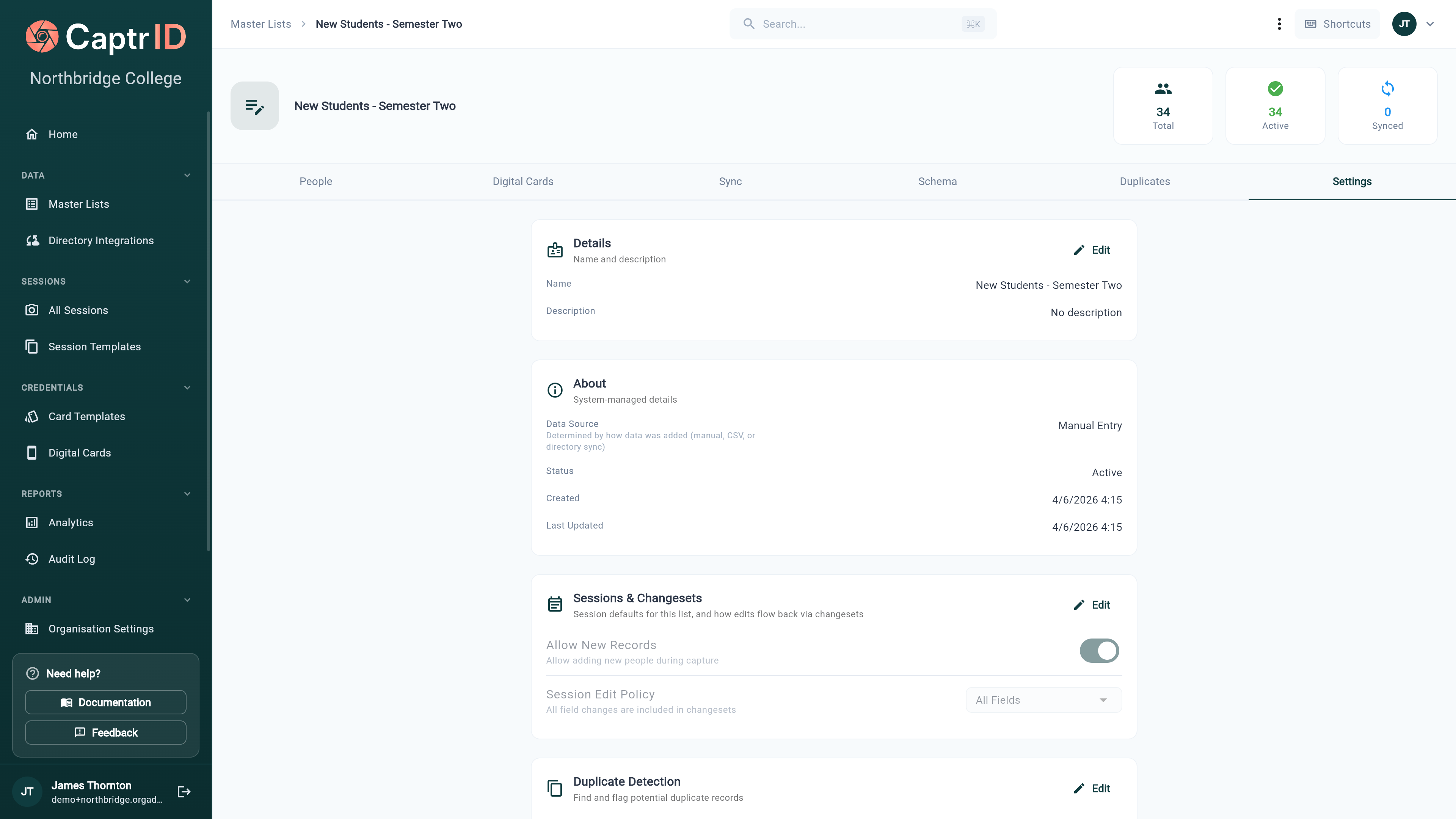 | Section | What you control |
| ------------------------- | ------------------------------------------------------------------------------------------------------------------------------------------------ |
| **Details** | The list's name and description |
| **About** | System-managed info — data source (Manual, CSV, or directory sync), status, created and last-updated dates (read-only) |
| **Sessions & Changesets** | **Allow New Records** (whether capturers can add people during sessions) and the **Session Edit Policy** (which fields flow back via changesets) |
| **Duplicate Detection** | Enable detection, choose the **Match Field**, and toggle **Show Duplicate Badge** on cards |
| **Data & Privacy** | **Retention Policy** (how long to keep data before auto-archival) and **Allow Data Export** |
| **Danger Zone** | **Archive** or **Delete** the list |
| Section | What you control |
| ------------------------- | ------------------------------------------------------------------------------------------------------------------------------------------------ |
| **Details** | The list's name and description |
| **About** | System-managed info — data source (Manual, CSV, or directory sync), status, created and last-updated dates (read-only) |
| **Sessions & Changesets** | **Allow New Records** (whether capturers can add people during sessions) and the **Session Edit Policy** (which fields flow back via changesets) |
| **Duplicate Detection** | Enable detection, choose the **Match Field**, and toggle **Show Duplicate Badge** on cards |
| **Data & Privacy** | **Retention Policy** (how long to keep data before auto-archival) and **Allow Data Export** |
| **Danger Zone** | **Archive** or **Delete** the list |
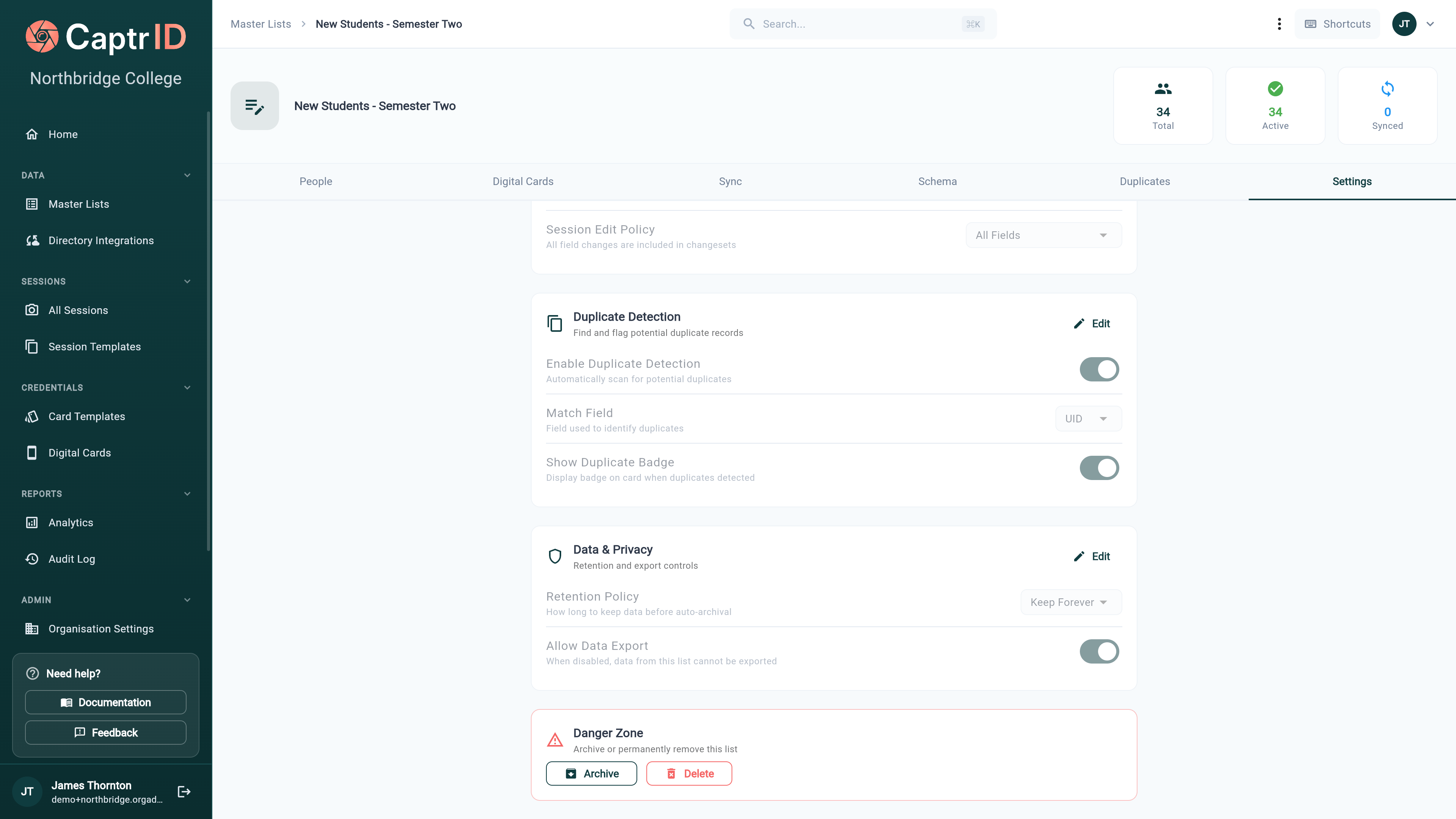 **Organisation-wide** defaults (coordinator permissions, default session settings, org-level retention) live in [Organisation Settings](/admin-guide/organisation-settings). The Settings tab here is **per-list** and overrides those defaults for this list only.
### Archiving and deleting
From the **Danger Zone**:
* **Archive** keeps the data but hides the list from the sidebar — restore it any time. Archived lists don't count towards your plan's Master List limit.
* **Delete** permanently removes the list. Any [wallet passes](/admin-guide/digital-cards) issued from it are **revoked and voided first**.
You cannot archive or delete a Master List while active sessions are using it. Archive or close those sessions first.
## Using Master Lists with sessions
When you [create a session](/admin-guide/creating-a-session), you can populate the roster from a Master List. CaptrID takes a **snapshot** — a point-in-time copy of the people. Changes in the session don't affect the Master List until you explicitly [sync them back](/admin-guide/saving-changes-to-master-list).
This means you can safely edit data, capture photos, and approve submissions in a session without worrying about accidentally changing your source of truth.
## Duplicates
CaptrID flags potential duplicate records so you can spot the same person appearing more than once — for example, a staff member who's also in a contractors list.
By default it matches on the **UID**, but you can change the **Match Field** under **Settings → Duplicate Detection** (and toggle whether a badge shows on cards). Review flagged records from the **Duplicates** tab on any affected Master List.
## Tips
* **One list per population** — Create separate lists for students, staff, and contractors rather than mixing them
* **Keep UIDs consistent** — Use the same format everywhere (e.g. always "STU001", not sometimes "stu001")
* **Archive old lists** — At the end of a school year or project, archive the list rather than deleting it
* **Start with CSV** — Even if you plan to use directory sync later, importing a CSV is the fastest way to get started
**Organisation-wide** defaults (coordinator permissions, default session settings, org-level retention) live in [Organisation Settings](/admin-guide/organisation-settings). The Settings tab here is **per-list** and overrides those defaults for this list only.
### Archiving and deleting
From the **Danger Zone**:
* **Archive** keeps the data but hides the list from the sidebar — restore it any time. Archived lists don't count towards your plan's Master List limit.
* **Delete** permanently removes the list. Any [wallet passes](/admin-guide/digital-cards) issued from it are **revoked and voided first**.
You cannot archive or delete a Master List while active sessions are using it. Archive or close those sessions first.
## Using Master Lists with sessions
When you [create a session](/admin-guide/creating-a-session), you can populate the roster from a Master List. CaptrID takes a **snapshot** — a point-in-time copy of the people. Changes in the session don't affect the Master List until you explicitly [sync them back](/admin-guide/saving-changes-to-master-list).
This means you can safely edit data, capture photos, and approve submissions in a session without worrying about accidentally changing your source of truth.
## Duplicates
CaptrID flags potential duplicate records so you can spot the same person appearing more than once — for example, a staff member who's also in a contractors list.
By default it matches on the **UID**, but you can change the **Match Field** under **Settings → Duplicate Detection** (and toggle whether a badge shows on cards). Review flagged records from the **Duplicates** tab on any affected Master List.
## Tips
* **One list per population** — Create separate lists for students, staff, and contractors rather than mixing them
* **Keep UIDs consistent** — Use the same format everywhere (e.g. always "STU001", not sometimes "stu001")
* **Archive old lists** — At the end of a school year or project, archive the list rather than deleting it
* **Start with CSV** — Even if you plan to use directory sync later, importing a CSV is the fastest way to get started