> ## Documentation Index
> Fetch the complete documentation index at: https://docs.captrid.com/llms.txt
> Use this file to discover all available pages before exploring further.
# Erasing a Person's Data
> Permanently delete a person's data across all Master Lists and sessions — for GDPR or privacy requests.
When someone requests that their personal data be deleted (e.g. under GDPR Article 17 or Australian privacy law), you can permanently erase their records from CaptrID. This removes their data from **all** Master Lists and sessions in your organisation in a single action.
Person erasure is **permanent and cannot be undone**. All records, photos, and submissions for the person are hard-deleted. Make sure you have the right person before confirming.
## When to use person erasure
Use this when:
* You receive a formal data deletion request (GDPR right to erasure)
* A person asks to have their data removed from your systems
* You need to comply with privacy legislation requiring data removal
For routine departures (staff leaving, students graduating), **deactivating** the person in your Master List is usually sufficient — you don't need to erase them entirely.
## Method 1: Person Erasure screen (recommended)
The Person Erasure screen lets you search across all your data to find and erase a person.
1. From the sidebar, click **Person Erasure** (under the **Data** section)
2. Search by **name**, **email**, **UID**, or any field value
3. Results are grouped by UID — each card shows where the person appears (which Master Lists and sessions)
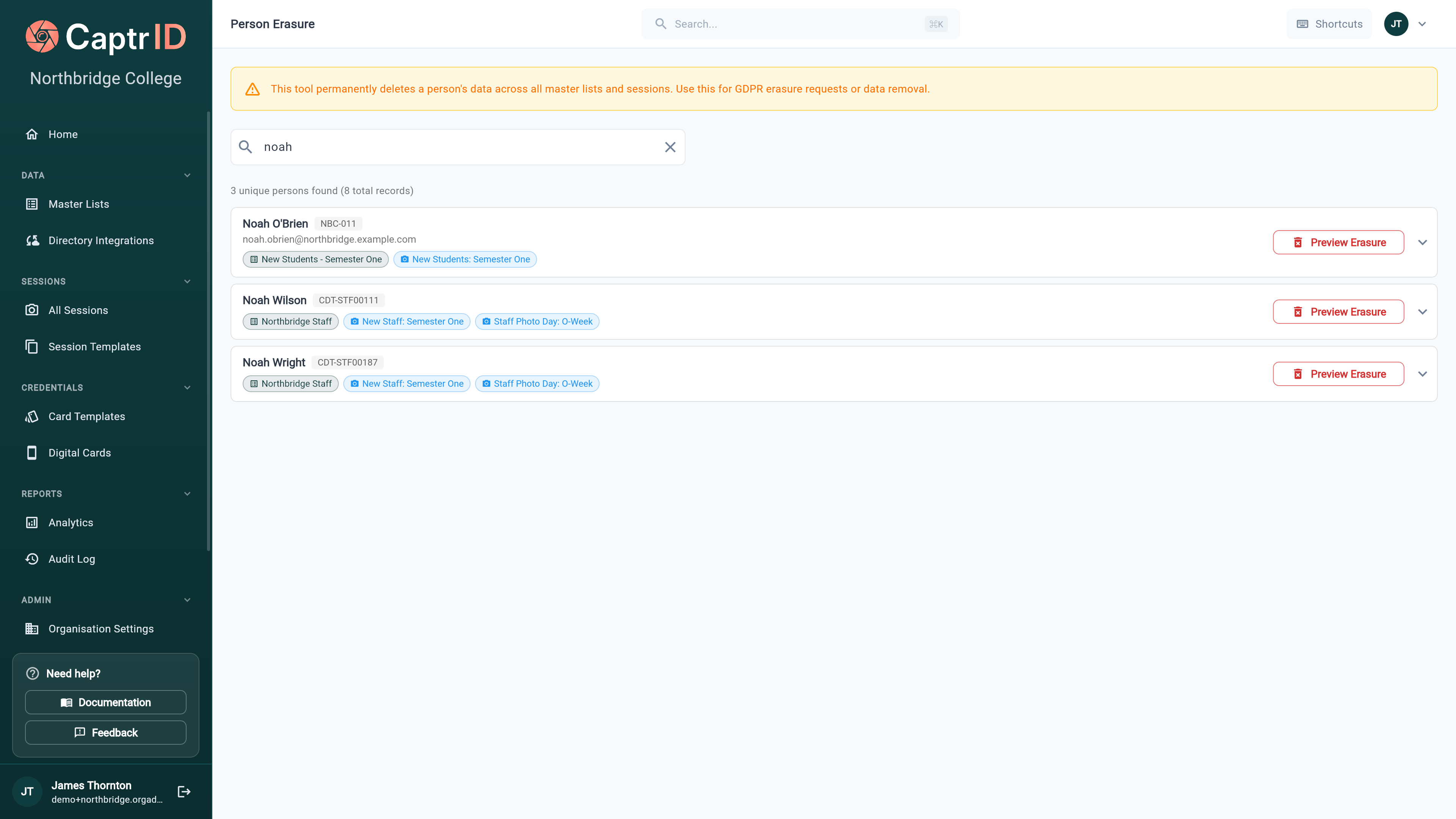 4. Click **Preview Erasure** on the matching person
5. Review the dry-run summary showing:
* Number of Master List records to be deleted
* Number of session records to be deleted
* Number of photo submissions to be removed
* Number of wallet passes to be deleted
4. Click **Preview Erasure** on the matching person
5. Review the dry-run summary showing:
* Number of Master List records to be deleted
* Number of session records to be deleted
* Number of photo submissions to be removed
* Number of wallet passes to be deleted
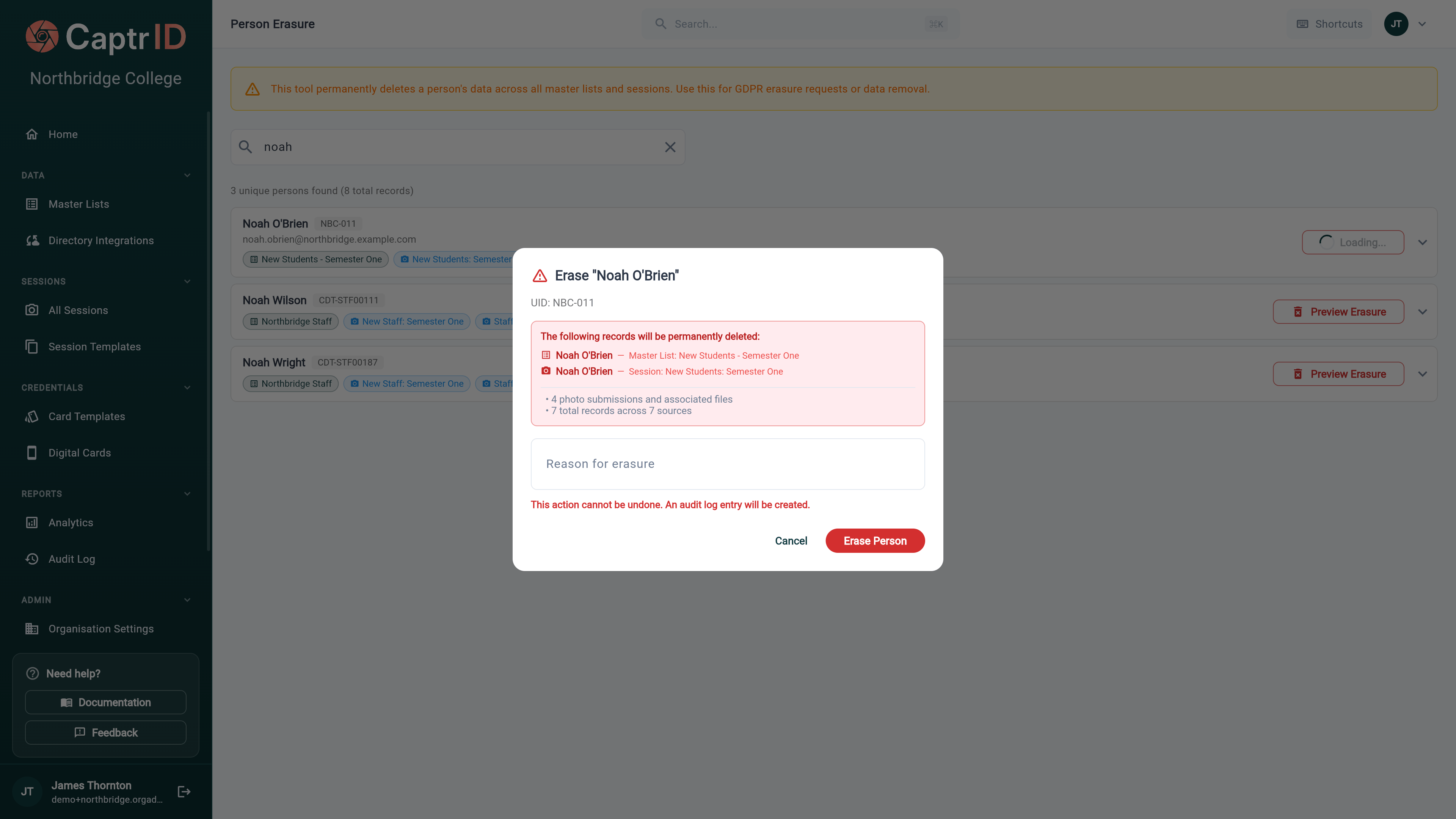 6. Enter a **reason** for the erasure (recorded in the audit log)
7. Click **Erase Person** to confirm
### Data mismatch warnings
If the same UID appears in multiple Master Lists but with different names or data, CaptrID shows an amber warning on the search result. Expand the card to see the details for each source before confirming.
This protects against accidentally erasing the wrong person when two different people share the same UID across different lists.
Always expand the search result and check the per-source details before erasing — especially if you see a data mismatch warning.
## Method 2: From a person's detail page
If you're already viewing a person in a Master List:
1. Open the Master List and find the person
2. Click their row to open the detail panel
3. Click **Erase Everywhere**
4. Review the preview showing all affected records
5. Click **Erase Permanently** to confirm
## What gets deleted
| Data | Deleted? |
| ------------------------------------------------ | ------------------------------------------------------------------------------------- |
| Master List records (all lists matching the UID) | Yes — hard-deleted |
| Session records (all sessions matching the UID) | Yes — hard-deleted |
| Photo submissions and photos | Yes — hard-deleted from storage |
| Wallet passes | Yes — **revoked and voided first**, then hard-deleted |
| Changeset references | Nulled (the changeset structure is preserved, but links to the person are removed) |
| Audit log entry | **No** — a `person.erased` entry is created with the UID, reason, and deletion counts |
Audit log entries for the erasure are preserved — this is a legal requirement under GDPR Article 17(3). The log records that erasure occurred, but does not contain the person's personal data.
## Who can erase data
| Role | Can erase? |
| ---------------------- | ---------- |
| **Organisation Admin** | Yes |
| **Platform Admin** | Yes |
| **Coordinator** | No |
| **Capturer** | No |
## After erasure
* The person disappears from all Master Lists, session rosters, and submission queues
* Any wallet passes issued to the person are **revoked and voided** (so the QR code stops verifying) before being deleted — a live credential can't outlive the erasure
* The audit log records the erasure with the reason you provided
* If the person was included in a pending changeset, the changeset item's person link is removed but the changeset itself remains
## What's next?
View the audit trail, including erasure events.
Configure data retention policies for your organisation.
6. Enter a **reason** for the erasure (recorded in the audit log)
7. Click **Erase Person** to confirm
### Data mismatch warnings
If the same UID appears in multiple Master Lists but with different names or data, CaptrID shows an amber warning on the search result. Expand the card to see the details for each source before confirming.
This protects against accidentally erasing the wrong person when two different people share the same UID across different lists.
Always expand the search result and check the per-source details before erasing — especially if you see a data mismatch warning.
## Method 2: From a person's detail page
If you're already viewing a person in a Master List:
1. Open the Master List and find the person
2. Click their row to open the detail panel
3. Click **Erase Everywhere**
4. Review the preview showing all affected records
5. Click **Erase Permanently** to confirm
## What gets deleted
| Data | Deleted? |
| ------------------------------------------------ | ------------------------------------------------------------------------------------- |
| Master List records (all lists matching the UID) | Yes — hard-deleted |
| Session records (all sessions matching the UID) | Yes — hard-deleted |
| Photo submissions and photos | Yes — hard-deleted from storage |
| Wallet passes | Yes — **revoked and voided first**, then hard-deleted |
| Changeset references | Nulled (the changeset structure is preserved, but links to the person are removed) |
| Audit log entry | **No** — a `person.erased` entry is created with the UID, reason, and deletion counts |
Audit log entries for the erasure are preserved — this is a legal requirement under GDPR Article 17(3). The log records that erasure occurred, but does not contain the person's personal data.
## Who can erase data
| Role | Can erase? |
| ---------------------- | ---------- |
| **Organisation Admin** | Yes |
| **Platform Admin** | Yes |
| **Coordinator** | No |
| **Capturer** | No |
## After erasure
* The person disappears from all Master Lists, session rosters, and submission queues
* Any wallet passes issued to the person are **revoked and voided** (so the QR code stops verifying) before being deleted — a live credential can't outlive the erasure
* The audit log records the erasure with the reason you provided
* If the person was included in a pending changeset, the changeset item's person link is removed but the changeset itself remains
## What's next?
View the audit trail, including erasure events.
Configure data retention policies for your organisation.