> ## Documentation Index
> Fetch the complete documentation index at: https://docs.captrid.com/llms.txt
> Use this file to discover all available pages before exploring further.
# Key Concepts
> Understand the core building blocks of CaptrID: Master Lists, Sessions, UIDs, and more.
CaptrID is built around a few core concepts. Understanding these will help you navigate the platform and make the most of its features.
## Master List
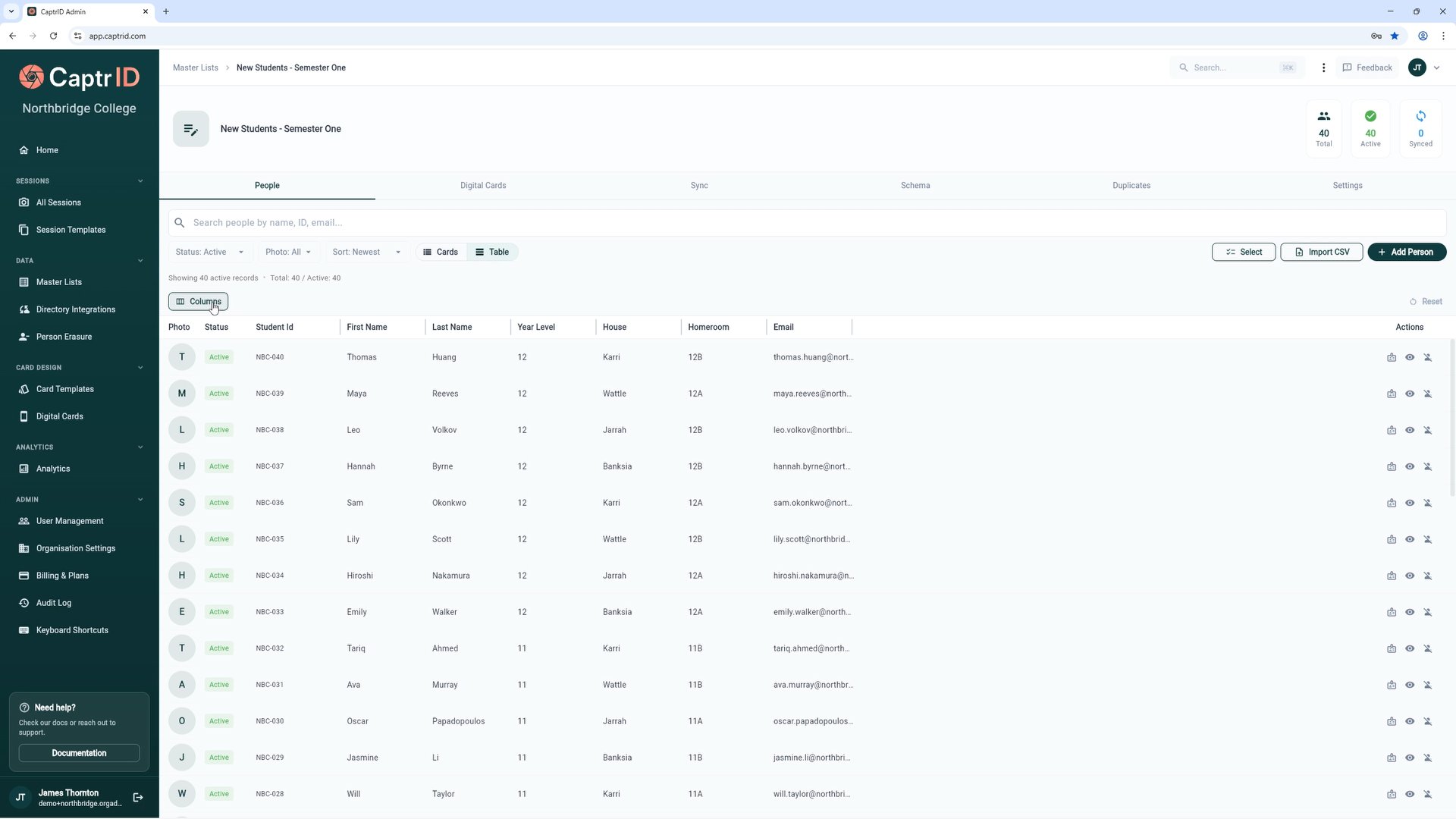
A **Master List** is your organisation's central roster of people. Think of it as your source of truth — the canonical list of everyone who might need to be photographed or have their data collected.
* Each organisation can have multiple Master Lists (e.g. "Students 2026", "Staff", "Contractors")
* Master Lists persist across sessions — create them once, reuse them many times
* People can be added manually, imported from CSV, or synced from a directory like Microsoft Entra ID
Master Lists have a **schema** — a set of fields that define what data you store for each person (e.g. First Name, Last Name, Department, Student ID).
 ## Session
A **Session** is a time-bound capture event. It's where the actual photo capture (or data collection) happens.
* Sessions are created from a Master List snapshot, a CSV import, or from scratch
* When created from a Master List, people are **copied** into the session — changes in the session don't affect the Master List until you explicitly sync them back
* Sessions have their own field configuration, capturer assignments, and photo review workflow
**Session types:**
* **Photo sessions** — Capture portrait photos for ID cards, directories, or records
* **Data sessions** — Collect or update data fields without photos (e.g. verify contact details)
**Session statuses:**
| Status | Meaning |
| -------- | ------------------------------------------------------ |
| Active | Accepting new captures and submissions |
| Closed | No new captures, but review and export still available |
| Archived | Read-only, hidden from default views |
## UID (Unique Identifier)
Every Master List and every session has a **UID field** — a single field that uniquely identifies each person. This is how CaptrID matches people across sessions and syncs data back to your Master List.
**Good UIDs:**
* Employee number
* Student ID
* Email address
* Staff code
**Poor UIDs:**
* Full name (duplicates are common)
* Phone number (changes frequently)
The UID field is set when you create a Master List and **cannot be changed** afterwards. Choose carefully — it's the foundation of how CaptrID tracks and matches people.
## People
A **person** is an individual record within a Master List or session. Each person has:
* A **UID value** (unique within their list or session)
* **Field data** (name, department, year level, etc. — whatever fields are defined)
* Optionally, a **photo** (from submissions in a session, or synced from a directory)
## Submission
A **submission** is a photo (or data snapshot) captured for a person within a session. Each person can have multiple submissions (e.g. multiple photo attempts), but only one can be **approved** at a time.
**Submission statuses:**
| Status | Meaning |
| ---------- | ------------------------------------------------------ |
| Pending | Submitted, awaiting review |
| Approved | Accepted as the current photo for this person |
| Rejected | Sent back with a reason — capturer should retake |
| Superseded | Was previously approved, but a newer photo replaced it |
## Saving to Master List
After a session, you can push approved photos and field updates back to your Master List using **Save to Master List**. CaptrID generates a summary of proposed changes for you to review before anything is written.
This provides:
* **Conflict detection** — If both the session and the Master List changed the same field, CaptrID flags it for review
* **Per-field resolution** — Choose to keep the session value, the Master List value, or skip the field
* **Audit trail** — Every change is logged and can be rolled back
**When to sync:**
* After a photo session, to push approved photos back to your Master List
* After a data collection session, to update contact details or other fields
* Whenever session data needs to become the new "source of truth" in your Master List
## Card Templates
A **Card Template** is a design layout for printing physical ID cards. Templates define:
* Card dimensions and background
* Where the photo, name, and other fields appear
* Variables that map to your roster fields (e.g. `{{first_name}}`, `{{student_id}}`)
Templates are organisation-level resources that can be linked to any session for printing.
## Digital Cards (Wallet Passes)
**Digital Cards** are identity credentials issued to people's phones via Google Wallet or Apple Wallet. Unlike physical ID cards, digital cards don't require printing — recipients tap a link to add their ID to their wallet.
* Design branded pass templates with your organisation's colours and logo
* Generate passes for people from a Master List or session
* Distribute via email with a one-tap "Add to Wallet" button
* Verify credentials by scanning the pass's QR code — no special hardware needed
* Revoke passes instantly when someone leaves your organisation
Digital Cards require a Pro or Business plan. See [Digital ID Cards](/admin-guide/digital-cards) for details.
## Self-Service Photo Upload
**Self-service upload** lets people submit their own ID photo via a secure link — no app, no account required. This is ideal for distributed teams, remote staff, or anyone who can't attend an on-site photo session.
* Send personalised upload links via email
* People take or upload a photo, crop it, and submit — all in their browser
* Submissions arrive in the same approval queue as capturer-submitted photos
* Rejected photos trigger an email notification so the person can retry
See [Self-Service Photo Upload](/admin-guide/self-service-photo-upload) for details.
## Directory Sync
**Directory sync** connects a Master List to your organisation's identity provider (e.g. Microsoft Entra ID) to keep your roster automatically up to date.
* New starters appear in your Master List when they're added to the directory
* Leavers are automatically deactivated
* Field changes (department, job title, etc.) are synced on each run
* Supports group-based scoping so you only sync the people you need
Directory sync requires a Pro or Business plan. See [Directory Sync](/admin-guide/directory-sync) for details.
## Data Sessions
A **data session** is a session for collecting or verifying data fields — without photos. Use data sessions when you need to:
* Collect updated contact details from staff
* Verify information like emergency contacts or dietary requirements
* Gather field data before a photo session
Data sessions use the same approval workflow as photo sessions, but capturers submit field data instead of photos.
## Roles
CaptrID has three user roles within an organisation:
| Role | Access | Where |
| ---------------------- | ---------------------------------------------------------- | ------------------------ |
| **Organisation Admin** | Full access to all features, settings, and billing | Admin portal (web) |
| **Coordinator** | Session management, photo review, configurable permissions | Admin portal (web) |
| **Capturer** | Photo capture on assigned sessions only | Mobile app (iOS/Android) |
**Coordinators** have configurable permissions — Organisation Admins can grant additional capabilities like managing Master Lists, syncing changes to Master Lists, or managing card templates from the Organisation Settings screen.
## Session
A **Session** is a time-bound capture event. It's where the actual photo capture (or data collection) happens.
* Sessions are created from a Master List snapshot, a CSV import, or from scratch
* When created from a Master List, people are **copied** into the session — changes in the session don't affect the Master List until you explicitly sync them back
* Sessions have their own field configuration, capturer assignments, and photo review workflow
**Session types:**
* **Photo sessions** — Capture portrait photos for ID cards, directories, or records
* **Data sessions** — Collect or update data fields without photos (e.g. verify contact details)
**Session statuses:**
| Status | Meaning |
| -------- | ------------------------------------------------------ |
| Active | Accepting new captures and submissions |
| Closed | No new captures, but review and export still available |
| Archived | Read-only, hidden from default views |
## UID (Unique Identifier)
Every Master List and every session has a **UID field** — a single field that uniquely identifies each person. This is how CaptrID matches people across sessions and syncs data back to your Master List.
**Good UIDs:**
* Employee number
* Student ID
* Email address
* Staff code
**Poor UIDs:**
* Full name (duplicates are common)
* Phone number (changes frequently)
The UID field is set when you create a Master List and **cannot be changed** afterwards. Choose carefully — it's the foundation of how CaptrID tracks and matches people.
## People
A **person** is an individual record within a Master List or session. Each person has:
* A **UID value** (unique within their list or session)
* **Field data** (name, department, year level, etc. — whatever fields are defined)
* Optionally, a **photo** (from submissions in a session, or synced from a directory)
## Submission
A **submission** is a photo (or data snapshot) captured for a person within a session. Each person can have multiple submissions (e.g. multiple photo attempts), but only one can be **approved** at a time.
**Submission statuses:**
| Status | Meaning |
| ---------- | ------------------------------------------------------ |
| Pending | Submitted, awaiting review |
| Approved | Accepted as the current photo for this person |
| Rejected | Sent back with a reason — capturer should retake |
| Superseded | Was previously approved, but a newer photo replaced it |
## Saving to Master List
After a session, you can push approved photos and field updates back to your Master List using **Save to Master List**. CaptrID generates a summary of proposed changes for you to review before anything is written.
This provides:
* **Conflict detection** — If both the session and the Master List changed the same field, CaptrID flags it for review
* **Per-field resolution** — Choose to keep the session value, the Master List value, or skip the field
* **Audit trail** — Every change is logged and can be rolled back
**When to sync:**
* After a photo session, to push approved photos back to your Master List
* After a data collection session, to update contact details or other fields
* Whenever session data needs to become the new "source of truth" in your Master List
## Card Templates
A **Card Template** is a design layout for printing physical ID cards. Templates define:
* Card dimensions and background
* Where the photo, name, and other fields appear
* Variables that map to your roster fields (e.g. `{{first_name}}`, `{{student_id}}`)
Templates are organisation-level resources that can be linked to any session for printing.
## Digital Cards (Wallet Passes)
**Digital Cards** are identity credentials issued to people's phones via Google Wallet or Apple Wallet. Unlike physical ID cards, digital cards don't require printing — recipients tap a link to add their ID to their wallet.
* Design branded pass templates with your organisation's colours and logo
* Generate passes for people from a Master List or session
* Distribute via email with a one-tap "Add to Wallet" button
* Verify credentials by scanning the pass's QR code — no special hardware needed
* Revoke passes instantly when someone leaves your organisation
Digital Cards require a Pro or Business plan. See [Digital ID Cards](/admin-guide/digital-cards) for details.
## Self-Service Photo Upload
**Self-service upload** lets people submit their own ID photo via a secure link — no app, no account required. This is ideal for distributed teams, remote staff, or anyone who can't attend an on-site photo session.
* Send personalised upload links via email
* People take or upload a photo, crop it, and submit — all in their browser
* Submissions arrive in the same approval queue as capturer-submitted photos
* Rejected photos trigger an email notification so the person can retry
See [Self-Service Photo Upload](/admin-guide/self-service-photo-upload) for details.
## Directory Sync
**Directory sync** connects a Master List to your organisation's identity provider (e.g. Microsoft Entra ID) to keep your roster automatically up to date.
* New starters appear in your Master List when they're added to the directory
* Leavers are automatically deactivated
* Field changes (department, job title, etc.) are synced on each run
* Supports group-based scoping so you only sync the people you need
Directory sync requires a Pro or Business plan. See [Directory Sync](/admin-guide/directory-sync) for details.
## Data Sessions
A **data session** is a session for collecting or verifying data fields — without photos. Use data sessions when you need to:
* Collect updated contact details from staff
* Verify information like emergency contacts or dietary requirements
* Gather field data before a photo session
Data sessions use the same approval workflow as photo sessions, but capturers submit field data instead of photos.
## Roles
CaptrID has three user roles within an organisation:
| Role | Access | Where |
| ---------------------- | ---------------------------------------------------------- | ------------------------ |
| **Organisation Admin** | Full access to all features, settings, and billing | Admin portal (web) |
| **Coordinator** | Session management, photo review, configurable permissions | Admin portal (web) |
| **Capturer** | Photo capture on assigned sessions only | Mobile app (iOS/Android) |
**Coordinators** have configurable permissions — Organisation Admins can grant additional capabilities like managing Master Lists, syncing changes to Master Lists, or managing card templates from the Organisation Settings screen.