

Starting the wizard
- From the sidebar, click All Sessions
- Click Create Session
Wizard steps
1. Type
Choose your session type:
If you have saved templates, you can select one here to pre-fill the remaining steps.
2. Basics
- Session name — Give it a clear, descriptive name (e.g. “Staff Photo Day — March 2026”)
- Description (optional) — Add notes about the session’s purpose
3. Capture mode
Choose how the roster will be populated:
Roster source (for Roster only and Hybrid modes):
- From Master List — Snapshot people from an existing Master List (recommended)
- From CSV — Upload a spreadsheet to populate the roster
When you create a session from a Master List, CaptrID takes a snapshot — a point-in-time copy. Changes in the session don’t affect your Master List until you explicitly sync them back using a ChangeSet.
4. Fields
Define the fields for your session. If you selected a Master List or CSV as your roster source, fields are pre-populated from that source. You can:- Add, remove, or reorder fields
- Set one field as the UID (unique identifier) — this is required
- Configure field types (text, number, email, dropdown, date)
5. Capturer settings
Control what capturers see and can do:- Visible fields — Which fields appear to capturers on the mobile app
- Editable fields — Which fields capturers can modify (others are read-only)
- Required fields — Which fields must be completed before submission
- UID display — Whether capturers can see or edit the UID field
6. Export settings
Configure how filenames are generated when you export photos:- Filename template — Use field placeholders like
{uid},{first_name},{last_name} - Export fields — Choose which fields appear in CSV exports
7. Staff
Assign capturers to this session. Only assigned capturers can see the session in their mobile app.- Search for existing users by name or email
- Assign one or more capturers
- You can also assign staff later from the session’s Staff tab
Capturers must already be invited to your organisation before you can assign them to a session. If they haven’t been invited yet, go to User Management first.
8. Review and create
Review your session configuration and click Create Session. The session is immediately active and assigned capturers can begin capturing.After creation
Once your session is created, you can manage it from the session detail screen:Capture methods
The Overview tab lists the ways photos and data can get into the session. Enable whichever suit the event — you can mix several: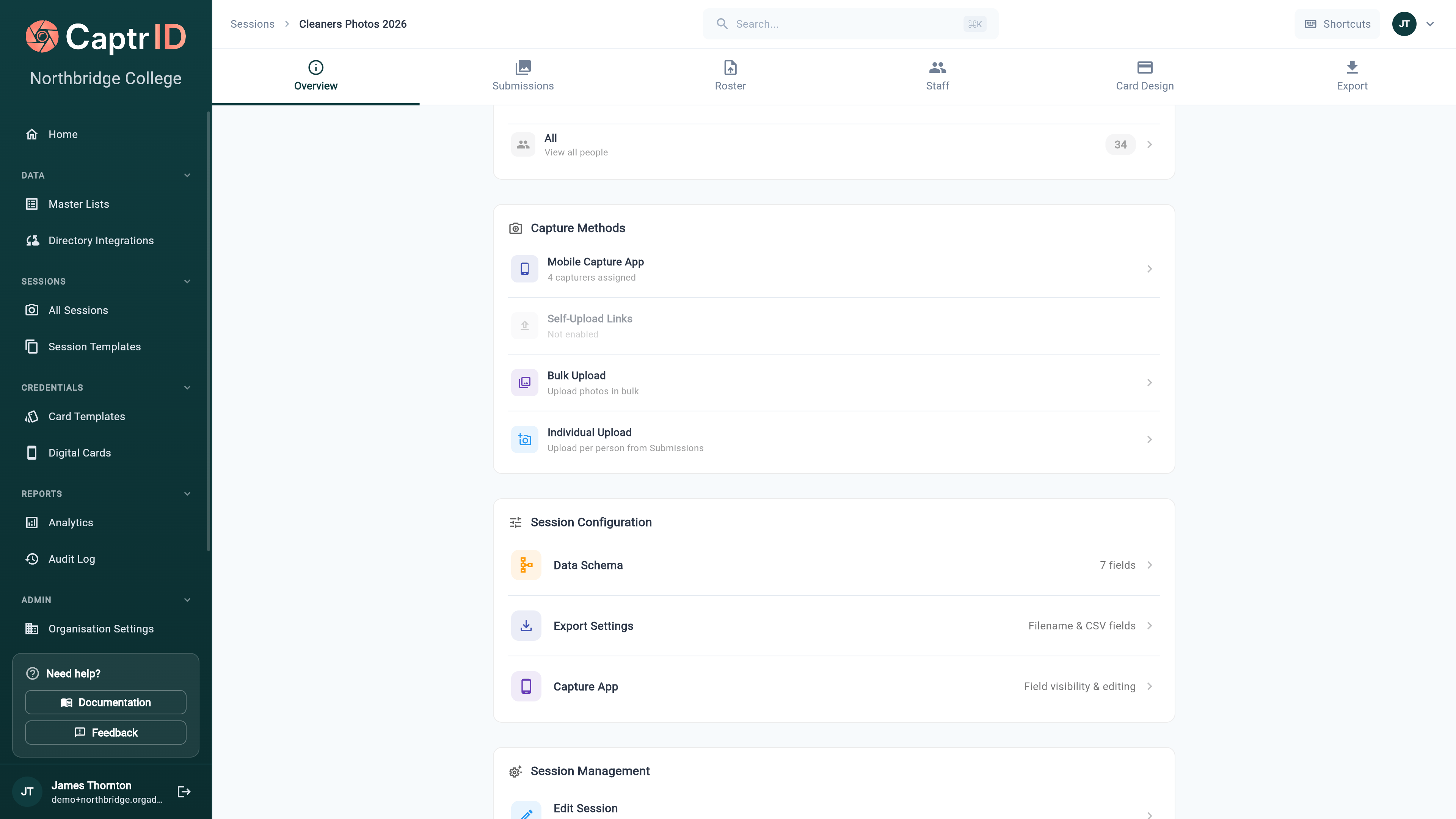
The session Overview showing the Capture Methods section with mobile app, self-upload links, bulk upload, and individual upload
The Overview also groups Session Configuration (data schema, export settings, capture-app field visibility) and Session Management (edit, close, duplicate, save as template, archive, delete).