

Directory sync requires a Pro or Business plan. Pro plans support 1 sync provider; Business plans support multiple.
Before you start
You’ll need:API permissions
Grant all three on the app registration, then Grant admin consent for <your organisation>:The first three are the configuration we test against and the one support will ask you to confirm.
Directory.Read.All is optional and fails differently: without it the connection test still passes, but custom extension attributes your organisation defined never appear in the field-mapping list. See Extension attributes.Creating the client secret
In the app registration:- Certificates & secrets → New client secret
- Description: something recognisable, e.g.
CaptrID Sync - Expiry: 24 months
- Add, then immediately copy the Value column
Note the expiry date somewhere. When a client secret expires the sync stops with an authentication error, and it is not obvious from the message that a rotated secret is all that is needed.
Step 1: Add a directory connection
- Go to Directory Integrations in the sidebar (under Data)
- Click Add Connection and choose Microsoft Entra ID as the provider
- Enter:
- Connection Name — a label for your reference (e.g. “School Entra”)
- Tenant ID — from your Entra app registration
- Client ID — from your Entra app registration
- Client Secret — the secret Value, not the Secret ID (see above)
- Click Test Connection to verify the credentials
- Success shows the number of users and groups found in your directory
- A success reporting 0 users and 0 groups is not a success — that is the permissions symptom described above, not an empty directory
AADSTS7000215means the Secret ID was pasted instead of the Value
- Click Save
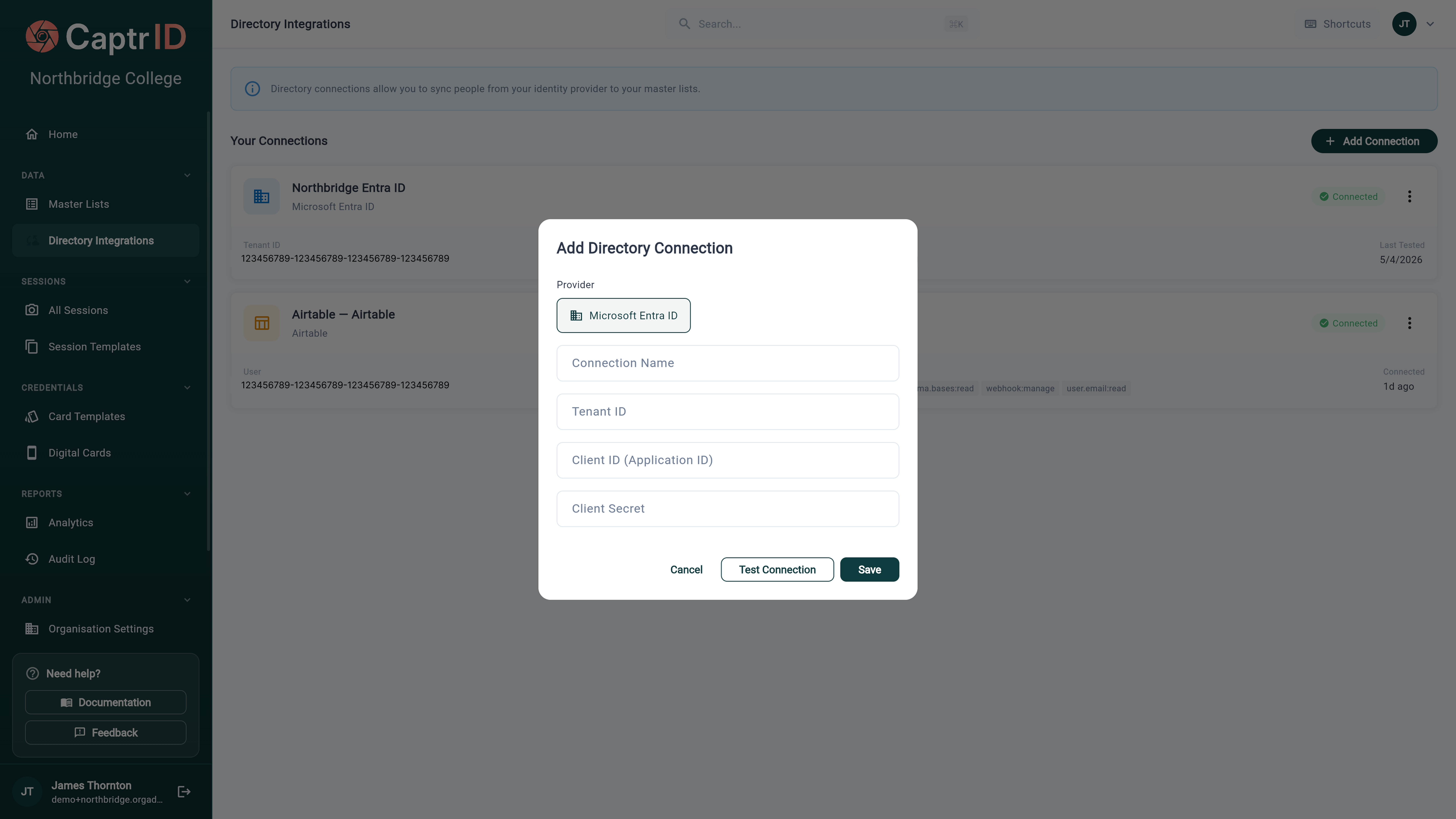
The Add Directory Connection dialog with a provider selector and fields for Tenant ID, Client ID, and Client Secret
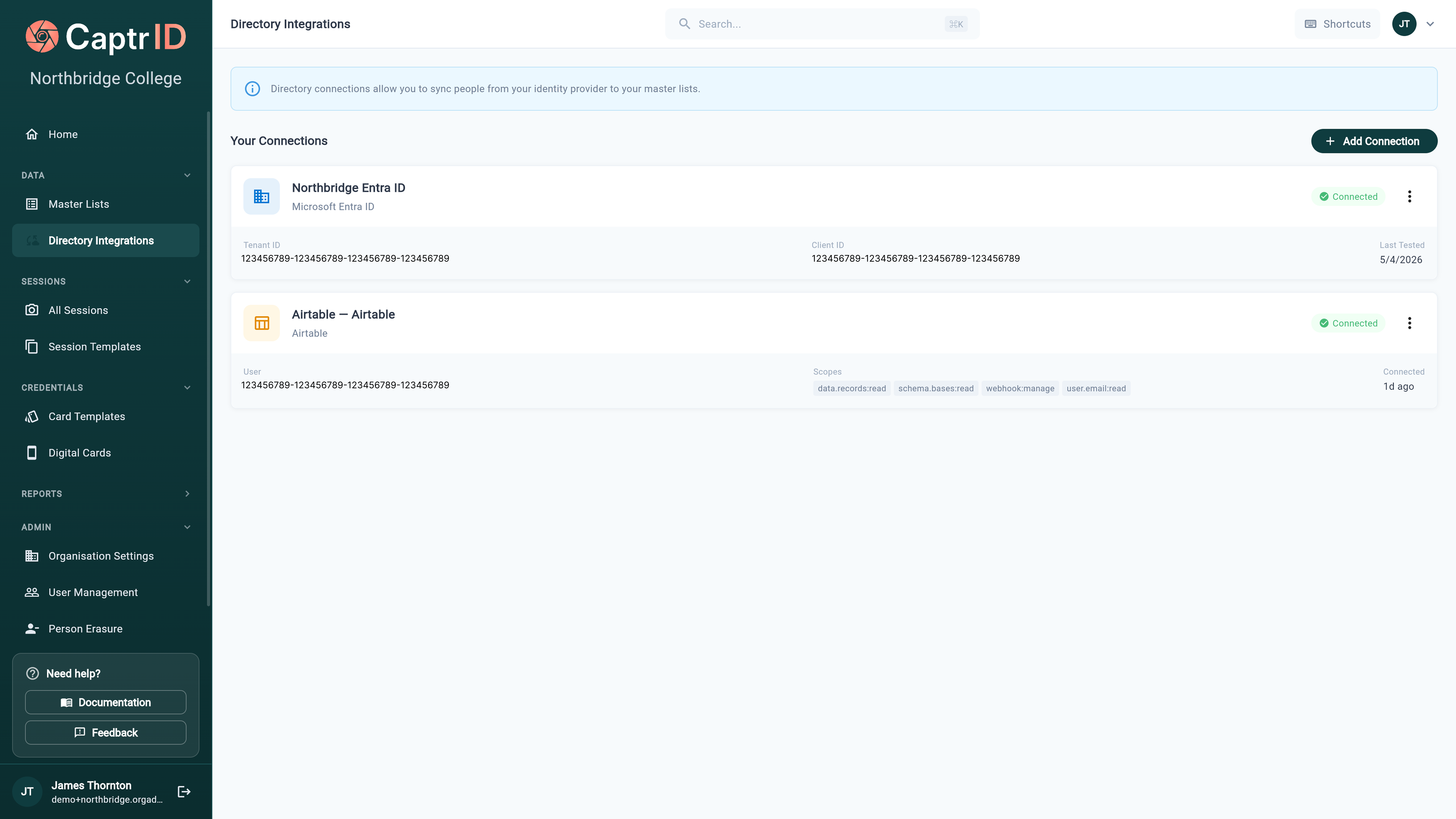
The Directory Integrations screen listing a Microsoft Entra ID connection and an Airtable connection, both showing Connected
Step 2: Configure sync on a Master List
You can configure directory sync when creating a new Master List or on an existing one:During list creation
- Click Create Master List
- Choose Directory (Microsoft Entra ID) as your source
- Select your connection from the dropdown
- Continue through the wizard (group selection, field mapping)
On an existing list
- Open your Master List
- Go to the Sync tab
- Click Configure Sync
- Follow the wizard steps below
Step 3: Set the scope
Choose which people to sync from your tenant:- All users — sync everyone in your Entra tenant
- Specific group — sync only members of one security group (e.g. “Teaching Staff”, “Year 7 Students”)
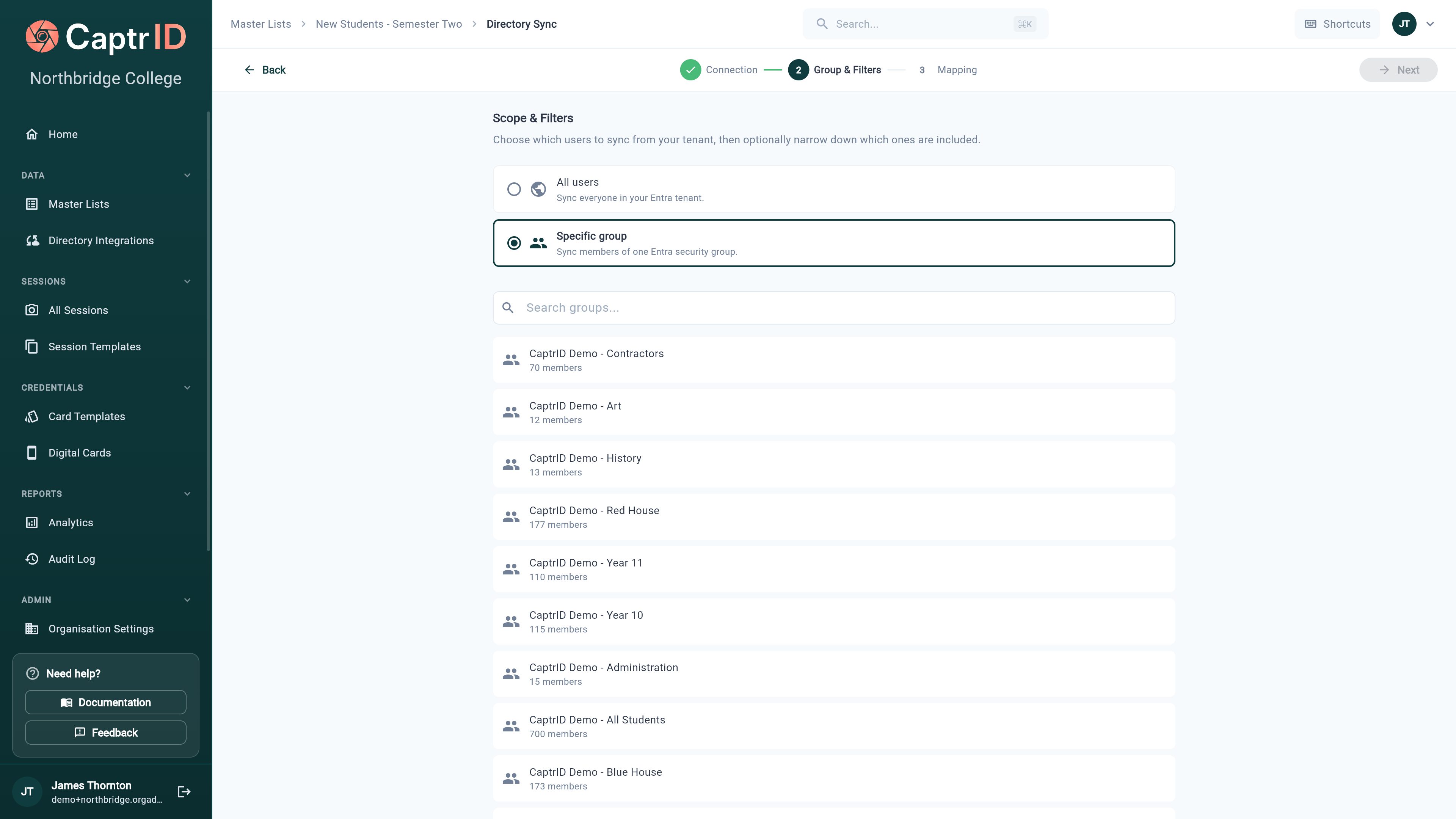
The Scope & Filters step with an All users / Specific group toggle and a searchable list of Entra security groups with member counts
Step 4: Map fields
This is where you tell CaptrID which directory fields should populate which Master List fields.
The wizard helps you:
- Suggests mappings for fields with matching names — accept them individually or Apply all
- Groups source fields by category (Identity, Contact, Organisation, Account, On-Premises, Extension Attributes, Custom) with an Unmapped only filter to focus
- Shows sample data from your directory so you can verify each mapping
- Lets you create new Master List fields on the fly, or bulk Import all fields into your schema
- Requires you to select a UID field — the directory field that uniquely identifies each person (a stable HR/SIS identifier like
employeeIdis the best choice)
Extension attributes
Schools and larger organisations often keep the field that actually matters — a student number, an employee ID, a house or campus code — in an extension attribute rather than a standard Entra field. CaptrID can map either kind, but they behave differently and it is worth knowing which you have.
Both appear under Extension Attributes in the mapping wizard once they are visible, and both work as a UID.
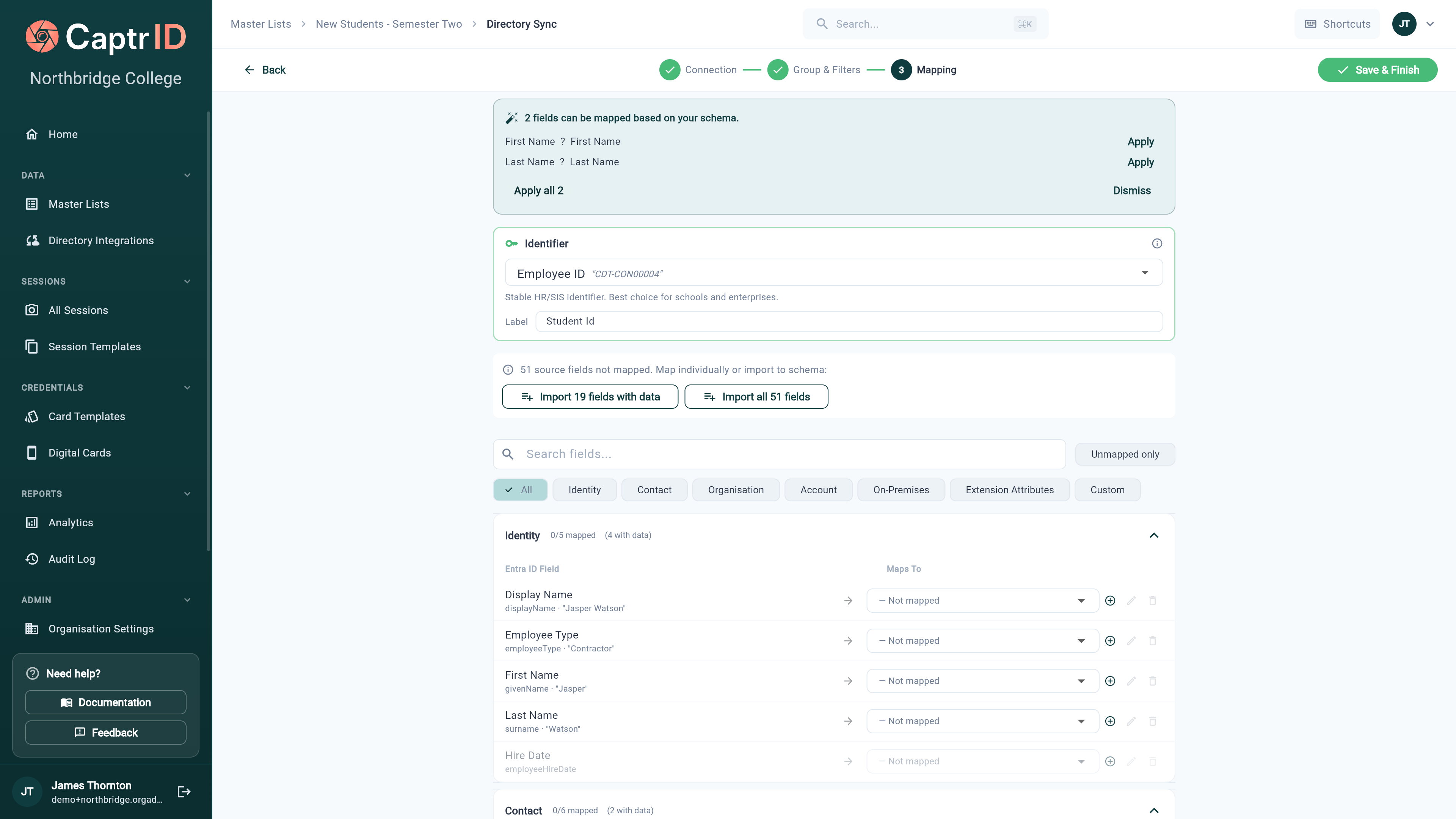
The field mapping wizard showing directory fields mapped to Master List fields with sample data preview
Step 5: Run the first sync
After saving your configuration:- Go to the Sync tab on your Master List
- Click Sync Now to run the first backfill
- Wait for the sync to complete (typically under a minute for most organisations)
- Review the results: people created, updated, photos imported, and any errors
Keeping the list up to date
After the first sync, you can keep your Master List current in two ways:Manual sync
Click Sync Now on the Sync tab whenever you want to pull the latest from Entra. Each run re-fetches the scoped users and reconciles all records — creating new people, updating changed data, and deactivating anyone who’s left the group or directory.Scheduled sync
Turn on a schedule so CaptrID syncs automatically on an interval — no need to remember to click Sync Now. Set or change the interval from the Schedule section of the Sync card.Removing a connection
If you delete a directory connection that a Master List is still syncing from, CaptrID warns you first and names what depends on it. Deleting stops those lists syncing. The people already imported stay exactly where they are — removing the connection does not remove anyone from your roster.Sync results
After each sync, the Sync tab shows: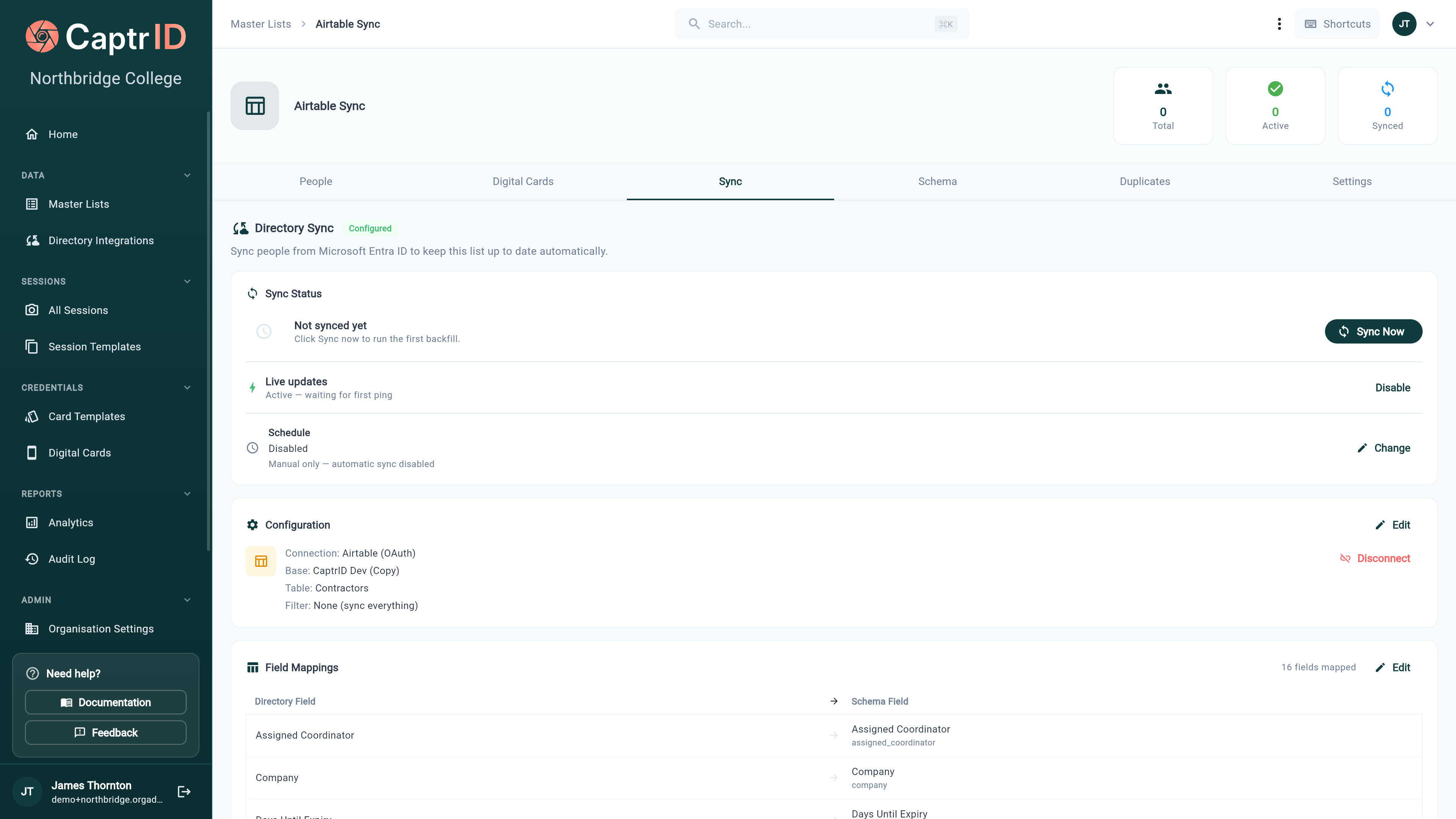
The Sync tab showing sync status, schedule, connection configuration, and a field mappings summary
- Sync Status — last sync result and a Sync Now button
- Schedule — the automatic-sync interval, with Change to adjust it
- Configuration — connection, scope, and filter, with Edit and Disconnect
- Field Mappings — a summary of mapped fields, with Edit to reopen mapping
What happens to existing data
Directory sync never deletes people permanently — it deactivates them. You can still see deactivated people by switching the status filter to “Inactive”, and reactivate them if needed.
Fields that aren’t synced
- Unmapped fields — directory fields you didn’t map are ignored
- Local-only fields — fields you added manually to the Master List schema (not mapped to any directory field) are preserved and never overwritten by sync
Photos
Directory sync pulls each person’s profile photo from Entra when one is set, so headshots populate automatically alongside their data. Choose what happens when someone already has a photo:A photo uploaded by hand is never overwritten by sync — not even on “Always”.This is deliberate. A manual upload exists to fill a gap the directory could not, and a scheduled sync quietly undoing that work would be the wrong outcome. If you want the directory to take that person back over, remove the manual photo and the next sync will supply one.It is worth knowing, because otherwise “Always” looks broken on exactly the people someone took the trouble to fix.
Editing synced people
People synced from a directory have their directory-managed fields locked in the Master List. This prevents manual edits from being overwritten on the next sync. You can still:- Edit fields that aren’t mapped to the directory
- View all field data
- Use synced people in sessions (where edits are made on the session copy, not the master)
- Push approved photos back from sessions via Save to Master List
Disconnecting
To stop syncing a Master List from the directory:- Open the Master List → Sync tab
- Click Disconnect
- Confirm the action
- Sync stops — no further updates from the directory
- All existing people remain in the Master List
- Previously locked fields become editable
- You can reconnect and re-enable syncing later