

Only Organisation Admins can access Organisation Settings. Coordinators and capturers cannot view or change these settings.
Accessing settings
Go to Organisation Settings in the sidebar (under the admin section).Coordinator permissions
Coordinators have access to session management and photo review by default. Organisation Admins can grant additional capabilities using these toggles:
All permissions are off by default. Organisation Admins and Platform Admins always have full access regardless of these settings.
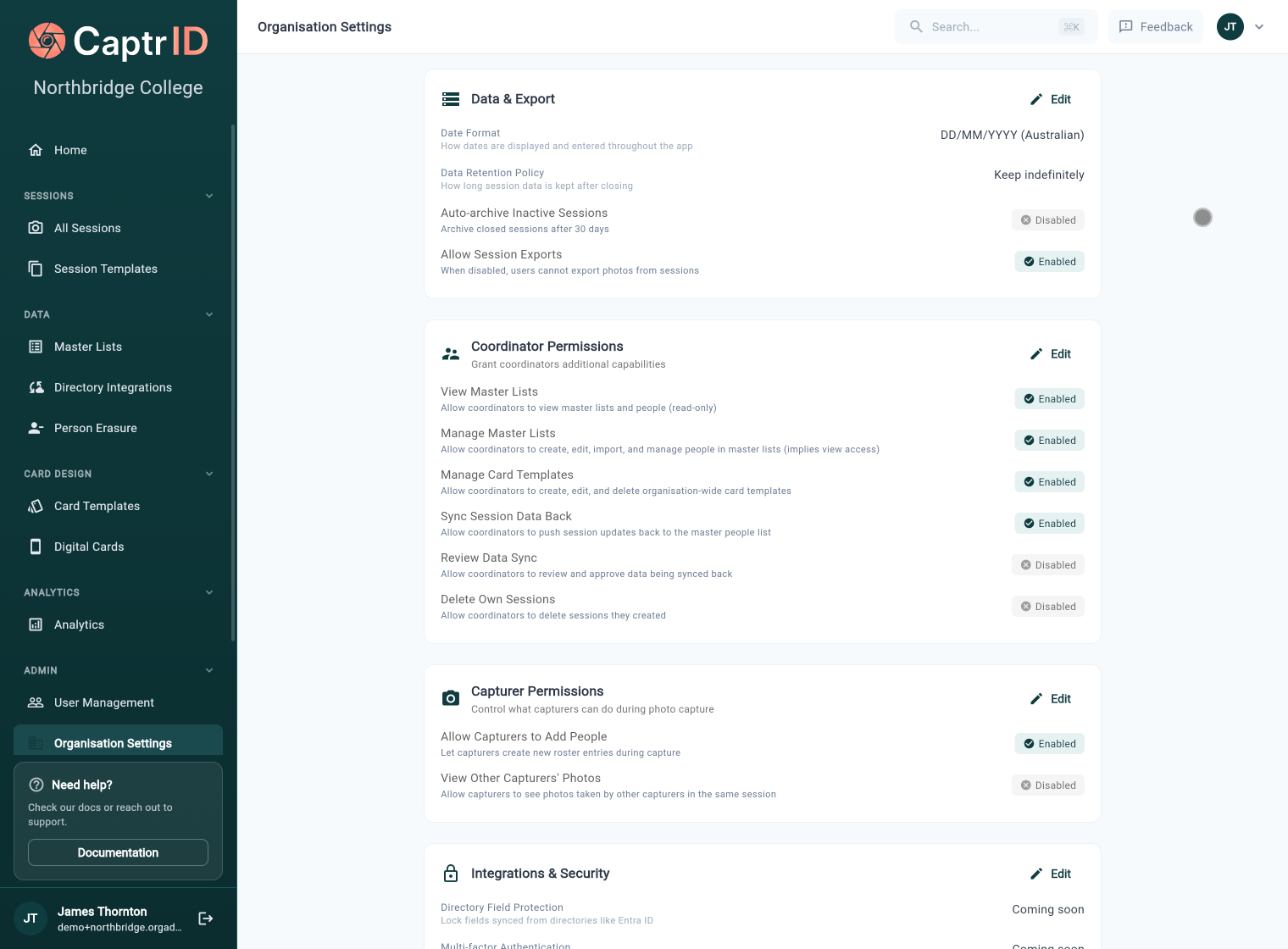
The Coordinator Permissions section in Organisation Settings showing toggle switches for each capability
How permissions affect navigation
Coordinators only see sidebar items they have permission to access. For example, if View Master Lists is off, the Master Lists section won’t appear in their sidebar at all.Session defaults
These settings are applied when creating new sessions. They can be overridden per session.Photo quality & AI capture assist
These settings govern the automatic quality checks and live capture guidance across your organisation.AI capture assist is off by default — a new organisation never scans faces without opting in. When it’s on, detection runs on-device (in the browser or on the phone) purely to advise on framing and quality; no facial data is ever stored, transmitted, or used to identify anyone. When it’s off, no face detection model runs on any surface — quality scoring continues with the non-biometric checks only.
Auto-standardise
Automatically standardise every photo at the moment it’s approved — background replaced, framing cropped, gentle enhancement applied — using the defaults you set here. See Photo Quality & Standardisation.
Photos you’ve already standardised by hand are never re-processed by the automatic pass.
Backdrop library
Upload backdrop images here to make them available in the Standardise dialog and as the auto-standardise default — so every photo lands on your organisation’s backdrop regardless of where it was captured.Data retention
Control how long session data is kept after a session is closed.
When a session is closed, the retention countdown begins. After the period elapses:
- You receive email warnings at 7 days and 1 day before expiry
- All photos, submissions, and roster data are permanently deleted
- The session record itself is preserved (empty, read-only) for reference

The Data Retention settings showing the default retention policy dropdown and an explanation of the retention lifecycle
Auto-archive
Automatically archive sessions that have been inactive (closed) for a period of time.
Archived sessions are hidden from the default session list but can still be viewed, exported, and restored.