

The Master List detail screen
Opening a Master List gives you six tabs:
The header shows live counts — Total, Active, and Synced people.
Creating a Master List
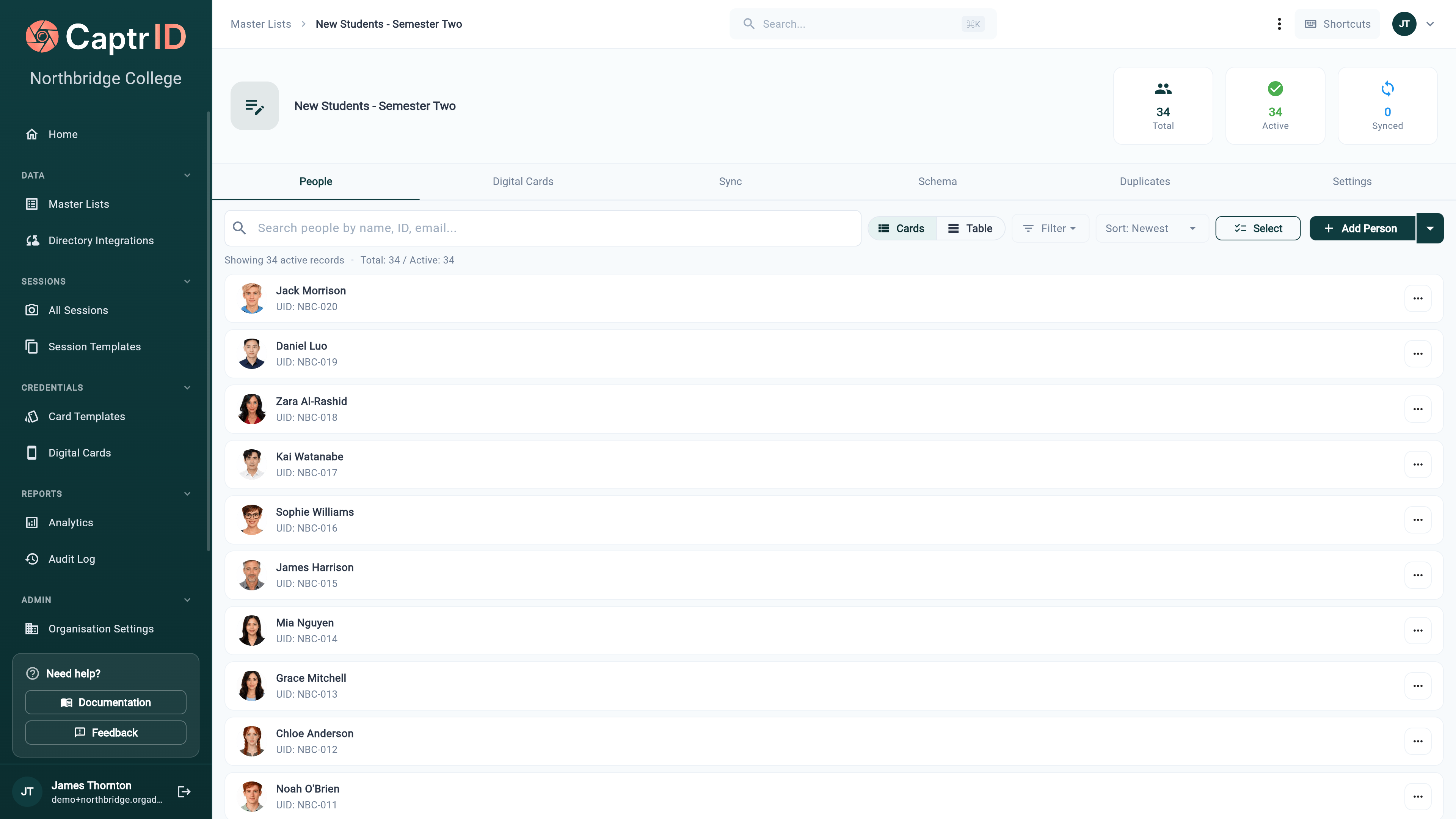
The Master List detail screen showing the People tab with field columns, search, and status filters
- Go to Master Lists in the sidebar
- Click Create Master List
- Choose how to populate your list:
- Follow the wizard to configure your source and define your fields
- Give your list a name (e.g. “Students 2026”, “Staff”, “Contractors”)
- Click Create
Defining your schema
Every Master List has a schema — the set of fields that define what data you store for each person. You configure this when creating the list, and can add or edit fields later.Field types
Adding and editing fields
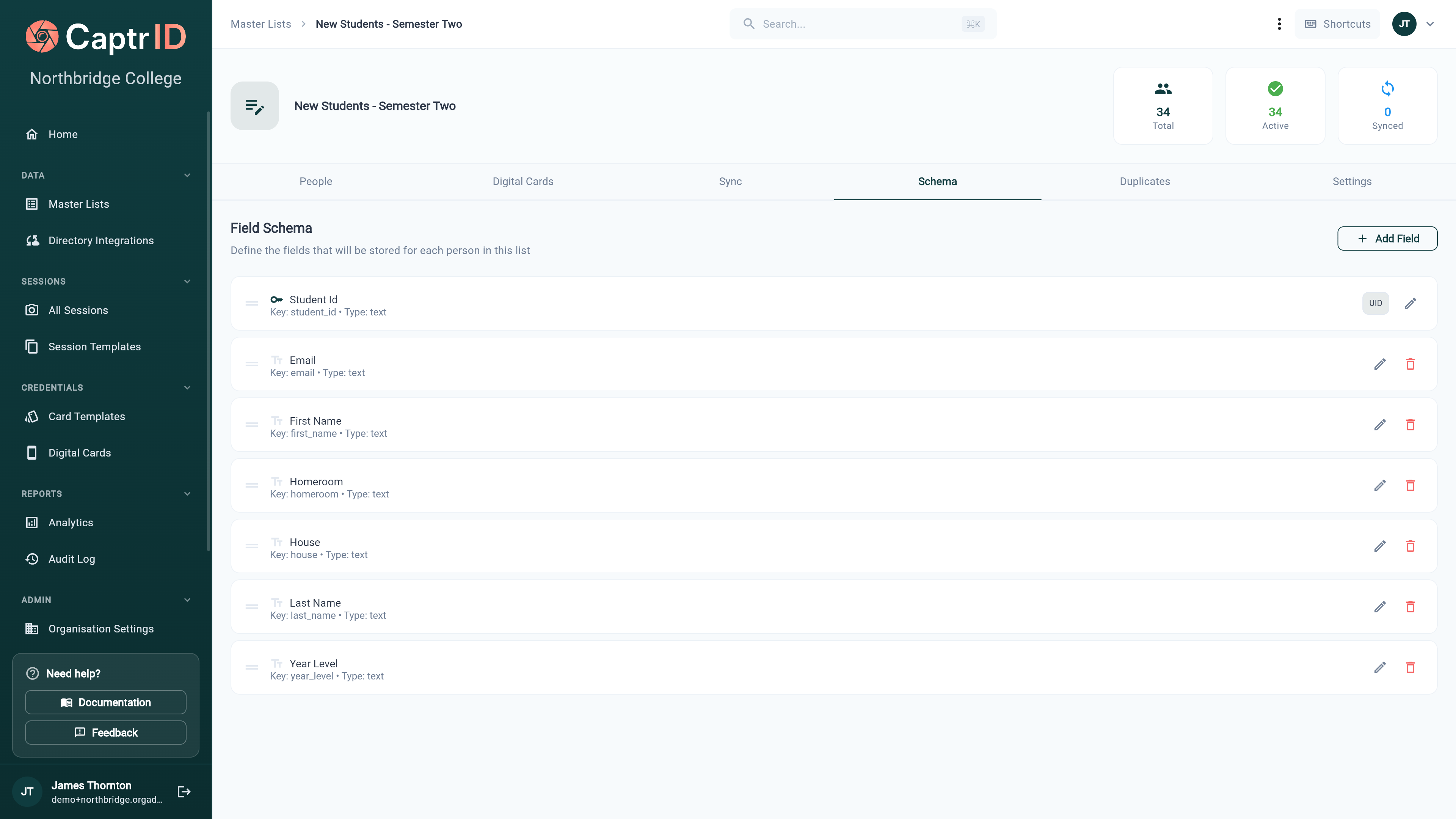
The Schema tab showing field definitions with type, required status, and the UID field highlighted
- Click Add Field to create a new field
- Enter the field key (internal name), display label, and type
- Set whether the field is required
- For dropdown fields, define the available options
- Click Save
Field roles
A schema field can be given a role — telling CaptrID which field holds the person’s first name, last name, and so on. Set these and the People list shows Alice Johnson instead of EMP001. Without them CaptrID has no way to know which of your fields is a name, so it falls back to the identifier.The UID field
Every Master List must have exactly one UID field — a unique identifier for each person. This is the field that links people across sessions, imports, and sync operations. Good UIDs: Employee number, student ID, email address, staff code Poor UIDs: Full name (duplicates), phone number (changes frequently)Promoting or renaming a UID
If you promote an existing field to be the UID, or rename the UID field, its other properties — type, options, whether it is required — are preserved. You are changing which field identifies people, not rebuilding it.Adding people
Manually
- Open your Master List
- Click Add Person
- Fill in the required fields (including the UID)
- Click Save
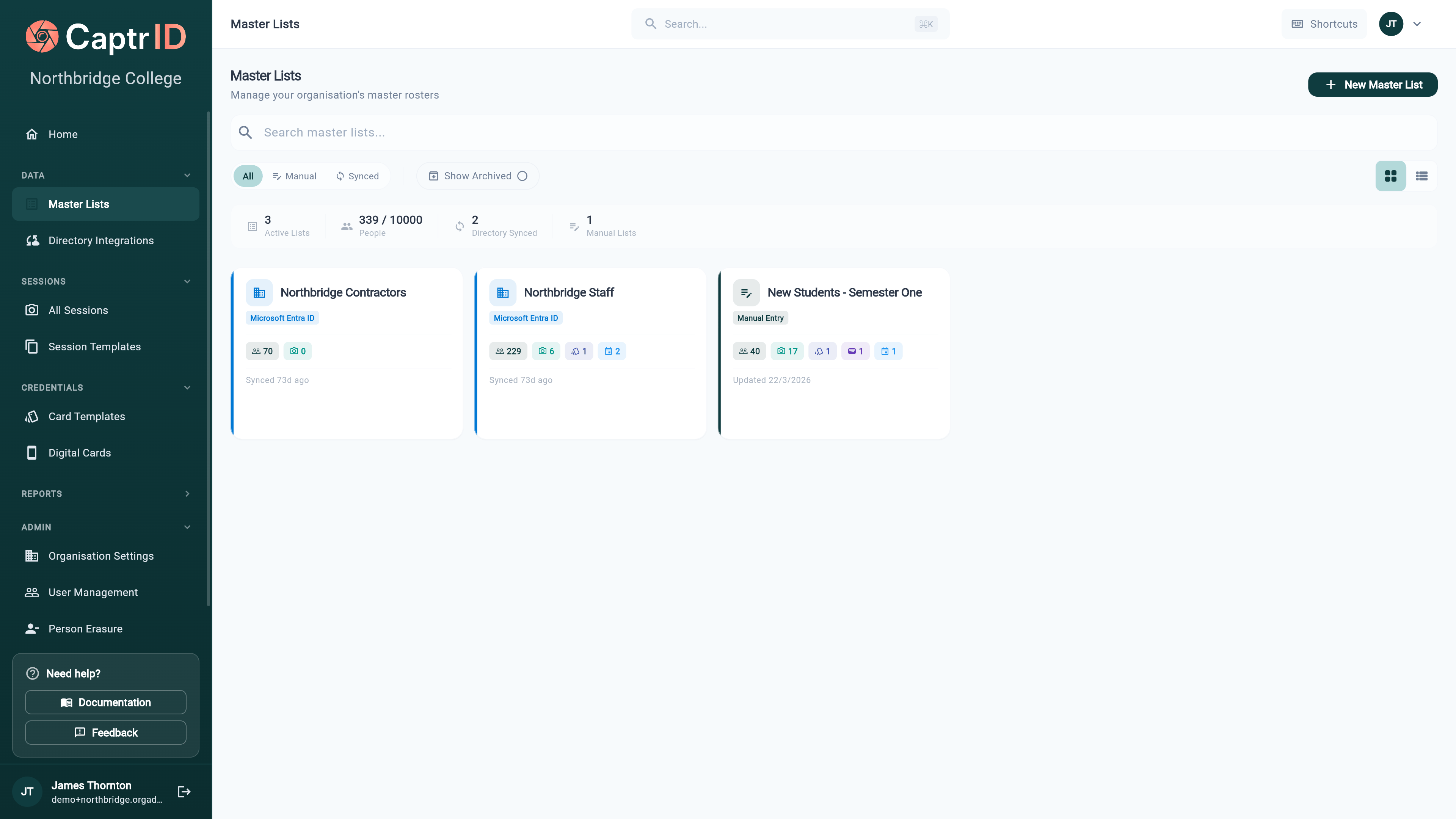
The People tab populated with records showing UID, name fields, and status badges
From CSV
The fastest way to populate a list. See Importing a CSV Roster for detailed instructions. Key points:- Existing UIDs are updated (not duplicated) on re-import
- New UIDs create new people
- Validation errors are flagged and skipped
From directory sync or Airtable
You can sync people automatically from an external source and keep the list current — including photos. See Directory Sync for Microsoft Entra ID, or Airtable Sync for an Airtable base.Adding a photo for one person
You do not need a capture session to give someone a photo. Open their row in the Master List and upload one directly — useful for a late starter, a replacement headshot, or the handful of people who missed photo day. The photo behaves exactly like an approved capture: it feeds cards, wallet passes and profile pages.Editing people
- Open your Master List and go to the People tab
- Click on a person’s row to view their details
- Edit any field values
- Click Save
People synced from a directory (e.g. Entra ID) have their directory-managed fields locked. You can still edit fields that aren’t mapped to the directory, and approved photos can still flow back from sessions.
Deactivating and reactivating people
Rather than deleting people permanently, CaptrID uses soft deletion — deactivating a person hides them from default views while preserving their data. To deactivate:- Select the person (or multiple people using checkboxes)
- Click Deactivate
- The person is hidden from the active list but their data is preserved
- Use the status filter to show Inactive people
- Select the person
- Click Reactivate
Searching and filtering
The People tab includes:- Search — Find people by name, UID, or any field value
- Status filter — Show Active, Inactive, or All people
- Sort — Click any column header to sort by that field
- Pagination — Navigate through large lists (50 people per page)
List settings
The Settings tab gathers everything about how the list behaves. Each section has its own Edit control.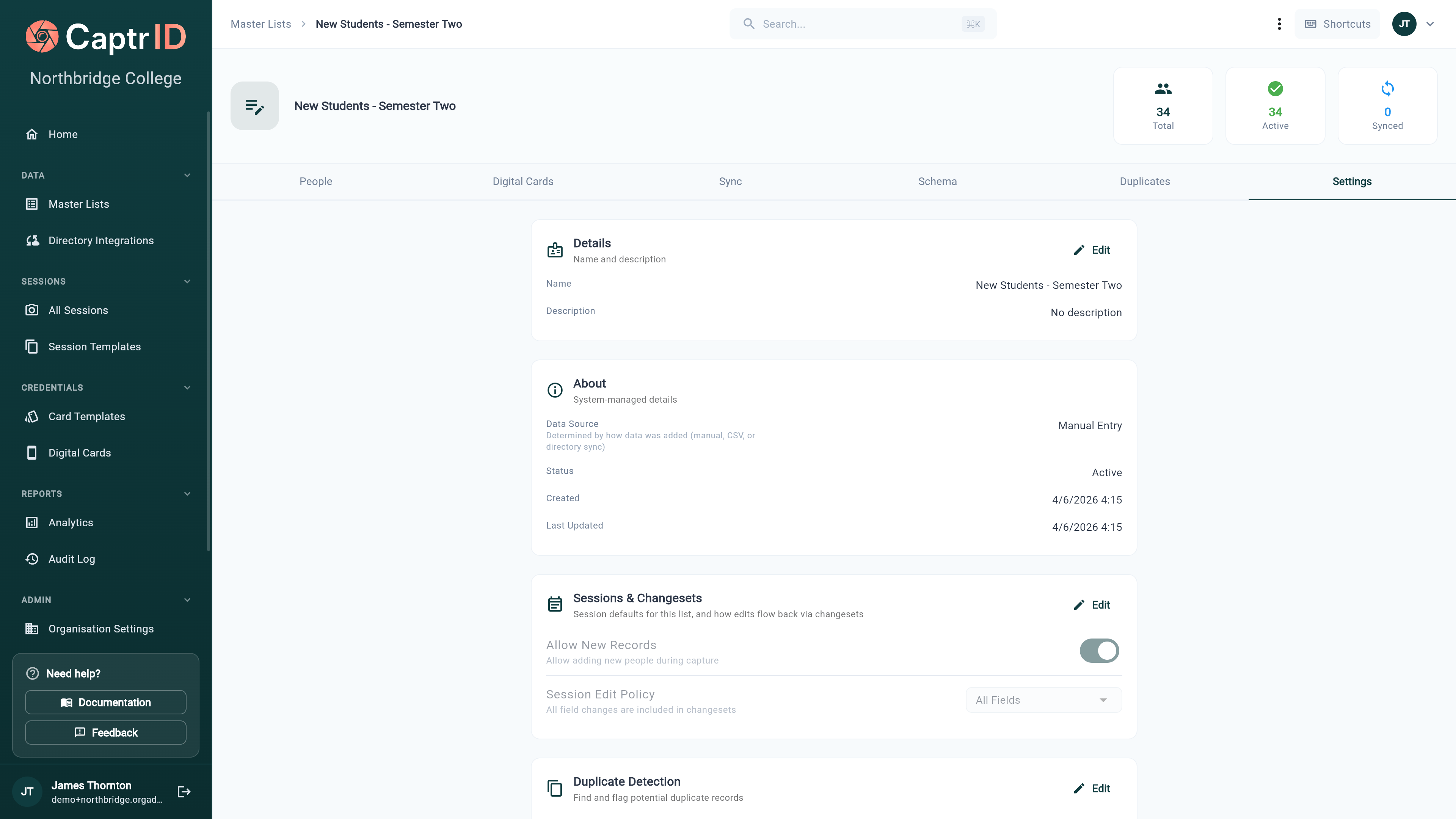
The Settings tab showing Details, About, and Sessions & Changesets sections
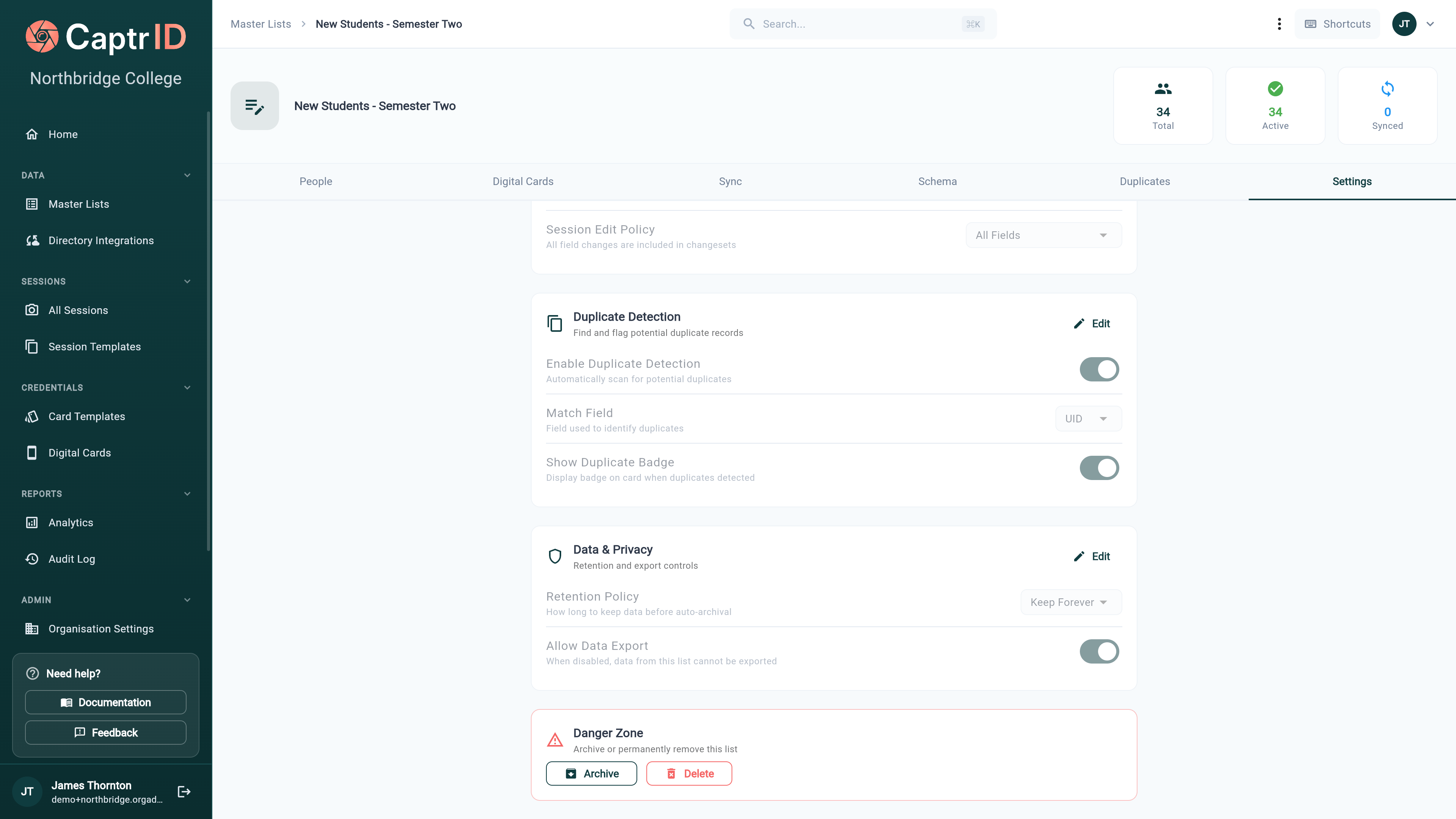
The Settings tab showing Duplicate Detection, Data & Privacy, and the Danger Zone
Organisation-wide defaults (coordinator permissions, default session settings, org-level retention) live in Organisation Settings. The Settings tab here is per-list and overrides those defaults for this list only.
Archiving and deleting
From the Danger Zone:- Archive keeps the data but hides the list from the sidebar — restore it any time. Archived lists don’t count towards your plan’s Master List limit.
- Delete permanently removes the list. Any wallet passes issued from it are revoked and voided first.
Using Master Lists with sessions
When you create a session, you can populate the roster from a Master List. CaptrID takes a snapshot — a point-in-time copy of the people. Changes in the session don’t affect the Master List until you explicitly sync them back. This means you can safely edit data, capture photos, and approve submissions in a session without worrying about accidentally changing your source of truth.Duplicates
CaptrID flags potential duplicate records so you can spot the same person appearing more than once — for example, a staff member who’s also in a contractors list. By default it matches on the UID, but you can change the Match Field under Settings → Duplicate Detection (and toggle whether a badge shows on cards). Review flagged records from the Duplicates tab on any affected Master List.Tips
- One list per population — Create separate lists for students, staff, and contractors rather than mixing them
- Keep UIDs consistent — Use the same format everywhere (e.g. always “STU001”, not sometimes “stu001”)
- Archive old lists — At the end of a school year or project, archive the list rather than deleting it
- Start with CSV — Even if you plan to use directory sync later, importing a CSV is the fastest way to get started