

Digital Cards require a Pro or Business plan. Pro plans include 1 wallet pass template; Business plans include unlimited templates.
How it works
- Design a wallet pass template with your branding
- Link the template to a Master List
- Generate passes for your people
- Distribute passes via email
- Manage the lifecycle — suspend, revoke, reinstate, regenerate, or expire passes as needed
Creating a template
- Go to Digital Cards in the sidebar
- Click New Template
- Fill in the basics:
- Configure the design (see below)
- Click Save
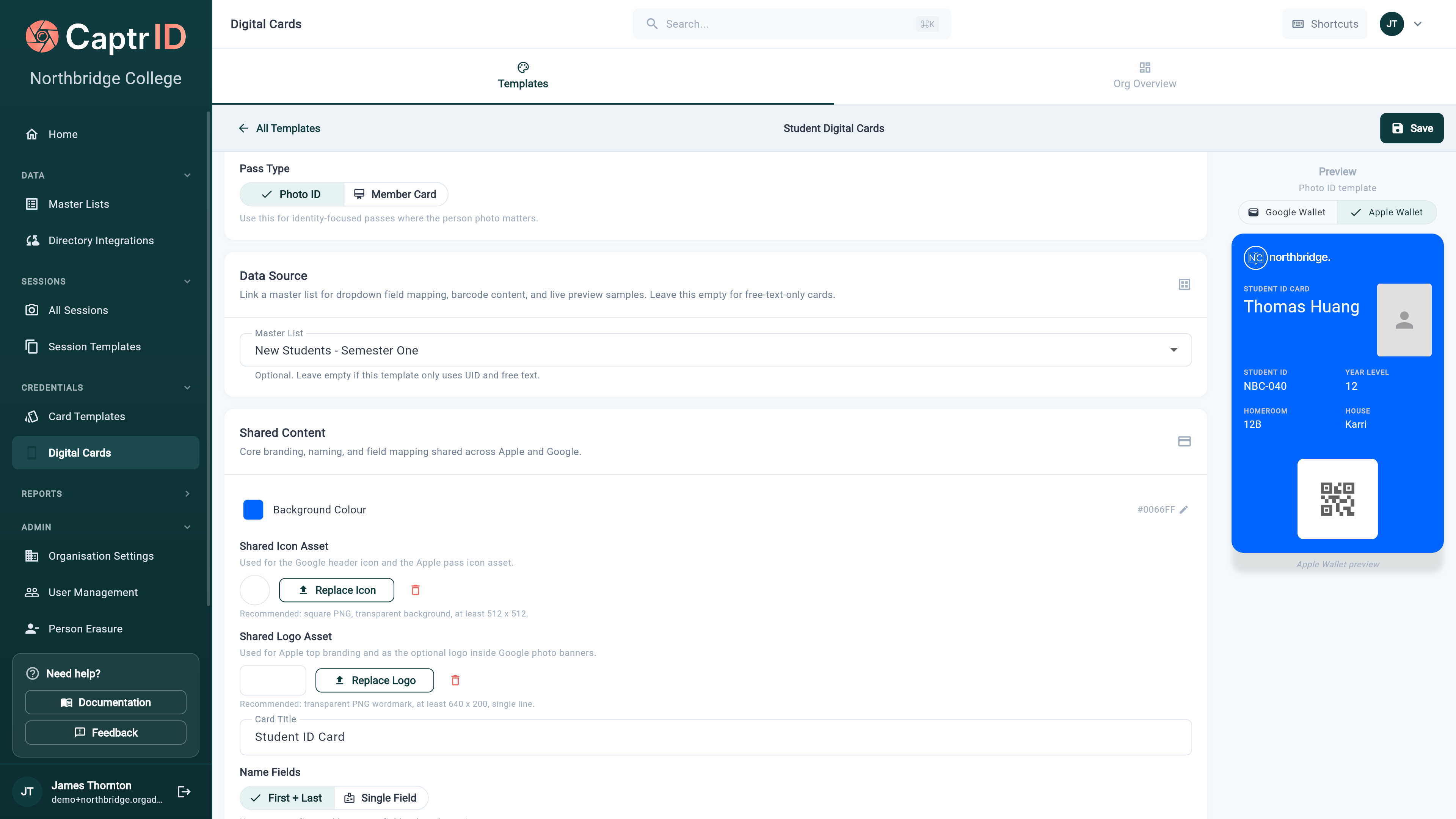
The wallet pass template editor showing branding options, field configuration, and a live pass preview
Configuring the design
New templates default to Photo ID, which is the right starting point for most organisations. A QR code is optional — turn it on when the pass needs to be scanned, for example to open the holder’s profile page at a door or a front desk.
Branding
Logo and images
You can upload three optional images: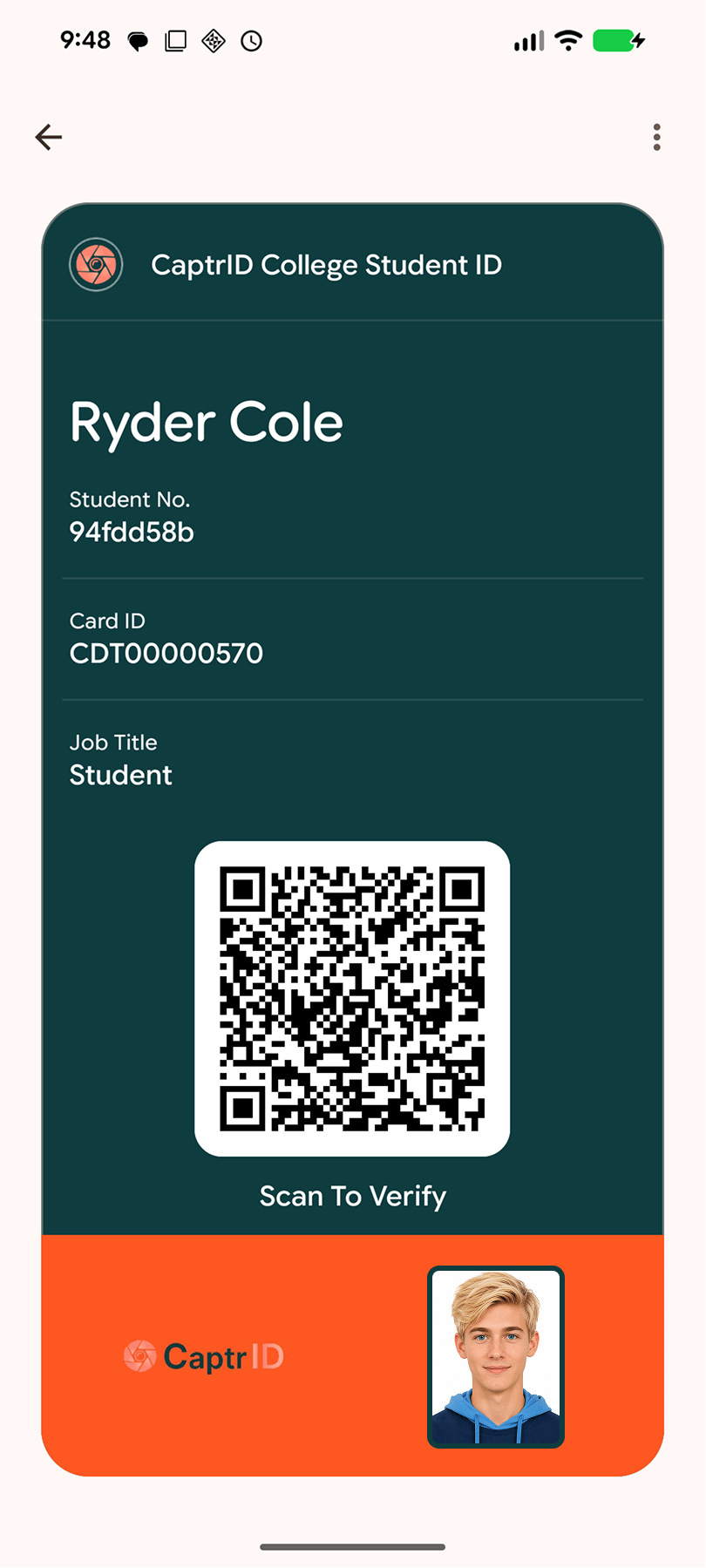
Live preview of a Google Wallet pass showing the hero section, person details, and QR code
Hero section layout
The hero section is the main visual area of the card. Choose a layout:- Photo Centred — person’s photo prominently displayed
- Photo Left / Photo Right — two-column layout with photo and logo
- Member Strip — full-width branded artwork
- Colour Only — gradient background with logo overlay
Display fields
Add up to four extra fields that appear on the card face. Each field has:Barcode
- Verification mode — QR code contains a signed verification URL (recommended)
- Custom field mode — QR code displays a specific master list field value
Validity
Saving changes to a live template
Saving a template regenerates every pass already issued from it. Holders see the new design without doing anything — no reissue, no new link to send. That is usually what you want, and it is worth knowing before you experiment on a template that three hundred people are already carrying.Linking to a Master List
Link your template to a Master List to enable field-based previews and email distribution.- In the template editor, select a Master List from the dropdown
- The preview updates with real sample data from your list
- Field dropdowns populate with your Master List’s schema
- Live preview shows real names, UIDs, and field data
- Enables email distribution (system looks up email addresses from your list)
- Prevents “field not found” errors during generation
Generating passes
Once your template is ready, generate passes for your people:- Open your Master List and go to the Digital Cards tab
- Select a template from the dropdown
- Select the people you want to generate passes for (or use Select All)
- Click Generate Wallet Passes
- Review the confirmation dialog — it shows the template name, person count, and any field warnings
- Click Generate

The pass generation confirmation dialog showing template name, person count, and field warnings
- Pending → generation in progress
- Generated → ready to distribute
Distributing passes
After generation, distribute passes to recipients via email:- Select people, then choose an action from the toolbar:
- Send Unsent — emails only the people who haven’t received their pass yet (the safe default — it won’t re-email anyone)
- Resend (incl. sent) — re-emails everyone selected, including people who were already sent a pass
- Confirm the count of recipients
- Each person receives an email with an “Add to Google Wallet” or “Add to Apple Wallet” button
Email configuration
On your template, configure delivery settings:Delivery tracking
Each pass tracks its delivery status:Working in bulk
On a Master List’s Digital Cards tab, click Select to choose multiple people at once. The toolbar then exposes every lifecycle action so you can act on a whole group in one go: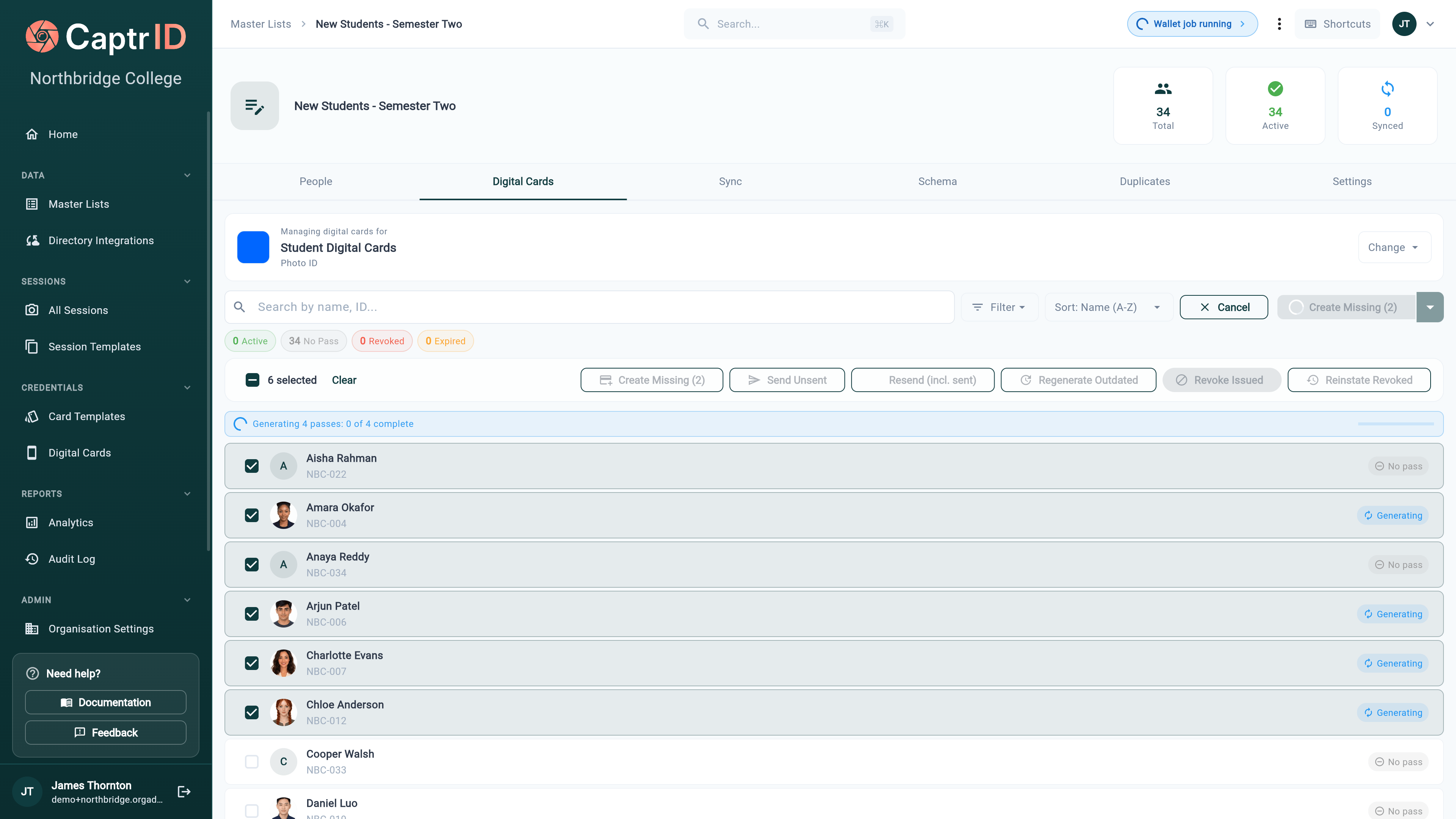
The Digital Cards tab in selection mode showing the bulk action toolbar and a wallet job generating passes
Bulk generation runs as a background wallet job — a progress pill (“Wallet job running”) appears in the top bar and the affected rows show a Generating status until they finish.
Pass statuses
Each row also shows which wallets the pass was added to (Apple / Google icons) and an Email sent badge once it’s been distributed.
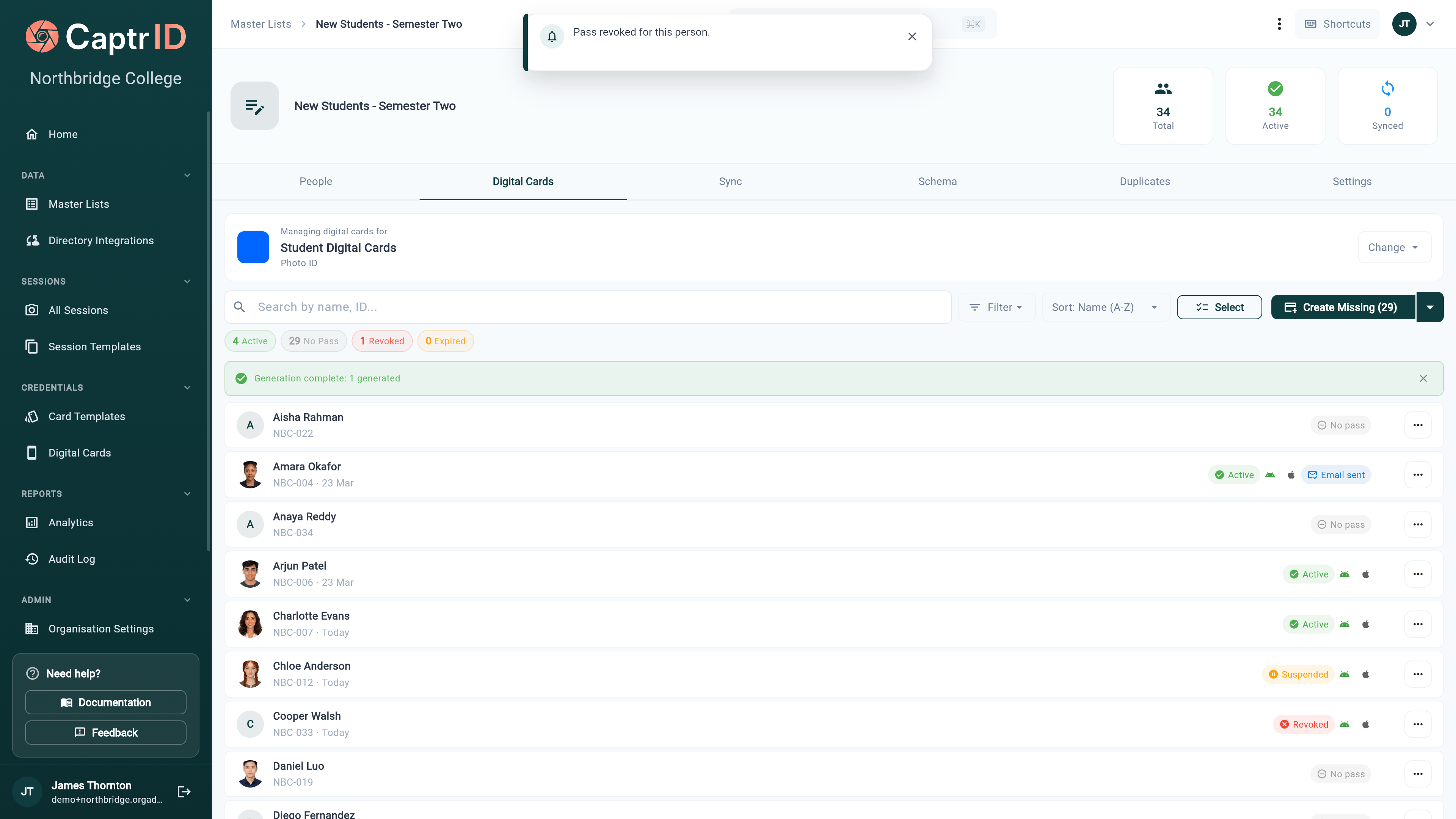
The Digital Cards tab showing passes with Active, Suspended, Revoked, and No Pass status badges
Suspending passes
A suspend puts a pass on hold without cancelling it — useful for a temporary situation like overdue fees or a lost-then-found card.- Open the person’s pass actions and choose Suspend (or select several and suspend in bulk)
- Optionally enter a reason (e.g. “Fees overdue”)
- Confirm
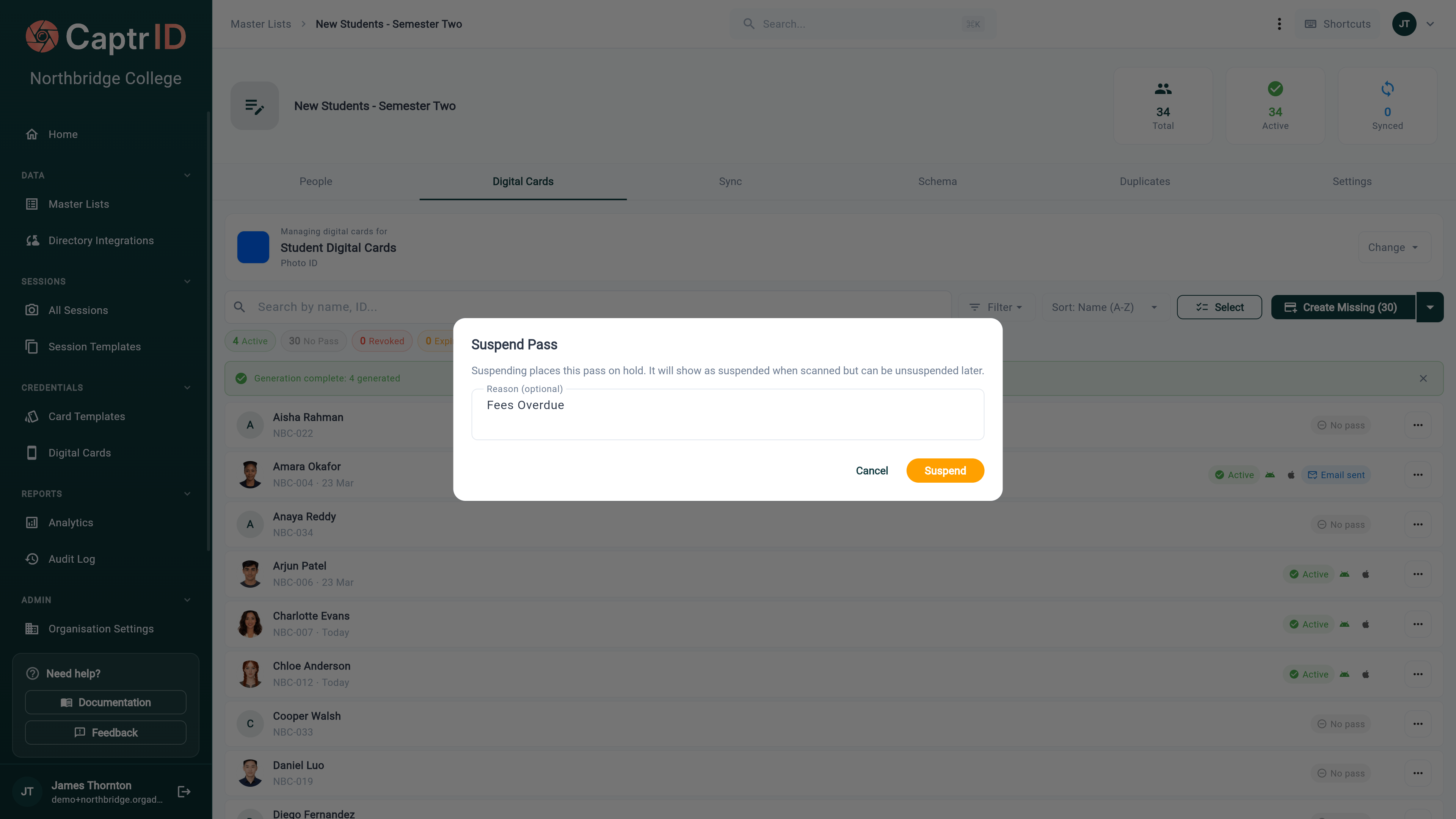
The Suspend Pass dialog explaining that a suspended pass shows as suspended when scanned but can be unsuspended later
Revoking passes
When someone leaves your organisation or no longer needs their credential:- Select their pass (or multiple passes)
- Click Revoke
- Confirm the action
Passes are revoked automatically when data is removed
To prevent a live credential outliving its record, CaptrID revokes and voids passes for you when the underlying person is removed:
This means a deleted person can never present a working wallet pass — the QR code resolves to a revoked credential.
If you re-link a person to a new serial (for example, after re-issuing a card), CaptrID resets the delivery state so the pass can be sent fresh — it won’t be incorrectly treated as “already delivered”.
Updating outdated passes
When a person’s data changes (name, department, photo), their pass becomes outdated — the card still shows the old information. To update individual passes:- Select the outdated passes
- Click Regenerate
- Save your template changes
- An amber banner appears: “N active passes use this template. Design changes won’t appear until passes are regenerated.”
- Click Regenerate All
Regeneration creates a new pass. Recipients who previously added the pass to their wallet will need to add the new one.
QR verification
Each pass includes a QR code that links to a verification page. When scanned, the page displays:- Person’s name and UID
- Organisation name
- Pass status (active, suspended, revoked, expired)
- Photo (if included)
Plans and limits
If you’ve reached your template limit, you’ll see an upgrade prompt when trying to create a new template.
Tips
- Start with a small group — Generate and distribute passes for 5-10 people first to verify the design and email flow
- Use verification mode — The signed QR code is more secure than displaying a raw field value
- Set up email delivery — Link your template to a master list with email addresses before generating passes
- Revoke promptly — When someone leaves your organisation, revoke their pass to prevent misuse
- Watch for outdated passes — After bulk data updates or template changes, regenerate active passes to keep them current